Clock
Adjusting the Clock
Models without navigation system
You can adjust the time in the clock display with the ignition switch in ON  *1.
Adjusting the Time
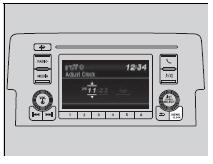
Models with color audio system
- Using the MENU/CLOCK button
1. Press and hold the MENU/CLOCK button.
- Adjust Clock is selected.
2. Rotate to change hour, then press
 .
3. Rotate  to change minute, then press
 .
4. To enter the selection, rotate  and select Set, then press
 .
Adjusting the Clock
Models with navigation system
The clock is automatically updated through the audio system, so the time does not need to be adjusted.
You can customize the clock display to show the 12 hour clock or 24 hour clock.
Customized Features
Models with Display Audio
Models with information display
You cannot adjust the time while the vehicle is moving.
Using the MENU/CLOCK button
Models with color audio system
These indications are used to show how to operate the LIST/SELECT (List/Selector) knob.
Rotate to select.
Press  to enter.

Models with Display Audio
Using the Settings menu on the audio/ information screen
1. Select Settings.
2. Select Clock.
3. Select Clock Adjustment.
4. Select or
 to change hour.
5. Select  or
 to change minute, then select OK.
Using the Settings menu on the audio/information screen
The clock display is set to off by factory default.
You can turn the clock display on and off.
Customized Features
The clock is automatically updated when your smartphone is connected to the audio system.
You can also adjust the clock by touching the clock displayed on the upper right corner of the display.
1. Touch the clock on the display for a few seconds.
2. Select Clock Adjustment.
3. Select  or
 to change hour.
4. Select  or
 to change minute, then select OK.
Test yourself
A quick Honda Civic quiz: every answer comes with an explanation and a link to the manual page.