Vehicle overview
Using the instrument cluster menus: Premium version
In this manual: Vehicle overview
~2min read
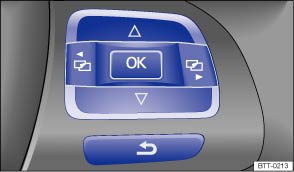
Fig. 16 Premium version (vehicles with menu control multi-function steering wheel): buttons on the right side of the steering wheel.
On vehicles with menu control multi-function steering wheels (Premium version), the instrument cluster menus are controlled with buttons on the right side of the steering wheel ⇒ Fig. 16 .
Accessing the instrument cluster menus
- Switch on the ignition. You will see the vehicle icon or a message in the instrument cluster display.
- Push the OK button (⇒ Fig. 16 ) on the right side of the multi-function steering wheel until a main menu appears in the instrument cluster display. For a list of main menus, see ⇒ Menu structure – overview (Premium version) ⇒ Menu structure – overview (Premium version)
- Push buttons
 or
 to move to another main menu, and push the arrow up and down buttons
 and
 to navigate inside the current main menu. For example, in the Settings main menu, press the arrow down button to navigate to the MFI data sub-menu.
Displaying sub-items
- Press the OK button ⇒ Fig. 16 to display sub-items located behind the items in a menu. For instance, after scrolling to MFI data in the Settings main menu, press the OK button to display the various MFI data sub-items (Travel time, curr. consum., etc.).
Selecting a setting
- Some menus are used to select settings for certain features. Push the OK button (⇒ Fig. 16 ) to select a setting. For example, the 2 settings under Mirror adjust (Settings > Convenience > Mirror adjust) are Individually and Both mirrors. After navigating to these items, use the arrow up and down buttons to highlight one and then push the OK button to select this setting.
Returning to the higher menu level
- Use the arrow down button to select Back and then press the OK button (⇒ Fig. 16 ).
Test yourself
A quick Volkswagen Tiguan quiz: every answer comes with an explanation and a link to the manual page.
Was this page helpful?