Bluetooth Audio
How to Play Bluetooth Audio
- A mobile phone or Bluetooth device that supports the A2DP (Advanced Audio Distribution Profile) version 1.2 or higher must be connected to and paired with the system.
- On the mobile phone or Bluetooth device, find the Bluetooth device type to be set/connected as stereo headphones.
If the stereo headphones are connected successfully, a musical note symbol [n] will appear in the lower right corner of the screen.
- Do not connect a mobile phone to the Bluetooth connector.
If it is connected while a CD/MP3 is playing or Bluetooth audio is playing, an error may occur.
Playing Bluetooth Audio
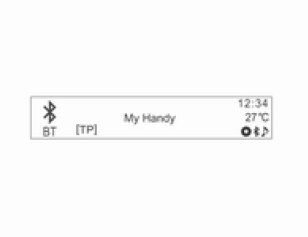
Press the CD/AUX button to select the connected Bluetooth device from which audio is to be played.
If no Bluetooth device is connected, this function cannot be selected.
Once the mobile phone or Bluetooth device is activated, music files will play.
- Audio from the Bluetooth device is played through the audio-navigation system.
- For Bluetooth audio playback to work, music must be started at least once in the music player mode of the mobile phone or Bluetooth device after it has been connected as stereo headphones. After playback has been started at least once, the music player will automatically start playback when Bluetooth Audio mode is entered and automatically stop playback when the music player mode is exited. If the mobile phone or Bluetooth device does not display the standby screen, some devices may not start automatic playback in Bluetooth Audio mode.
Press one of the buttons SEEK
 ,
to skip to the previous or next track, or press and hold one of these buttons to fast-forward or rewind the track.
- This function only works with Bluetooth devices that support AVRCP (Audio Video Remote Control Profile) version 1.0 or higher.
(Depending on the Bluetooth device options, some devices may display an AVRCP connection when first connected.)
- Information about the track being played and the playback position is not displayed by the audio-navigation system.
Notes on Playing Bluetooth Audio
- Do not change tracks too quickly during Bluetooth audio playback.
Transferring data from the mobile phone to the audio-navigation system takes some time.
- The audio-navigation system sends the playback command from the mobile phone in Bluetooth Audio mode. If this occurs in another mode, the device sends a playback stop command.
Depending on the mobile phone options, executing the playback/stop playback command may take some time.
- If the mobile phone or Bluetooth device does not display the standby screen, automatic playback may not start even after leaving Bluetooth Audio mode.
If Bluetooth audio playback does not work, check whether the phone displays the standby screen.
- Sometimes audio may be cut off during Bluetooth audio playback.
The audio-navigation system plays audio from the mobile phone or Bluetooth device in the form in which it is transmitted.
Bluetooth Error Messages and Actions
- Bluetooth is off. Check that Bluetooth is set to on. Bluetooth functions can be used once it is turned on.
- Bluetooth is busy. Check whether any Bluetooth devices are connected. To connect another device, first disconnect the other connected devices, then try connecting again.
- Device List Full. Check that fewer than 5 devices are registered. No more than 5 devices can be registered.
- Phonebook Not Available. This message appears if the mobile phone does not support contact transfer. If this message appears after several attempts, the device does not support contact transfer.
- Phonebook Empty. This message appears if no phone numbers are stored in the mobile phone. It also appears if phonebook transfer is supported but in a way that the audio-navigation system does not support.
Test yourself
A quick Chevrolet Aveo quiz: every answer comes with an explanation and a link to the manual page.