Connecting Bluetooth Devices
Pairing a Bluetooth Device
To connect a Bluetooth device to the audio navigation system, it must be paired first.
First, on the Bluetooth device to be connected, use the Bluetooth Settings menu to enable its visibility to other Bluetooth devices.
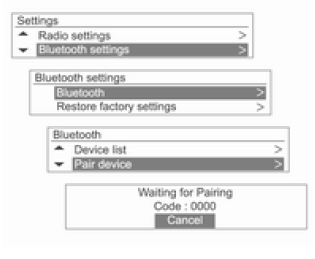
Press the CONFIG button, then use the MENU-TUNE button/knob to select System Setup → Bluetooth Settings → Bluetooth → Pair Device, then press the MENU-TUNE button.
- Bluetooth devices can be paired not only with the CONFIG button, but also via Phone Menu → Bluetooth Settings → Bluetooth → Add Device.
- If a Bluetooth device is already connected to the audio navigation system, the message Bluetooth is busy will be displayed.
- Waiting for connection will be displayed, along with a message and a security code. (The factory code is 0000, and it can be changed in Settings → Bluetooth Settings → Bluetooth → Change Bluetooth Code.)
The audio navigation system can be found by searching for Bluetooth devices waiting for connection.
Enter the security code for the audio navigation system on the Bluetooth device.
If pairing the device to be connected to the audio navigation system is successful, information about the Bluetooth device will be displayed on the screen.
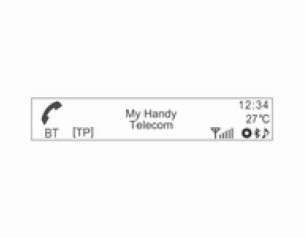
- Up to five Bluetooth devices can be registered in the audio-navigation system.
- Some Bluetooth devices can only be used when the Always connect setting is selected.
Pairing/Deleting/Disconnecting Bluetooth Devices
Caution If a Bluetooth device is already connected, disconnect it first.
First, on the Bluetooth device to be connected, use the Bluetooth Settings menu to enable its visibility to other Bluetooth devices.
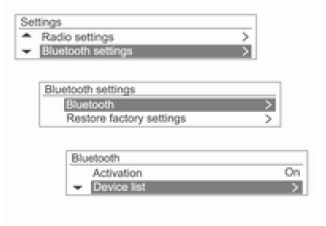
Press the CONFIG button and use the MENU-TUNE knob to select Settings → Bluetooth Settings → Bluetooth → Device List, then press the MENU-TUNE knob.
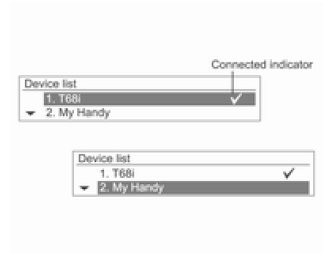
Use the MENU-TUNE knob to move from the registered Bluetooth device to the device to be connected, then press the MENU-TUNE knob.
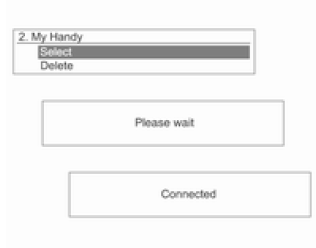
Use the MENU-TUNE knob to select Select to register the device or Delete to remove it, then press the MENU-TUNE knob.
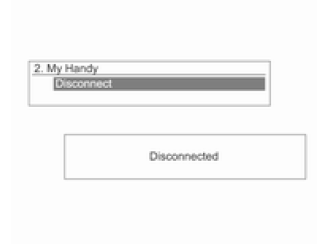
To disconnect the currently connected Bluetooth device, select the device from the device list, which displays the Disconnect option, then press the MENU-TUNE knob.
Notes on Pairing/Connecting Bluetooth Devices
- If a Bluetooth connection cannot be established, delete the entire device list on the Bluetooth device being connected and try again. If deleting the entire device list does not help, remove and reinstall the battery, then reconnect.
- If problems occur after connecting a Bluetooth device, use the MENU-TUNE knob to select Settings → Bluetooth Settings → Restore Factory Settings.
Reset the device that has a connection problem with the audio-navigation system.
- Sometimes the Bluetooth connection can only be used for the hands-free system or Bluetooth audio playback, even though stereo headphones are connected. In this case, try reconnecting the audio-navigation system with the Bluetooth device.
- Bluetooth devices that do not support stereo headphones do not allow Bluetooth audio playback.
- Bluetooth Audio cannot be played when an iPhone is connected to the USB port. This is due to the characteristics of this mobile phone.
Test yourself
A quick Chevrolet Aveo quiz: every answer comes with an explanation and a link to the manual page.