Hands-Free Phone
General Information without Touchscreen
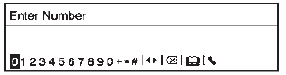 To use the hands-free phone on vehicles
without a touchscreen radio, press  ,
select Onstar Hands-Free Calling, then enter the desired number.
General Information with Touchscreen
Vehicles with a Hands-Free Phone system can use a Bluetooth-capable cell phone with a hands-free profile to make and receive phone calls.
The infotainment system and voice control are used to operate the system. Not all phones support all functions and not all phones work with the Hands-Free Phone system.
Hands-Free Phone Controls
Use the buttons on the infotainment system and the steering wheel to operate the Hands-Free Phone system.
Steering Wheel Controls
Steering wheel controls can be used to:
- Answer incoming calls.
- Confirm system information.
- End a call.
- Decline a call.
- Cancel an operation.
- Make outgoing calls using the call list.
 (Push to Talk): Press to answer
incoming calls and to confirm system information. Press and hold for two to three seconds to access the call list.
 (Mute/End Call): Press to end a call,
decline a call, or cancel an operation.
Making a Call by Entering a Phone Number
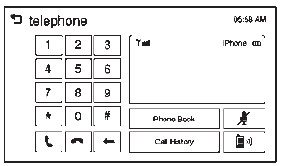 Enter the phone number using
the keypad on the telephone screen.- Press
 on the screen
or on the steering wheel controls.
If a wrong number is entered, press  to delete the number one digit at
a time, or press and hold  to delete
all digits of the number.
Switching a Call to the Cell Phone (Private Mode)
To switch the call from the cell phone to hands-free:
- Press
 .
- Press
 again to switch back
to hands-free.
Turning the Microphone On and Off
Press  to turn the microphone
on or off.
Calling by Redial
To call by using redial:
- Press
 on the steering wheel
controls to display the redial guidance screen.
- Press and hold
 on the telephone
screen.
Redialing is not possible when there is no call history.
Taking calls
When a phone call comes through the connected Bluetooth cell phone, the playing track will be cut off and the phone will ring with the relevant information displayed.
Press  on the steering wheel controls
or press Accept on the screen.
To decline the call, press  on the
steering wheel controls or press Reject on the screen.
Using the Phone Book Menu
- Press Phone Book on the telephone screen.
- Press
 or
 to scroll through the list.
- Select the phone book entry to call.
- Press the number to dial.
Searching for Phone Book Entries
- Press Phone Book on the telephone screen.
- Press
 on the phone book screen.
- Use the keypad to input the name to search. For details, refer to the “Searching for a Name” later in this section.
- Select the phone book entry to call.
- Press the number to dial.
When the Bluetooth device and infotainment system are successfully paired, the phone book will download. Some phones may not download automatically. If this happens, connect it again or proceed with the phone book download on the phone.
Searching for a Name
Select characters by using the keypad on the phone book screen.
As characters are selected, the names that include those characters will display on the phone book screen. As more characters of the name are entered, the list of possible names is shortened.
To search for the name Alex:
- Press (abc) to select the first character.
- Press (jkl) to select the second character.
- Press (def) to select the third character.
- Press (wxy) to select the fourth character.
Making a Call from Call History
- Press Call History on the telephone screen.
- Press one of the following for:
 Dialed calls.
 Missed calls.
 Received calls.
- Select the phone book entry to call.
Making a Call with Speed Dial Numbers
Press and hold the speed dial number using the keypad on the telephone screen.
Only speed dial numbers already stored on the cell phone can be used for speed dial calls. Up to two-digit speed dial numbers are supported.
For two-digit speed dial numbers, press and hold the second digit to make a call to the speed dial number.
Test yourself
A quick Chevrolet Spark quiz: every answer comes with an explanation and a link to the manual page.