Bluetooth (Infotainment Controls)
To use infotainment controls to access the menu system, see Overview on page 7-3.
Pairing
A Bluetooth-enabled cell phone must be paired to the Bluetooth system and then connected to the vehicle before it can be used. See your cell phone manufacturer's user guide for Bluetooth functions before pairing the cell phone. If a Bluetooth phone is not connected, calls will be made using OnStar Hands-Free Calling, if available. See OnStar Overview on page 14-1.
Pairing Information
- A Bluetooth phone with MP3 capability cannot be paired to the vehicle as a phone and an MP3 player at the same time.
- Up to five cell phones can be paired to the Bluetooth system.
- The pairing process is disabled when the vehicle is moving.
- Pairing only needs to be completed once, unless the pairing information on the cell phone changes or the cell phone is deleted from the system.
- Only one paired cell phone can be connected to the Bluetooth system at a time.
- If multiple paired cell phones are within range of the system, the system connects to the first available paired cell phone in the order that they were first paired to the system. To link to a different paired phone, see “Linking to a Different Phone” later in this section.
When the Bluetooth device and infotainment system are successfully paired, the phone book is downloaded automatically.
However, the phone book may not be downloaded automatically according to the type of the phone.
In this case, proceed with the phone book download on the phone.
Pairing a Phone
When there is no paired device on the infotainment system and the Simple Secure Pairing (SSP) is supported:
- Press
 .
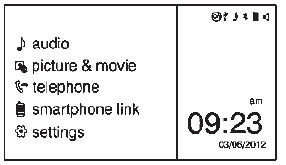
- Press
 telephone, then press
Yes. - Press Search Bluetooth Device.
- Press the desired device to pair on the searched list screen.
- Press Yes on the pop-up screen of the Bluetooth device and infotainment system.
- When the Bluetooth device and infotainment system are successfully paired, the telephone screen is displayed on the infotainment system.
Pairing a Phone
When a paired device is on the infotainment system and the SSP is supported:
- Press
 .
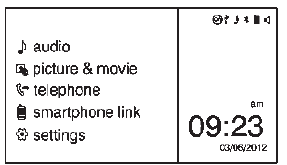
- Press
 settings.
- Press connection settings.
- Press bluetooth settings.
- Press pair device.
- Press Search Bluetooth Device.
- Press the desired device to pair on the searched list screen.
- Press Yes on the pop-up screen of the Bluetooth device and infotainment system.
- When the Bluetooth device and infotainment system are successfully paired,
 is displayed on the pair
device screen.
- The connected phone is highlighted by
 .
 indicates the hands-free and
phone music functions are enabled. indicates only the hands-free
function is enabled. indicates only Bluetooth music
is enabled.
Pairing a Phone
When there is no paired device on the infotainment system and the SSP is not supported:
- Press
 .
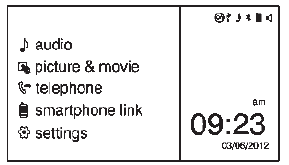
- Press
 telephone, then
press Yes. - Press Search Bluetooth Device.
- Press the desired device to pair on the searched list screen.
- Input the Personal Identification Number (PIN) code (default: 1234) to the Bluetooth device.
When the Bluetooth device and infotainment system are successfully paired, the telephone screen is displayed on the infotainment system.
When the connection fails, a failure message is displayed on the infotainment system.
If a Bluetooth device was previously connected, the infotainment system executes the auto connection.
However, if the Bluetooth setting on the Bluetooth device is turned off, a failure message is displayed on the infotainment system.
Pairing a Phone
When a paired device is on the infotainment system and the SSP is not supported:
- Press
 .
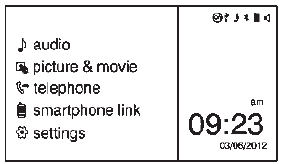
- Press
 settings.
- Press connection settings.
- Press bluetooth settings.
- Press pair device.
- Press Search Bluetooth Device.
- Press the desired device to pair on the searched list screen.
- Input the Personal Identification Number (PIN) code (default: 1234) to the Bluetooth device.
When the Bluetooth device and infotainment system are successfully paired, 57 is displayed on the pair device screen.
- The connected phone is highlighted by
 .
 indicates the hands-free and
phone music functions are enabled. indicates only the hands-free
function is enabled. indicates only Bluetooth music
is enabled.
Connecting a Bluetooth Device
- Press
 .
- Select
 settings.
- Press connection settings.
- Press bluetooth settings
- Press pair device.
- Press the device to be paired.
- Press OK.
Checking the Bluetooth Connection
- Press
 .
- Select
 settings.
- Press connection settings.
- Press bluetooth settings.
- Press pair device.
- The paired device will show with
 when connected.
Disconnecting the Bluetooth Device
- Press
 .
- Select
 settings.
- Press connection settings.
- Press bluetooth settings.
- Press pair device.
- Press the name of the device to be disconnected.
- Press OK.
Deleting a Paired Phone
- Press
 .
- Select
 settings.
- Press connection settings.
- Press bluetooth settings.
- Press pair device.
- Press Delete.
- Press Yes.
Bluetooth Music
Before playing Bluetooth music, read the following information.
- A cell phone or Bluetooth device that supports Advanced Audio Distribution Profile (A2DP) versions over 1.2 must be registered and connected to the product.
- From the cell phone or Bluetooth device, find the Bluetooth device type to set/connect the item as a stereo headset.
 will appear on the screen
if the stereo headset is successfully connected.- The sound played by the Bluetooth device is delivered through the infotainment system.
- Bluetooth music can be played only when a Bluetooth device has been connected. To play Bluetooth music, connect the Bluetooth phone to the infotainment system.
- If the Bluetooth device is disconnected while playing phone music, the music is discontinued. The audio streaming function may not be supported in some Bluetooth phones. Only one function can be used at a time between the Bluetooth hands-free or Phone music function. For example, if you convert to Bluetooth hands-free while playing Phone music, the music is discontinued. Playing music from the car is not possible when there are no music files stored in the cell phone.
- For Bluetooth music to play, the music must be played at least once from the music player mode of the cell phone or Bluetooth device after connecting as a stereo headset.
After being played at least once, the music player will automatically play upon entering play mode, and it will automatically stop when the music player mode ends. If the cell phone or Bluetooth device is not in the waiting screen mode, some devices may not automatically play in Bluetooth music play mode.
Playing Bluetooth Music
- Press
 .
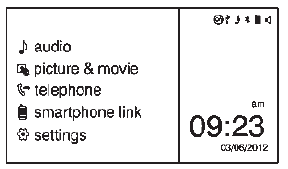
- Press
 audio.
- Press Source
 .
- Press Bluetooth, then select the connected Bluetooth music play mode.
Pause
Press  to pause.
Press  again to resume.
Skipping the Previous or Next File
Press  or
 to select the previous or next file.
Search
Press and hold  or

to rewind or fast forward.
Playing a File Repeatedly
Press  during playback.
- 1: Plays the current file repeatedly.
- ALL: Plays all files repeatedly.
- OFF: Returns to normal playback.
This function may not be supported depending on the cell phone.
Playing a File Randomly
Press  during playback.
- NO: Plays all files repeatedly.
- OFF: Returns to normal playback.
This function may not be supported depending on the cell phone.
Do not change the track too quickly when playing Bluetooth music.
Conditions that may occur when playing Bluetooth music:
- It takes some time to transmit data from the cell phone to the infotainment system.
- If the cell phone or Bluetooth device is not in the waiting screen mode, it may not automatically play despite being carried out from the Bluetooth music play mode.
- The infotainment system transmits the order to play from the cell phone in the Bluetooth music play mode. If this is done in a different mode, then the device transmits the order to stop. Depending on the cell phone’s options, this order to play/stop may take time to activate.
- If the Bluetooth music playback is not functioning, then check to see if the cell phone is in the waiting screen mode.
- Sounds may be cut off during the Bluetooth music playback.
- The infotainment system outputs the audio from the cell phone or Bluetooth device as it is transmitted.
Test yourself
A quick Chevrolet Spark quiz: every answer comes with an explanation and a link to the manual page.