Pictures and Movies (Movie System)
The infotainment system can play movie files stored on a USB storage device and devices that support Media Transfer Protocol (MTP).
Movie System Information
Caution for Using Movie Files
- Available resolution: Within 720 x 576 (W x H) pixels.
- Frame rate: Less than 30 fps.
- Playable movie file: .avi, .mpg, .mp4, .divx, .xvid, .wmv. The playable movie file may not be played according to the codec format.
- Playable codec format: divx, xvid, mpeg-1, mpeg-4 (mpg4, mp42, mp43), wmv9 (wmv3).
- Playable Audio format: MP3, AC3, AAC, WMA.
- Max video bitrate:
mpeg-1: 8 Mbps
mpeg-4 (mpg4, mp42, mp43): 4 Mbps
wmv9: 3 Mbps
divx 3: 3 Mbps
divx 4/5/6: 4.8 Mbps
xvid: 4.5 Mbps
- Max audio bitrate:
mp3: 320 Kbps
wma: 320 Kbps
ac-3: 640 Kbps
aac: 449 Kbps
- Movie files to which Digital Right Management (DRM) is applied may not be played.
Playing a Movie File
- Connect the USB device to the USB port.
- Press the screen to open to full screen. Press the screen again to return to the previous screen.
If the USB device is already connected:
- Press
 .
- Press
 picture & movie.
- Press Source
 .
- Press USB movie.
Movie is not available while driving.
Viewing a Slide Show
From the picture screen, press  .
- The slide show will start to play.
- Press the screen to cancel the slide show during the slide show playback.
- The last played audio source will play as background music during the slide show playback.
Pause
- Press
 to pause.
- Press
 to resume.
Changing to Next/Previous Movie
- Press
 to change to the next
file. - Press
 within five seconds of
the playback time to play the previous file.
Returning to the Beginning of the Current Movie
Press  after five seconds of the
playback time.
Scanning Forward or Backward
Press and hold  or
 during playback to rewind or fast forward.
Release the button to resume playback at normal speed.
Viewing Full Screen
Press  from the movie screen.
Press  again to return to the previous
screen.
Using the USB Movie Menu
- Press MENU from the movie screen.
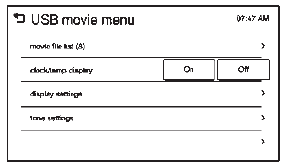
- Press the appropriate menu:
- movie file list: lists all movie files.
- clock/temp display: allows selection of On or Off to show the clock and temperature on the full screen.
- display settings: adjusts for Brightness and Contrast.
- tone settings: shows the sound setup. See “Tone Settings” under “Radio Controls with Touchscreen” in Operation on page 7-6.
- Press
 to exit.
Subtitle Language
If the movie file has a subtitle language, it can be viewed.
- Press
 from the movie screen.
- Press
 or
 on the pop-up screen.
- Press
 to close the pop-up screen.
If there is only one subtitle language, it can be set to On/Off.
Audio Language
If the movie file has an audio language, it can be used.
- Press
 from the movie screen.
- Press

 or
 on the pop-up screen.
- Press
 to close the pop-up
screen.
An audio language can be set only when supported by the DivX movie file.
Test yourself
A quick Chevrolet Spark quiz: every answer comes with an explanation and a link to the manual page.