Infotainment System
Pictures and Movies (Picture System)
In this manual: Infotainment System
10steps
~60min
3/5difficulty
Done 0 of 10
The infotainment system can view picture files stored on a USB storage device and devices that support Media Transfer Protocol (MTP).
Picture System Information
Caution for Using Picture Files
File size:
- JPG: Within 64 to 5,000 pixels (Width) and 64 to 5,000 pixels (Height).
- BMP, PNG, GIF: Within 64 to 1,024 pixels (Width) and 64 to 1,024 pixels (Height).
File extensions: .jpg, .bmp, .png, .gif. Animated .gif files are not supported.
Some files may not operate due to a different recording format or the condition of the file.
Viewing Pictures
- Connect the USB device to the USB port.
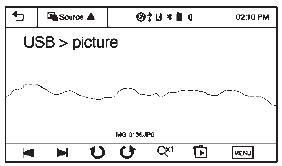
- Press the screen to open to full screen. Press the screen again to return to the previous screen.
If the USB device is already connected:
- Press
 .
- Press
 picture & movie.
- Press Source
 .
- Press USB picture.
Some features are disabled while the vehicle is in motion.
Viewing a Slide Show
- From the picture screen, press
 . The slide show will start to play.
- Press the screen to cancel the slide show during the slide show playback.
Viewing a Previous or Next Picture
Press  or
 from the picture screen.
Rotating a Picture
Press  or
 from the picture screen.
Enlarging a Picture
Press  from the picture screen.
Using the USB Picture Menu
- Press MENU from the picture screen.
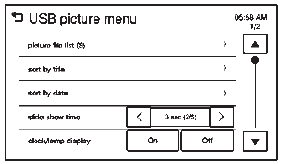
- Press the appropriate menu:
- picture file list: lists all picture files.
- sort by title: shows pictures in title order.
- sort by date: shows pictures in date order.
- slide show time: allows selection of the slide show interval.
- clock/temp display: allows selection of On or Off to show the clock and temperature on the full screen.
- display settings: adjusts for Brightness and Contrast.
- Press
 to exit.
Test yourself
A quick Chevrolet Spark quiz: every answer comes with an explanation and a link to the manual page.
Was this page helpful?