Audio system
Audio system
In this manual: Audio system
~2min read
Operations such as listening to audio, using the hands-free phone, confirming vehicle information and changing audio system settings are started by using the following buttons.
Audio system operation buttons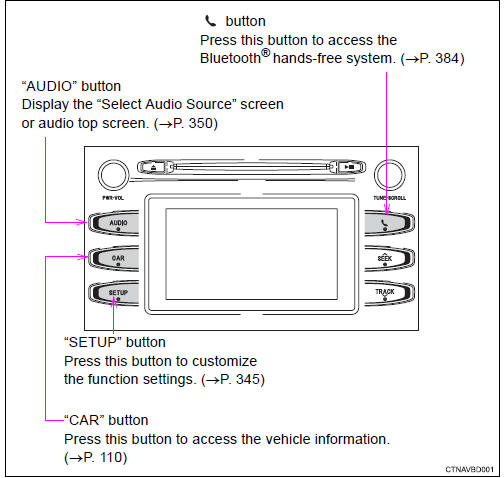
*: if equipped
Operating the touch screenBy touching the screen with your finger, you can control the audio system, etc.
DragTouch the screen with your finger, and move the screen to the desired position.
- Scrolling the lists
- using scroll bar in lists
Touch the screen with your finger and quickly move the screen by flicking your finger.
- Scrolling the main screen page
- returning to the menu screen from the sub-menu screen (screen one level below)
*: the above operations may not be performed on all screens.
Capacitive touch switchesThe control panel uses capacitive touch sensors.
- In the following cases, incorrect operation or non-response may occur.
- If the operating section is dirty or has liquid attached to it, incorrect operation or non-response may occur.
- If the operating section receives electromagnetic waves, incorrect operation or non-response may occur.
- If wearing gloves during operation, non-response may occur.
- If fingernails are used to operate the system, non-response may occur.
- If a touch pen is used to operate the system, non-response may occur.
- If the palm of your hand touches the operating section during operation, incorrect operation may occur.
- If the palm of your hand touches the operating section, incorrect operation may occur.
- If operations are performed quickly, non-response may occur.
- Please do not reach your hand to the part of button when audio system turn on. Because the button may become unresponsive for a while. But it will be back to normal for a given time even if audio system turned on under the condition.
- If the screen is cold, the display may be dark, or the system may seem to be operating slightly slower than normal.
- ´The screen may seem dark and hard to see when viewed through sunglasses.
Change your angle of viewing, adjust the display on the "display settings" screen Or remove your sunglasses.
- Flick operations may not be performed smoothly in high altitudes.
 Notice
To avoid damaging the touch screen
- To prevent damaging the screen, lightly touch the screen buttons with your finger.
- Do not use objects other than your finger to touch the screen.
- Wipe off fingerprints using a glass cleaning cloth. Do not use chemical cleaners to clean the screen, as they may damage the touch screen.
Was this page helpful?