Audio system
Touch screen gestures
In this manual: Audio system
~1min read
Operations are performed by touching the screen directly with your finger.
Operation method |
Outline |
Main use |
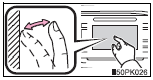 | Touch Quickly touch and release once. |
Changing and selecting various settings. |
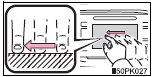 | Drag* Touch the screen with your finger, and move the screen to the desired position. |
Scrolling the lists, using scroll bar in lists, etc |
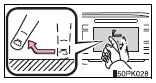 | Flick* Quickly move the screen by flicking with your finger. |
Moving the list screen (list screen limit). |
*: The above operations may not be performed on all screens. Also if the vehicle reaches a high altitude, it may become hard to perform above functions.
When using the touch screen
- If the screen is cold, the display may be dark, or the system may seem to be operating slightly slower than normal.
- The screen may seem dark and hard to see when viewed through sunglasses.
Change your angle of viewing, adjust the display on the “Display Settings” screen or remove your sunglasses.
- Flick operations may not be performed smoothly in high altitudes.
To avoid damaging the touch screen
- To prevent damaging the screen, lightly touch the screen buttons with your finger.
- Do not use objects other than your finger to touch the screen.
- Wipe off fingerprints using a glass cleaning cloth. Do not use chemical cleaners to clean the screen, as they may damage the touch screen.
Test yourself
A quick Toyota Sienna quiz: every answer comes with an explanation and a link to the manual page.
Was this page helpful?