Direct selection buttons
The following iDrive functions can be assigned to the direct selection buttons:
► Destinations for the navigation system
► Telephone numbers
► Audio equipment:
► Radio stations
► CD
► CD compartments of the CD changer
► TV
► AUX
The direct selection button assignments are stored for the electronic key currently in use.
Programming functions
Destinations for the navigation system
1. Select a destination from the destination list or address book.
2. Press and hold the button for more than 2 seconds ...
 .
Features:
► If route guidance to a destination is active or a map is displayed, the current destination is stored to this key.
► If the destination was entered via the map, the coordinates of the point at the crosshair are stored instead of the current destination.
Telephone numbers
1. Enter a telephone number or select it from the list (e.g. "A - Z").
2. Press and hold the key for more than 2 seconds ... .
The name of the subscriber assigned to the number is stored together with the number.
Audio and video systems
The currently playing source (e.g. radio station) is always stored to the favourite key.
1. Select a radio station or CD.
2. Press and hold the key for more than 2 seconds ... .
 If the vehicle is equipped with two CD drives, the track currently playing is stored to the key when a CD with compressed audio files is playing.◄
Selecting a function
Press the button ... .
The function is executed immediately (the telephone number stored to the key is dialled or route guidance to the destination stored to the key is started).
Displaying key assignments
The key assignment can be displayed by touching the key with a finger. This function does not work if you are wearing gloves or if the key is touched with an object (e.g. a pencil).
Displaying brief information Touch the key ... .
The function assigned to the key is shown on the display.
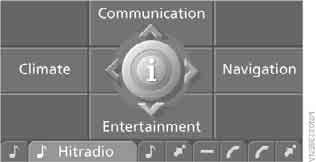
 Navigation destination
 Audio or video system
 Telephone number
 Not assigned
Displaying detailed information
Keep your finger on the key ... .
Deleting favourite key settings
1. Press the button .
The main menu opens.
2. Press the controller to open the menu .
3. Select "Settings" and press the controller.
4. Select "Vehicle / Tyres" and press the controller.
5. Select "Favourite keys" and press the controller.
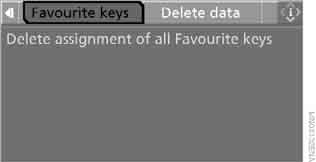
6. Select "Delete assignment of all Favourite keys" and press the controller.
7. Select "Yes" and press the controller.
Test yourself
A quick BMW X3 quiz: every answer comes with an explanation and a link to the manual page.