CONNECT SETTINGS
The Uconnect system uses a combination of touchscreen buttons and faceplate buttons located in the center of the instrument panel. These buttons allow you to access and change user-programmable features. Many features may vary by vehicle.
The faceplate buttons are located below and/or to the side of the Uconnect system in the center of the instrument panel. In addition, there is a Scroll/Enter control knob located on the right side. Turn the control knob to scroll through menus and change settings. Press the center of the control knob one or more times to select or change a setting.
Your Uconnect system may also have Screen Off and Mute buttons on the faceplate.
Press the Screen Off button on the faceplate to turn off the Uconnect screen. Press the button again or touch the screen to turn the screen back on.
Press the Back arrow button to exit a menu or a specific option in the Uconnect system.
CUSTOMER-PROGRAMMABLE FEATURES
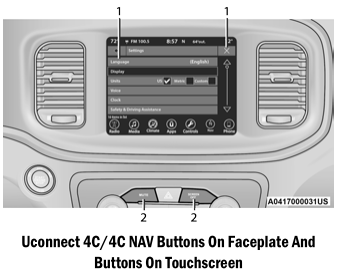
- Touchscreen Buttons
- Faceplate Buttons
For Uconnect 4 with 7-inch display and Uconnect 4/4C/4C NAV with 8.4-inch display
press the Apps button, then press the Settings button on the touchscreen to display the settings menu screen. In this mode, the Uconnect system allows you to access programmable features.
- NOTE:
- All settings should be changed with the ignition in the ON/RUN position.
- Only one area of the touchscreen can be selected at a time.
When selected, press one touchscreen button to enter the desired menu. Once in the desired mode, press and release the preferred setting option until a checkmark appears next to the setting, indicating that the setting is selected. After completing the setting, press the Back arrow button on the touchscreen to return to the previous menu, or press the X button on the touchscreen to close the settings screen. Press the Up or Down arrow button on the right side of the screen to scroll up or down through the available settings.
NOTE:
Availability of settings, setting names, and menu items may vary depending on the vehicle's equipment, the Uconnect system, and the installed software.
Language
Press the Language button on the touchscreen to display the available language options. After selecting an option, the system will display text in the selected language.

Display
Press the Display button on the touchscreen to display options related to the theme (if equipped), brightness, and color of the touchscreen. Available settings:
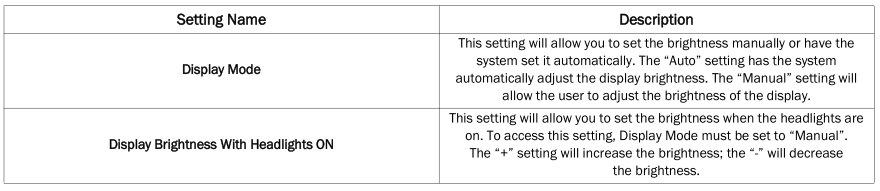
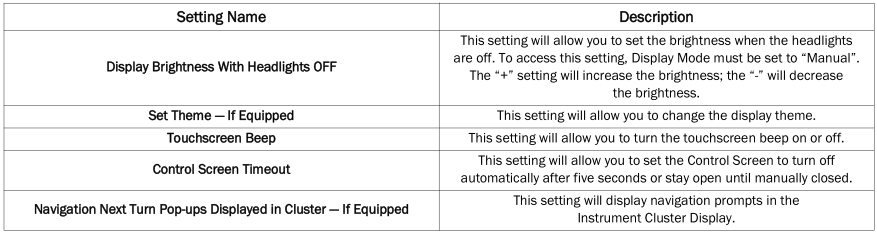
Units
Press the Units button on the touchscreen to display the various measurement options. The selected unit of measure will be shown on the instrument cluster display and navigation system (if equipped). Available settings:

Voice
Press the Voice button on the touchscreen to display options related to the vehicle's voice recognition feature.
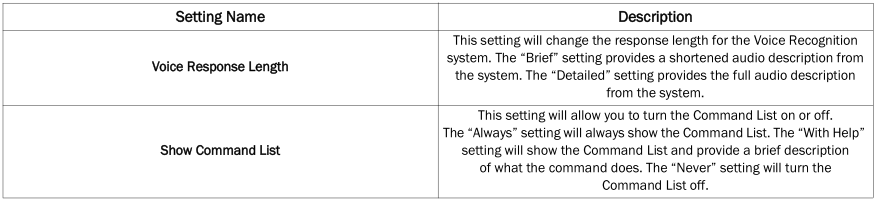
Clock
Press the Clock button on the touchscreen to display various options related to the vehicle's internal clock.


Camera
Press the Camera button on the touchscreen to display options related to the vehicle's camera features.

Safety/Assistance
When the Safety/Help button is selected on the touchscreen, the system displays settings related to the vehicle's safety features. These options will vary depending on the vehicle's equipment. Settings may be displayed as a list or within subfolders on the screen. To access a subfolder, select the desired folder; the available settings related to that feature will then be displayed on the screen.
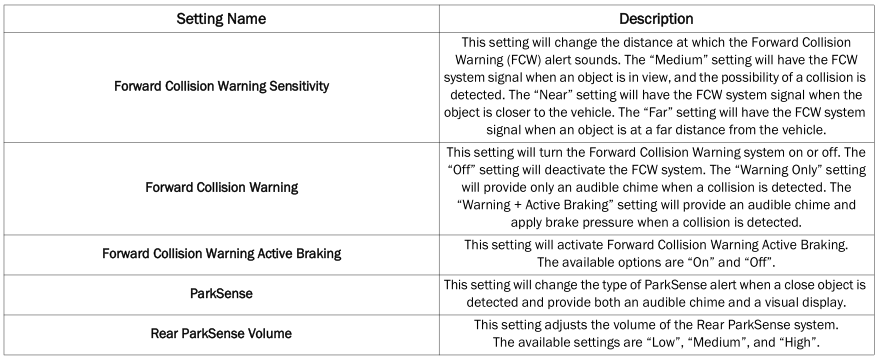
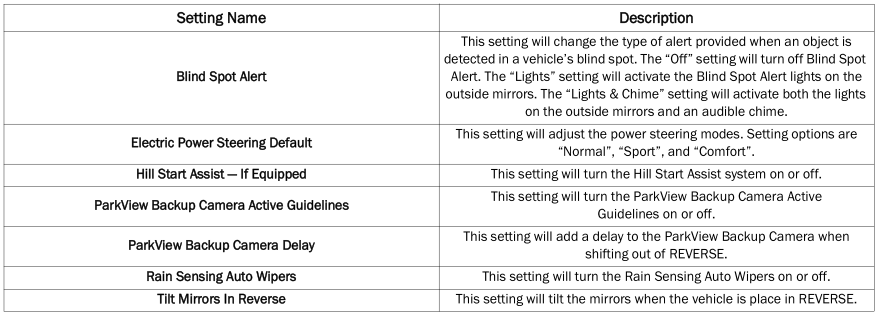
Mirrors and Wipers
When the Mirrors & Wipers button is pressed on the touchscreen, the system displays options related to the vehicle's mirrors and wipers.


Lights
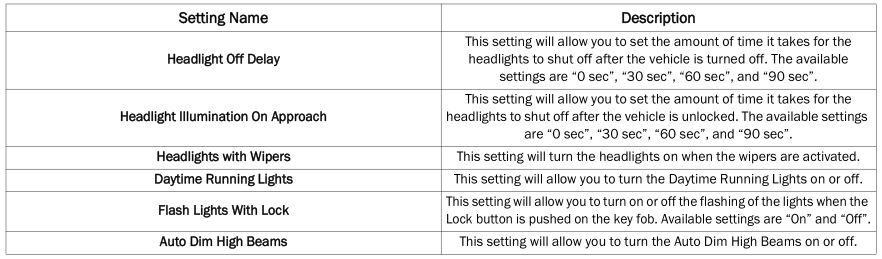
When the Lights button is pressed on the touchscreen, the system displays options related to the vehicle's exterior and interior lighting.
NOTE:
When the Daytime Running Lights option is selected, the daytime running lights can be turned on or off. This feature is only permitted by law in the country where the vehicle was purchased.
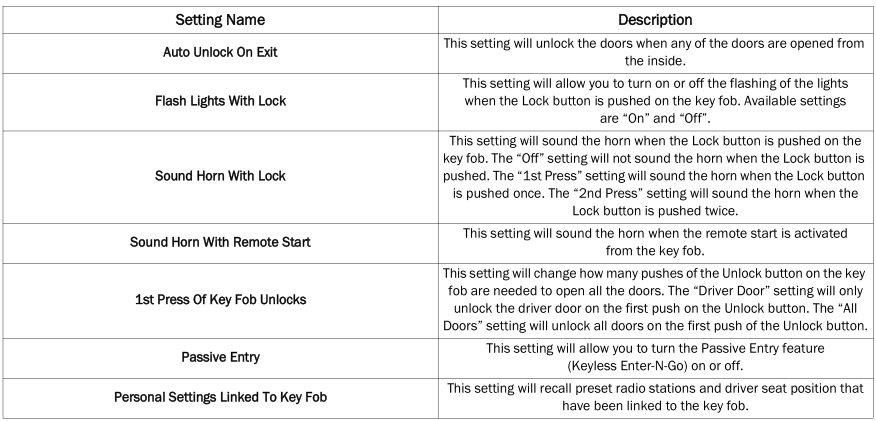
Doors & Locks
When the Doors & Locks button is pressed on the touchscreen, the system displays options related to locking and unlocking the vehicle's doors.
Seats & Comfort
When the Seats & Comfort button is pressed on the touchscreen, the system displays options related to the vehicle's comfort systems when Remote Start is activated or the vehicle has been started.

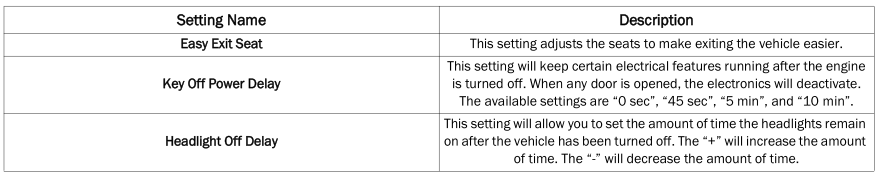
Key Off Options
When the Key Off Options button is pressed on the touchscreen, the system displays options related to the vehicle shutdown. These settings are only active when the ignition is off.
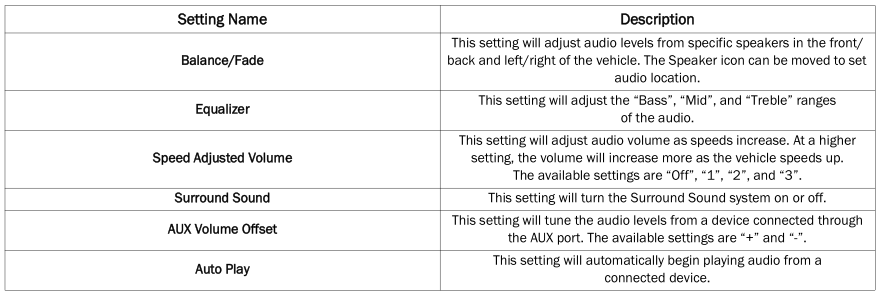
Audio
When the Audio button is pressed on the touchscreen, the system displays settings related to the vehicle's audio system. These settings can change the location of sound inside the vehicle, adjust bass and treble levels, and configure automatic playback from an audio device or smartphone.
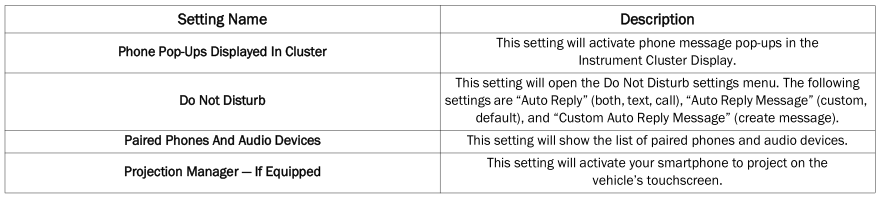
Phone/Bluetooth®
When the Phone/Bluetooth® button is pressed on the touchscreen, the system displays settings related to Bluetooth® connection with an external audio device or smartphone. A list of paired audio devices or smartphones can be accessed from this menu.
SiriusXM® Setup — If Equipped
NOTE:
A SiriusXM® satellite radio subscription is required for these settings to be functional. When the SiriusXM® Setup button is pressed on the touchscreen, the system displays settings related to SiriusXM® satellite radio. These settings can be used to skip certain radio channels and restart favorite songs from the beginning.


Reset/Restore Settings
When the Reset/Restore Settings button is pressed on the touchscreen, the system displays settings related to resetting the Uconnect system to default settings. These settings can clear personal data and reset selected settings from other menus.

System Information — If Equipped
When the System Information button is pressed on the touchscreen, the system displays information about the radio system.

Test yourself
A quick Dodge Charger quiz: every answer comes with an explanation and a link to the manual page.