Audio Remote Controls
Allow you to operate the audio system while driving

SOURCE Button
Cycles through the audio modes as follows: FM  AM
 USB
 iPod
 Bluetooth’ Audio
+ - (Volume) Buttons
Press +: To increase the volume.
Press -: To decrease the volume.
 Buttons
- When listening to the radio
Press : To select the next preset radio station.
Press : To select the previous preset radio station.
Press and hold  : To select the next station with strong reception.
Press and hold  : To select the previous station with strong reception.
- When listening to an iPod, USB flash drive, or Bluetooth’ Audio
Press : To skip to the next song.
Press  : To go back to the beginning of the current or previous song.
- When listening to a USB flash drive
Press and hold : To skip to the next folder.
Press and hold  : To go back to the previous folder.
Some modes appear only when an appropriate device or medium is used.
Depending on the Bluetooth’ device you connect, some functions may not be available.
Models with driver information interface
Allow you to operate the audio system while driving. The information is shown on the driver information interface.
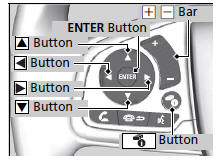
 Buttons
Press or
 to cycle through the audio mode as follows: FM AM SiriusXM’* USB iPod Bluetooth’ Audio Pandora’* Apps* Audio Apps*
- When listening to the radio and SiriusXM’*
1. Press ENTER to switch the display to a preset list you stored in the preset buttons.
2. Press  or
 to select a preset, then press ENTER.
- When listening to a USB flash drive
1. Press ENTER to display the folder list.
2. Press or
 to select a folder.
3. Press ENTER to display a list of tracks in that folder.
4. Press or
 to select a track, then press ENTER.
You can also swipe up or down to scroll through the list of tracks alphabetically.
Audio Remote Controls
Some modes appear only when an appropriate device or medium is used.
Depending on the Bluetooth’ device you connect, some functions may not be available.
Press the  (Hang-up/back) button to go back to the previous command or cancel a command.
Press the  button to switch display.
Switching the Display
- When listening to an iPod
1. Press ENTER to display the iPod music list.
2. Press  or
 to select a category.
3. Press ENTER to display a list of items in the category.
4. Press  or
 to select an item, then press ENTER.
- Press ENTER and press
 or
 repeatedly until the desired mode you want to listen to is displayed.
You can also swipe up or down to scroll through the list of tracks alphabetically.
- When listening to Internet Radio*
1. Press ENTER to display the station list.
2. Press  or
 to select an item, then press ENTER.
- When listening to Bluetooth’ Audio
1. Press ENTER to display the track list.
2. Press or
 to select a track, then press ENTER.
 (Volume) Bar
Press+: To increase the volume.
Press -: To decrease the volume.
Models with Display Audio
Slide your finger up or down to increase or decrease the volume, respectively.
Swipe down quickly to mute the volume and swipe up to cancel the mute.
 Buttons
- When listening to the radio
Press  : To select the next preset radio station.
Press  : To select the previous preset radio station.
Press and hold  : To select the next strong station.
Press and hold  : To select the previous strong station.
- When listening to an iPod, USB flash drive, or Bluetooth’ Audio
Press : To skip to the next song.
Press  : To go back to the beginning of the current or previous song.
- When listening to a USB flash drive
Press and hold : To skip to the next folder.
Press and hold  : To go back to the previous folder.
- When listening to Internet radio*
Press  : To skip to the next song.
Press and hold  : To select the next station.
Press and hold  : To select the previous station.
Test yourself
A quick Honda Civic quiz: every answer comes with an explanation and a link to the manual page.