Instrument Cluster Display Menu Items
NOTE:
Depending on vehicle options, the available settings may differ.
Speedometer
Press and release the up or down
 arrow button until the speedometer menu icon appears in the instrument cluster display.
Press and release the OK button to switch between mph and km/h.
Vehicle Information
Press and release the up or down
 arrow button until the Vehicle Information menu icon appears in the instrument cluster display.
Press and release the left  or right
 arrow button to view the information submenus, press and release the OK button to select or reset resettable submenus.
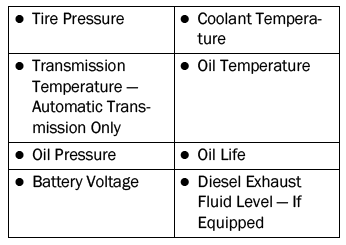
Off Road
Press and release the up or down
 arrow button until the Off Road menu icon appears in the instrument cluster display. Press and release the left
 or right
 arrow button to scroll through the information submenus.
- Transmission
- Front Wheel Angle: Displays the graphic and numerical value of the calculated average front wheel angle from the steering wheel orientation.
- Transfer Case Lock Status: The "Lock" graphic is displayed only during 4WD High, 4WD High Part Time, and 4WD Low status.
- Axle and Sway Bar Lock Status (if equipped): The front and rear or rear-only axle lock and sway bar disconnect graphic is displayed with a text message (connected or disconnected).
- Step-n-Roll
- Displays the vehicle pitch and roll on a graphic with angle numbers on the screen.
NOTE:
When vehicle speed becomes too high to display pitch and roll, "- -" will be displayed in place of the numbers, and the graphic will be grayed out. A message indicating the speed required for the function to become available will also be displayed.
Driver Assist — if equipped
The Driver Assist menu displays the status of the ACC system.
Press and release the up or down
 arrow button until the Driver Assist menu appears in the instrument cluster display.
Adaptive Cruise Control (ACC) System - if equipped
The instrument cluster display shows the current ACC system settings. The information is displayed depending on the ACC system status.
Press the ACC ON/OFF button (located on the steering wheel) until one of the following is displayed on the instrument cluster display:
Adaptive Cruise Control Off
When ACC is deactivated, the display shows "Adaptive Cruise Control Off."
Adaptive Cruise Control Ready
When ACC is activated but a vehicle speed setting has not been selected, the display will read "Adaptive Cruise Control Ready."
Press the SET + or SET - button (located on the steering wheel), and the following will be displayed on the instrument cluster display.
ACC SET
When ACC is set, the set speed will be displayed in the instrument cluster.
The ACC screen may be displayed again if any of the following ACC activities occur:
- System cancellation
- Driver override
- System off
- ACC proximity warning
- ACC unavailable warning
NOTE:
The instrument cluster display will return to the last display selected after five seconds without ACC display activity.
Fuel Economy
Press and release the up or down
 Press and hold the OK button until the fuel economy icon is highlighted on the instrument cluster display to reset the average fuel economy function.
Shift left or right to select the display with or without current fuel economy information.
- Range – This display shows the distance (miles or km) that can be driven with the fuel remaining in the tank. When the range value is less than 10 miles (16 kilometers), the range display changes to the "LOW" message. Adding a significant amount of fuel to the vehicle will turn off the "LOW" message, and a new range value will appear. The range cannot be reset with the OK button.
NOTE:
Significant changes in driving style or vehicle load will greatly affect the actual driving distance of the vehicle, regardless of the range value displayed.
- Average – This display shows the average fuel economy (miles per gallon, L/100 km or km/L) since the last reset.
- Current – This display shows the current fuel economy (miles per gallon, L/100 km, km/L) while driving.
Trip Information
Press and release the up or down
 Press the arrow button repeatedly until the trip icon/title is highlighted on the instrument cluster display, then press and release the left arrow button to select Trip A or Trip B.
 or right
 Press the arrow button to select Trip A or Trip B.
The Trip A and Trip B information will display the following:
- Range
- Average Fuel Economy
- Elapsed time
Hold the OK button to reset all information.
Stop/Start - if equipped
Press and release the up or down
 Press the arrow button until the Stop/Start icon/title is highlighted on the instrument cluster display. The Stop/Start status will be displayed on the screen.
Audio
Press and release the up or down
 Press the arrow button repeatedly until the audio menu icon/title is highlighted on the instrument cluster display. This menu displays audio source information, including song title, artist name and audio source with an accompanying graphic.
Phone Call Status
When a call is received, the phone call status pop-up will appear on the screen. The pop-up will remain until the phone is answered or ignored.
NOTE:
The call status will temporarily replace the previously displayed media source information on the screen. When the pop-up is no longer displayed, the display will return to the last screen used.
Messages
Press and release the up or down
 Press the arrow button until the messages menu item is highlighted. This function shows the number of stored warning messages. Press the OK button.
 Press the arrow button to view the stored messages.
If there are no messages, the main menu icon will be a closed envelope and "No Stored Messages" will be displayed.
Display Settings
Press and release the up or down
 Press the arrow button repeatedly until the display settings menu icon/title is highlighted on the instrument cluster display. Press and release the OK button to enter the submenu and follow the on-screen prompts as needed. The display settings function allows you to change the information displayed in the instrument cluster, as well as the location where the information is displayed.
Display Settings Driver-Selectable Items
Top Left
- None
- Compass
- Outside Temperature
- Time
- Range Reset
- Average Econ (or L/100km, km/L)
- Current Econ (or L/100km, km/L)
- Trip Distance
- Trip B Distance
Center
- None
- Compass
- Outside Temperature
- Time
- Distance to Empty
- Average Econ (or L/100km, km/L)
- Current Econ (or L/100km, km/L)
- Trip Distance
- Trip B Distance
- Audio
- Menu Name
- Speedometer
Top Right
- None
- Compass
- Outside Temperature
- Time
- Range Reset
- Average Econ (or L/100km, km/L)
- Current Econ (or L/100km, km/L)
- Trip Distance
- Trip B Distance
Gear Indicator – if equipped
- Full
- Single
Current Gear – if equipped
- On
- Off
Odometer – if equipped
- Show
- Hide
Favorite Menus
- Speedometer
- Vehicle Information
- Off-Road – if equipped (show/hide)
- Driver Assist – if equipped (show/hide)
- Fuel Economy (show/hide)
- Trip Information (show/hide)
- Stop/Start
- Audio (show/hide)
- Messages
- Display Settings
Defaults (restores all settings to default values)
- Cancel
- Restore
Menus with (show/hide) mean the user can press the OK button to select whether to show or hide this menu on the instrument cluster display.
Settings
The following menu items/submenus are available on the cluster display:
Sets a vehicle speed limit at which the driver is alerted by visual and audible warnings (message and symbol displayed on the display).
When the speed warning is set, the symbol must remain visible for the same period of time as the pop-up. If the driver exceeds the set speed, the symbol must remain for the entire time the vehicle speed is above the set speed.
The driver can also turn off the speed warning if they choose not to use this function.
Passenger Airbag – if equipped:
The front passenger airbag can be either enabled or disabled.
Test yourself
A quick Jeep Wrangler quiz: every answer comes with an explanation and a link to the manual page.