How to Use Stitcher™* Radio
What is Stitcher™ Radio? Stitcher™ radio is an application which can be used to listen to Internet radio or stream podcasts.
Recommended content is automatically selected by registering content which you put into your favorites, or by pressing the Like or Dislike button.
For details on Stitcher™ Radio, refer to “http://stitcher.com/”.
* Stitcher™, the Stitcher™ logo, and the Stitcher™ trade dress are trademarks or registered trademarks of Stitcher, Inc., used with permission.
NOTE To operate Stitcher™ Radio from your Bluetooth ® device, perform the following in advance:
- Install the Stitcher™ Radio application to your device.
- Create a Stitcher™ Radio account for your device.
- Log onto Stitcher™ Radio using your device.
Playback
Select the  icon on the home
screen to display the Entertainment screen. When  is
selected, the following icons are indicated in the bottom part of the center display.
Icon |
Function |
 | Displays the Entertainment menu. Use to switch to a different audio source. |
 | Displays the station list. Use to switch to other stations. |
 | Dislike Evaluates the current program as “Dislike”. |
 | Like Evaluates the current program as “Like”. |
 | Adds the current station to your favorites or deletes the current station from your favorites |
 | Reverses for 30 seconds |
 | Plays the station. Select it again to pause playback. |
 | Goes to the next station. |
 | Displays sound settings to adjust audio quality level. Refer to Volume/Display/Sound Controls on . |
Station list
- Select the

icon to display the station list. - Favorites station name: Select to display the program registered to your favorites.
- Category name: A recommended category selected from your favorites by Stitcher™ is displayed.
Select it to display the category program.
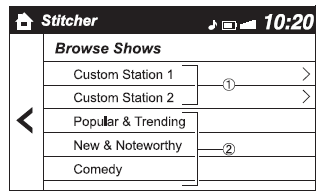
- Select the program name to play it.
Add to your favorites
If the current program has not been registered to your favorites, it can be registered to your favorites.
- Select the
 icon to
display the favorites station which the registration can be added. - Select the station name which you want to register.
- Select
 to add the
program to the selected favorites station.
NOTE
- Multiple favorites stations can be selected and registered.
- Favorites stations registered by oneself as well those set by default are displayed.
Delete from your favorites
If the current program has already been registered to your favorites, the program can be deleted from your favorites.
- Select the
 icon.
- The program is automatically deleted from the favorites station.
Test yourself
A quick Mazda 3 quiz: every answer comes with an explanation and a link to the manual page.