Monochrome display C (with WIP Sound)
Screen display
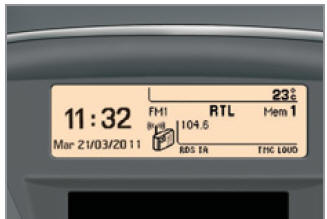
Displays the following information:
- hour,
- date,
- outside temperature * (flashes when there is a risk of black ice),
- locking control (doors, boot...),
- audio sources (radio, CD...),
- on-board computer (see end of section),
Warning messages, e.g.: "Antipollution faulty" (exhaust emission system fault), or information messages, e.g.: "Auto lamps active", are displayed temporarily.
They can be cleared by pressing the " ESC " button.
Operation
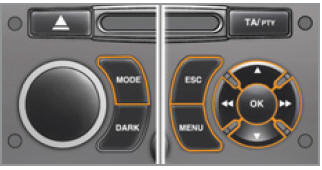
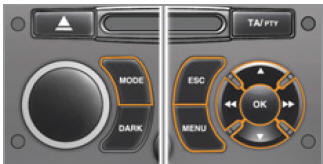
Using the radio panel you can:
- press the " MENU " button to access the main menu,
- press the "

" or " " to
scroll through the items on the screen, - press the " MODE " button to change the current application (trip computer, audio source...),
- press the "

" or " " to
change settings, - press the " OK " button to confirm, or
- press the "ESC" button to cancel the current operation.
Main menu
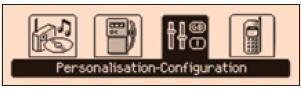
- Press the "MENU" button to access the main menu:
- audio functions,
- trip computer (see end of chapter), personalisation-configuration,
- personalisation-configuration,
- telephone (hands-free kit),
- Press the "

" or " " to
scroll through the individual menus, then press the " OK " button to select the required menu.
"Audio functions" menu
If the radio is on, selecting this menu lets you turn the radio functions (RDS, REG, RadioText) or CD functions (introscan, random playback, CD repeat) on or off.
For detailed information on the "Audio functions" application, see the WIP Sound section of the "Audio and Telematics" chapter.
"Trip computer" menu
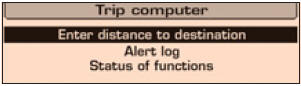
Selecting this menu lets you check vehicle status information (alarm history, function status...).
Alarm log
The log contains active alarm messages and shows them in turn on the multifunction display.
Function status
List of vehicle functions that are enabled or disabled.
Entering the distance to destination
You can enter the approximate distance to the destination.
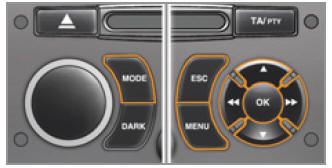
- Press the "MENU" button to open the main menu.
- Press the arrows, then the "OK" button to select the "Trip Computer" menu.
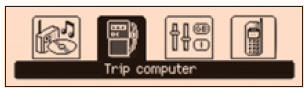
- In the "Trip Computer" menu, select one of the following applications:
"Personalisation-Configuration" menu
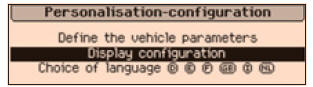
Selecting this menu gives you access to the following information:
- vehicle parameter settings,
- display configuration,
- selection of the display language.
Vehicle parameter settings
When this menu is selected, the following equipment can be switched on or off:
- wipers linked to reverse gear (see the "Visibility" chapter),
- follow-me-home lighting (see the "Visibility" chapter),
- rear parking assistance (see the "Driving" chapter).
Example: adjusting the follow-me-home lighting duration
- Press the "
 " or "
 ", then press the " OK " button to select the required menu.
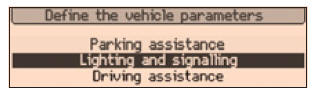
- Press the "
 " or
" ", then press the " OK " button to select the "Follow-me-home lighting" line.
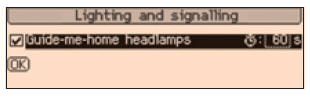
- Press the "
 " or
" ", to
set the required value (15, 30 or 60 seconds), then press the " OK " button to confirm.
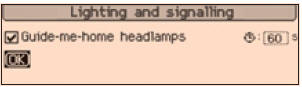
- Press the "
 " or
" ", then press the " OK " button to select " OK " and confirm, or press the " ESC " button to cancel.
Display configuration
When this menu is selected, the following settings can be made:
- video brightness adjustment,
- - setting the date and time,
- unit selection.
Language selection
Selecting this menu lets you change the display language (German, English, Spanish, French, Italian, Dutch, Portuguese, Brazilian Portuguese, Turkish *).
"Telephone" menu
If the radio is on, selecting this menu lets you configure the Bluetooth hands-free kit (connection), browse various directories (call list, services...) and handle calls (answer a call, end a call, call waiting, private mode...).
For details on the "Telephone" application, see the WIP Sound section of the "Audio and Telematics" chapter.
For safety reasons, the multifunction displays must only be configured by the driver when the vehicle is stationary.Test yourself
A quick Peugeot 207 quiz: every answer comes with an explanation and a link to the manual page.