Audio system
Bluetooth® phone message function
In this manual: Audio system
30steps
~180min
4/5difficulty
Done 0 of 30
Received messages can be forwarded from the connected bluetooth® phone, enabling checking and replying using the audio system.
Depending on the type of bluetooth® phone connected, received messages may not be transferred to the message inbox.
If the phone does not support the message function, this function cannot be used.
Displaying message inbox screen- Press
 button.
- Select
 .
When an e-mail/sms/mms is received, the incoming message screen pops up with sound and is ready to be operated on the screen.
- Select to check the message.
- Select to refuse the message.
- Select to call the message sender.
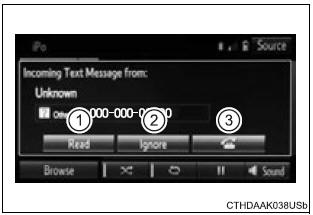
Receiving a message
- Depending on the cellular phone used for receiving messages, or its registration status with the audio system, some information may not be displayed.
- The pop up screen is separately available for incoming e-mail and sms/ mms messages under the following conditions:
E-mail:
- "incoming e-mail display" is set to "full screen".
- "e-mail notification popup" is set to on.
Sms/mms:
- "incoming sms/mms display" is set to "full screen".
- "sms/mms notification popup" is set to on.
- Display the message inbox screen.
- Select the desired message from the list.
- Check that the message is displayed.
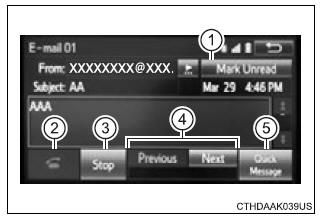
- E-mails: select "mark unread" or "mark read" to mark mail unread or read on the message inbox screen.
This function is available when "update message read status on phone" is set to on
- Select to make a call to the sender.
- Select to have messages read out. To cancel this function, select "stop".
- Select to display the previous or next message.
- Select to reply the message.
- Depending on the type of bluetoothr phone being connected, it may be necessary to perform additional steps on the phone.
- Messages are displayed in the appropriate connected bluetoothr phone's registered mail address folder.
Select the tab of the desired folder to be displayed.
- Only received messages on the connected bluetoothr phone can be displayed.
- The text of the message is not displayed while driving.
- When "automatic message readout" is set to on, messages will be automatically read out.
- Turn the "pwr¢evol" knob, or use the volume switch on the steering wheel to adjust the message read out volume.
- The message read out function is available even while driving.
- Display the message inbox screen.
- Select the desired message from the list.
- Select "quick message".
- Select the desired message.
- Select "send".
- Select “quick message”.
- Select
 corresponding to the
desired message to edit. - Select “ok” when editing is completed.
Calls can be made to an e-mail/sms/mms message sender's phone number.
- Display the message inbox screen.
- Select the desired message.
- Select
 .
- Check that the "call" screen is displayed.
Calls can be made to a number identified in a message's text area.
- Display the message inbox screen.
- Select the desired message.
- Select the text area.
- Select corresponding to the
desired number. - Check that the "call" screen is displayed.
Was this page helpful?