Audio system
Registering a bluetooth® device
In this manual: Audio system
12steps
~72min
3/5difficulty
Done 0 of 12
Bluetooth® compatible phones (hfp) and portable audio players (avp) can be registered simultaneously. You can register up to 5 bluetooth® devices.
How to register a bluetooth® device- Display the "bluetooth* setup" screen. *: Bluetooth is a registered trademark of bluetooth sig, inc.
- Select "add".
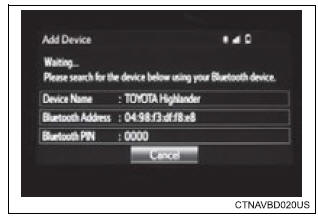
- When this screen is displayed, search for the device name displayed on this screen on the screen of your bluetoothr device. For details about operating the bluetoothr device, see the manual that comes with it.
To cancel the registration, select "cancel".
- Register the bluetoothr device using your bluetoothr device.
A pin-code is not required for ssp (secure simple pairing) compatible bluetoothr devices. Depending on the type of bluetoothr device being connected, a message confirming registration may be displayed on the bluetoothr device's screen. Respond and operate the bluetoothr device according to the confirmation message.
- Check that this screen is displayed when registration is complete.
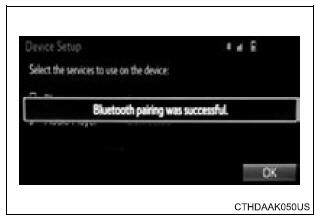
- Select "ok" when the connection status changes from "connecting...?H to "connected".
If an error message is displayed, follow the guidance on the screen to try again.
Registration can be performed from screens other than the "bluetooth* setup" screen.
When registering from the "bluetooth* audio" screen- Display the "bluetooth* audio" screen.
- Select "select device".
- Follow the steps in "how to register a bluetoothr device" from "step 2".
*: Bluetooth is a registered trademark of bluetooth sig, inc.
Deleting a bluetooth® device- Display the "bluetooth* setup" screen. *: Bluetooth is a registered trademark of bluetooth sig, inc.
- Select "remove".
- Select the desired device.
- A confirmation message will be displayed, select "yes" to delete the device.
- Check that a confirmation screen is displayed when the operation is complete.
Was this page helpful?