Selecting a Radio Station
Automatic Station Search
Briefly press the The next available radio station is searched for and tuned in automatically.
In this way, all radio stations in the current band can be searched.
If the radio does not find any station, it will automatically switch to a more sensitive search level.
If the radio still does not find any station, the last active tuned frequency will be restored.
If RDS is enabled, only RDS stations are searched. If traffic announcement (TP) reception is active, only stations broadcasting traffic announcements are searched.
If the station frequency is known:
Press and hold the.
Release the button only when the required frequency shown on the frequency display is almost reached.
The next available radio station is searched for and tuned in automatically.
Manual Station Search
Turn the MENU knob and set the optimum reception frequency on the frequency pop-up display.
Auto Store Lists (AS)
The auto store function finds the radio stations with the best reception in a certain band and stores them in the system memory automatically.

Each frequency band has two auto store lists (AS 1, AS 2), each of which can store 6 stations.
Automatically Storing Radio Stations in Memory
Press and hold the AS button until the Auto Store menu opens. The 12 radio stations with the strongest signals in the current frequency band will be stored in the two auto store lists.
To temporarily interrupt the auto store procedure, press the MENU knob.
Manually Storing Radio Stations in Memory
Radio stations can also be stored manually in the auto store lists.
Tune to the radio station to be stored.
To open an auto store list or switch to another auto store list, briefly press the AS button.
To store a radio station at a specific list position: press the corresponding station button 1 ..6 and hold it for several seconds. An audible signal confirms that the station is stored.
During automatic storing of radio stations, stations stored manually are overwritten by the new ones.
Selecting a Preset Radio Station
To open an auto store list or switch to another auto store list, briefly press the AS button.
Briefly press one of the station buttons 1 ..6 to tune to the station in the corresponding list position.
Favorites Lists (FAV)
Favorites lists can be used to manually store radio stations from any band.

Each favorites list can store 6 radio stations. The number of available favorites lists can be set in Setting the Number of Favorites Lists.
Storing a Radio Station in Memory
Tune to the radio station to be stored.
To open a favorites list or switch to another favorites list, briefly press the FAV button.
To store a radio station at a specific list position:
press the corresponding station button 1 ..6 and hold it for several seconds. An audible signal confirms that the station is stored.
Selecting a Stored Radio Station
To open a favorites list or switch to another favorites list, briefly press the FAV button.
Briefly press one of the station buttons 1 ..6 to tune to the station in the corresponding list position.
Setting the Number of Favorites Lists
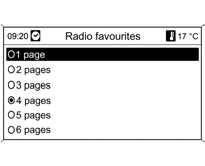 The number of available favorites lists can be set.
Press the CONFIG button.
Select Radio settings, then Radio favorites.
Select the required number of available favorites lists.
Test yourself
A quick Chevrolet Cruze quiz: every answer comes with an explanation and a link to the manual page.