Wireless Mobile Phone Charging System
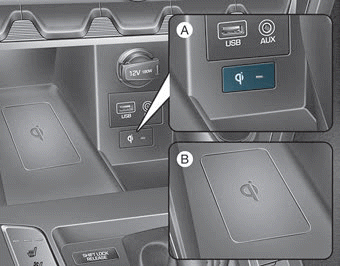
[A]: Indicator light, [B]: Charging pad
On some models, the vehicle is equipped with a wireless mobile phone charger.
The system is available when all doors are closed and the ignition switch is ON.
To charge a cellular phone
The wireless mobile phone charging system only charges mobile phones that support the Qi standard ( ). Read the label on the mobile phone case or visit the website of your mobile phone manufacturer to check whether your mobile phone supports Qi technology.
The wireless charging process starts when you place a Qi-compatible mobile phone on the wireless charger.
1. Remove other items, including the smart key, from the wireless charger. Otherwise, the wireless charging process may be interrupted. Place the mobile phone in the center of the charging pad ( ).
2. The indicator light illuminates orange while the mobile phone is charging. The indicator light turns green when phone charging is complete.
3. You can turn the wireless charging function on or off in the user settings mode on the instrument cluster. For more information, refer to the "LCD Modes" section in this chapter.
If your mobile phone does not charge:
- Slightly change the position of the mobile phone on the charging pad.
- Make sure the indicator light illuminates orange.
The indicator light will flash orange for 10 seconds if there is a malfunction in the wireless charging system.
In this case, temporarily stop the charging process and try charging your cell phone again.
The system will warn you with a message on the LCD display if the cell phone is still on the wireless charging device after the engine is turned off and the front door is opened.
Information
For some cell phone manufacturers, the system may not warn even though the cell phone remains on the wireless charger. This is due to the characteristics of the cell phone, not a malfunction of the wireless charging system.
NOTICE
- The wireless charging system of the cell phone may not support certain types of cell phones that are not verified to comply with the Qi specification (
 ).
- When placing the cell phone on the charging pad, position the phone in the center of the pad for optimal charging. If your cell phone is off-center, the charging speed may be lower and, in some cases, the cell phone may experience higher heat generation.
- In some cases, wireless charging may temporarily stop when the remote key or smart key is used, either when starting the vehicle or when locking/unlocking the door, etc.
- When charging some cell phones, the charging indicator may not change to green when the cell phone is fully charged.
- The wireless charging process may temporarily stop if the temperature inside the cell phone wireless charging system abnormally increases or decreases. Stop charging the cell phone and wait until the temperature drops to a certain level.
- The wireless charging process may temporarily stop when there is any metal object, such as a coin, between the wireless charging system of the cell phone and the cell phone.
- When charging some cell phones with a self-protection function, the wireless charging speed may decrease and wireless charging may stop.
- If the cell phone has a thick case, wireless charging may not be possible.
- If the cell phone is not in full contact with the charging pad, wireless charging may not operate properly.
- Some magnetic items, such as credit cards, phone cards or train tickets, may be damaged if left near the cell phone during charging.
- When any cell phone without wireless charging function or any metal object is placed on the charging pad, a small noise may be heard. This small sound occurs because the vehicle recognizes the compatibility of the object placed on the charging pad. It will not affect your vehicle or cell phone.
Information
If the ignition key is in the LOCK/OFF position, charging also stops.
Information
This device complies with Part 15 of the FCC Rules.
Operation is subject to the following two conditions:
1. This device may not cause harmful interference, and
2. This device must accept any interference received, including interference that may cause undesired operation.
Test yourself
A quick Hyundai Elantra AD quiz: every answer comes with an explanation and a link to the manual page.