Disc Care
- If the temperature inside the vehicle is too high, open the windows to ventilate the vehicle before using the system.
- Copying and using MP3/WMA files without permission is illegal. Use only discs that have been legally created.
- Do not use volatile substances such as benzene or thinners, common cleaners, or anti-static sprays on CDs or analog discs.
- To avoid damaging the disc surface, hold CDs by the edges or the center hole only.
- Before playing, wipe the disc surface with a soft cloth (wipe from the center toward the outer edge).
- Do not damage the disc surface or attach pieces of adhesive tape or paper.
- Make sure that only CDs are inserted into the CD player (do not insert more than one CD at a time).
- Store CDs in their cases after use to protect them from scratches and dirt.
- Depending on the type of CDR/CD-RW discs, some discs may not operate properly according to the manufacturers' specifications. Under such conditions, continued use may cause malfunctions of your audio system.
✽ NOTICE
Playing an incompatible copy-protected audio CD
Some copy-protected CDs that do not conform to the international audio CD standard (Red Book) may not play on your vehicle's audio system. Note that failure to properly play a copy-protected CD may indicate a defect in the CD, not in the CD player.
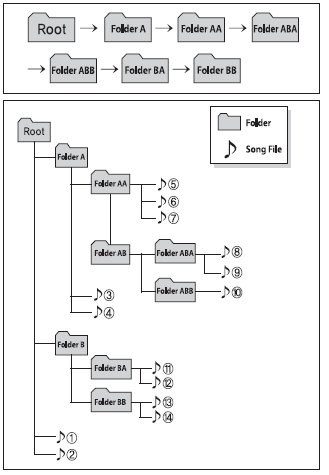
File (Folder) Playback Order:
1. Song playback order: to
 in sequence.
2. Folder playback order:
If a folder does not contain a song file, the folder is not displayed.
WARNING
- Do not look at the screen while driving. Looking at the screen for extended periods may cause a traffic accident.
- Do not disassemble, assemble, or modify the audio system. Such actions may cause an accident, fire, or electric shock.
- Using the phone while driving may cause you to be inattentive to road conditions and increase the likelihood of an accident. Use the phone function after parking the vehicle.
- Be careful not to spill water or allow foreign objects to get inside the device. Such actions may cause smoke, fire, or product malfunction.
- Please refrain from use if the screen is blank or no sound is heard, as these signs may indicate a product malfunction. Continued use under such conditions may cause an accident (fire, electric shock) or product malfunction.
- Do not touch the antenna during a thunderstorm or lightning, as this may cause an electric shock from lightning.
- Do not stop or park in areas where parking is restricted to operate the product. Such actions may cause a traffic accident.
- Use the system with the vehicle ignition ON. Prolonged use with the ignition OFF may discharge the battery.
CAUTION
- Using the device while driving may cause an accident due to lack of attention to the surrounding environment. First park the vehicle before operating the device.
- Adjust the volume to a level that allows the driver to hear sounds from outside the vehicle. Driving in a state where outside sounds cannot be heard may lead to accidents.
- Pay attention to the volume setting when the device is turned on. A sudden loud sound when the device is turned on may cause hearing damage. (Adjust the volume to an appropriate level before turning off the device.)
- Turn on the vehicle ignition before using this device. Do not use the audio system for a long time with the ignition off, as such operation may discharge the battery.
- Do not subject the device to strong impacts or shocks. Direct pressure on the front of the monitor may damage the LCD display or touch screen.
- When cleaning the device, be sure to turn off the device and use a dry, soft cloth. Never use rough materials, chemical cloths or solvents (alcohol, benzene, thinners, etc.), as such materials may damage the device panel or cause discoloration/deterioration.
- Do not place drinks near the audio system. Spilled drinks may cause system malfunction.
- If the product is malfunctioning, contact the place of purchase or an after-sales service center.
- Placing the audio system in an electromagnetic environment may cause noise interference.
- Prevent contact with corrosive substances, such as perfume and cosmetic oils, on the instrument panel, as they may cause damage or discoloration.
✽ NOTICE - USING THE USB DEVICE
- To use an external USB device, make sure it is not connected when starting the vehicle. Connect the device after starting.
- Starting the engine while a USB device is connected may damage the USB device. (USB memory devices are very sensitive to electric shock.)
- If the engine is started or stopped while an external USB device is connected, the external USB device may not operate.
- The system cannot play unauthorized MP3 or WMA files. It can only play MP3 files with a compression rate from 8 to 320 kbps. It can only play WMA music files with a compression rate from 8 to 320 kbps.
- Take precautions against static electricity when connecting or disconnecting an external USB device.
- Encrypted MP3 players are not recognized.
- Depending on the condition of the external USB device, the connected external USB device may not be recognized.
- When the formatted byte/sector setting of the external USB device is neither 512 BYTE nor 2048 BYTE, the device will not be recognized.
- Use only a USB device formatted in FAT 12/16/32.
- USB devices without USB I/F authentication may not be recognized.
- Make sure the USB connector does not come into contact with the human body or other objects.
- Repeatedly connecting or disconnecting the USB device within a short period of time may break the device.
- You may hear an unusual noise when connecting or disconnecting the USB device.
- If you disconnect the external USB device during playback in USB mode, the external USB device may be damaged or malfunction. Therefore, disconnect the external USB device when the audio is off or in another mode (e.g., Radio, CD).
- Depending on the type and capacity of the external USB device or the type of files stored on the device, there is a difference in the time required for device recognition.
- Do not use the USB device for purposes other than playing music files.
- Video playback via USB is not supported.
- Using USB accessories, such as chargers or heaters with a USB interface, may reduce performance or cause problems.
- If you use devices such as a separately purchased USB hub, the audio system may not recognize the USB device. In this case, connect the USB device directly to the vehicle's multimedia terminal.
- If the USB device is divided into logical drives, only music files on the drive with the highest priority are recognized by the vehicle audio system.
- Devices such as MP3 players, cellular phones, or digital cameras may not be recognized if they do not conform to the USB I/F standard.
- Charging via USB may not be supported by some mobile devices.
- USB hard drives or USB types that are prone to connection failure due to vehicle vibration are not supported (i-Stick type).
- Some non-standard USB devices (USB type with metal cover) may not be recognized.
- Some USB flash memory readers (such as CF, SD, microSD, etc.) or external hard drive types of devices may not be recognized.
- Music files protected by DRM (Digital Rights Management) are not recognized.
- Data on the USB device may be lost when using this audio system. Always back up important data to a personal storage device.

- Please avoid using USB drives that can be used as key fobs or cellular phone accessories, as they may damage the USB connector. Please make sure to use only plug-type connectors.
✽ NOTICE - USING THE iPod® DEVICE
- Some iPod® models may not support the communication protocol, and files may not play correctly. Supported iPod® models: iPhone® 3GS/4, iPod® touch 1st–4th generation, iPod® nano, iPod® classic 1st–6th generation.
- The order of searching or playing songs on the iPod® may differ from the order found on the audio system.
- If the iPod® is disabled due to a malfunction of the iPod® itself, reset the iPod®. (For reset, refer to the iPod® manual.)
- The iPod® may not operate normally when the battery is low.
- Some iPod® devices, such as the iPhone®, can be connected via Bluetooth® wireless technology. The device must support Bluetooth® audio wireless technology (e.g., Bluetooth® wireless stereo headset). The device can play, but cannot be controlled by the audio system.
- To use the iPod® functions in the audio system, use the cable supplied with the iPod® device.
- Skipping or malfunction may occur depending on the characteristics of your iPod®/iPhone® device.
- If your iPhone® is connected via Bluetooth® wireless technology, USB audio may not play correctly. On your iPhone®, select the Dock connector or Bluetooth® wireless technology to change the audio output (source).
- When connecting an iPod® with the iPod® power cable, fully insert the connector into the multimedia port. If not fully inserted, communication between the iPod® and the audio system may be interrupted.
- When adjusting the sound effects of the iPod® and the audio system, the sound effects of both devices will overlap and may reduce or distort sound quality.
- Deactivate (turn off) the iPod® equalizer when adjusting the audio system volume, and turn off the audio system equalizer when using the iPod® equalizer.
- If the iPod® is not used with the car audio system, disconnect the iPod® cable from the iPod®. Otherwise, the iPod® may remain in accessory mode and operate incorrectly.
✽ NOTICE - Bluetooth® Wireless Technology
- The Bluetooth® word mark and logos are registered trademarks owned by Bluetooth SIG, Inc. and any use of such marks is under license. A phone with the call function enabled is required to use Bluetooth® wireless technology.
- To check phone compatibility with Bluetooth® wireless technology, visit www.hyundaiusa.com and go to the SERVICE & PARTS — BLUETOOTH COMPATIBILITY menu.
WARNING
- Distracted driving can result in loss of vehicle control, which may lead to an accident, serious injury, or death. The driver's primary responsibility is to operate the vehicle safely and legally. Portable devices, other equipment, or vehicle systems that take the driver's eyes, attention, and focus away from safe vehicle operation, or that are prohibited by law, must never be used while driving.
✽ NOTICE - BEFORE USING Bluetooth® HANDSFREE
What is Bluetooth®?
- Bluetooth® is a short-range wireless communication technology that uses the 2.4 GHz to 2.48 GHz frequency band to connect various devices within a certain distance.
- Supported by PCs, peripheral devices, Bluetooth® phones, PDAs, various electronic devices, and automotive environments, Bluetooth® allows data to be transmitted at high speeds without a connecting cable.
- Bluetooth® Handsfree refers to a system that allows the user to conveniently make phone calls from Bluetooth® mobile phones through the audio system.
- Bluetooth® Handsfree may not be supported by some mobile phones. For more information on mobile device compatibility, refer to the website www.hyundaiusa.com.
✽ CAUTION - SAFE DRIVING PRECAUTIONS
- Bluetooth® Handsfree is a feature that helps drivers drive safely. Connecting the head unit to a Bluetooth® phone allows the user to conveniently make and receive calls and use contacts. Before using Bluetooth®, carefully read the contents of this owner's manual.
- Excessive use or operations while driving may result in careless driving practices and lead to accidents. Refrain from excessive operations while driving.
- Viewing the screen for a long period of time is dangerous and may lead to accidents. While driving, look at the screen only for short periods of time.
✽ NOTICE - WHEN CONNECTING A Bluetooth® PHONE
- Before connecting the head unit to a mobile phone, make sure the mobile phone supports Bluetooth® functions.
- Even if the phone supports Bluetooth®, the phone will not be detected while the device is searching if the phone has been set to hidden mode or Bluetooth® power is turned off. Turn off hidden mode or turn on Bluetooth® power before searching for/connecting to the head unit.
- The Bluetooth® phone connects automatically when the ignition is turned on.
- If you do not want to connect to a Bluetooth® device automatically, turn off the Bluetooth® function on your mobile phone.
- The volume and quality of hands-free calls may vary depending on the mobile phone.
- Park the vehicle when connecting the head unit to a mobile phone.
- The Bluetooth® connection may be interrupted periodically on some mobile phones. Perform the following steps to retry. On the mobile phone, turn the Bluetooth® function off and on, and try again. Turn the mobile phone power off and on, and try again. Fully remove the mobile phone battery, restart the phone, and then reinstall it. Restart the audio system and try again. Delete all paired devices, pair again, and try again.
- The quality and volume of hands-free calls may vary depending on the model of your mobile phone.
✽ NOTICE - USING VOICE RECOGNITION
- When using voice recognition, only the commands listed in the Owner's Manual are supported.
- Keep in mind that while the voice recognition system is operating, pressing any key other than the
 key will exit voice recognition mode.
- For optimal voice recognition, position the voice recognition microphone above the driver's seat head and maintain a proper posture when speaking commands.
- In the following situations, voice recognition may not work properly due to external noise. When the windows and sunroof are open When strong wind is blowing When the cooling/heating device is operating strongly When entering and passing through tunnels When driving on rough or uneven roads During heavy rain (downpour, storm)
- Phone-related voice commands can only be used when a Bluetooth® Wireless Technology device is connected.
- When calling by name, the corresponding contact must be downloaded and stored in the audio system.
- After downloading the Bluetooth® Wireless Technology phonebook, it may take some time to convert the phonebook data into voice information. During this time, voice recognition may not work properly.
- Speak voice commands naturally and clearly, as in normal conversation.
Test yourself
A quick Hyundai Tucson LM quiz: every answer comes with an explanation and a link to the manual page.