SiriusXM® Satellite Radio Mode — if equipped

Uconnect 3 with 5-inch Display Upgrades to SiriusXM®

Uconnect 4 with 7-inch Display Upgrades to SiriusXM®
SiriusXM® satellite radio uses direct satellite broadcast technology to deliver crystal-clear radio content from coast to coast. SiriusXM® is a subscription-based service.
Visit siriusxm.com/getallaccess or refer to the SiriusXM® Radio brochure in your Owner's Manual Pack for more information.
SiriusXM® services require a subscription, sold separately after the trial period included with the purchase of a new vehicle. If you decide to continue your service at the end of the trial subscription, the plan you select will automatically renew and you will be billed at the then-current rates until you call SiriusXM® at 866-635-2349 to cancel. See the SiriusXM® Customer Agreement for full terms at www.siriusxm.com (U.S.) or www.siriusxm.ca (Canada).
All fees and programming are subject to change. SiriusXM® satellite service is available only to persons 18 years of age or older in the 48 contiguous United States and the District of Columbia. SiriusXM® satellite service is also available in Canada and Puerto Rico (with coverage limitations). SiriusXM® Internet Radio service is available throughout their satellite coverage area and in AK. © 2020 SiriusXM® Radio Inc. SiriusXM® and all related marks and logos are trademarks of SiriusXM® Radio Inc.
This feature is available only on radios equipped with a satellite receiver. To receive satellite radio, the vehicle must be outside with a clear view of the sky.
If Acquiring Signal is displayed on the screen, you may need to change the position of the vehicle to receive a signal. In most cases, the satellite radio does not receive a signal in underground parking garages or tunnels.
No Subscription
Satellite receiver radios require a SiriusXM® service subscription. When the radio does not have the required subscription, the radio may receive only channel previews.
Subscribing to SiriusXM®
To activate a SiriusXM® satellite radio subscription, residents of the United States visit siriusxm.com/activate or call: 1-800-643-2112
Residents of Canada visit https://www.siriusxm.ca/ or call: 1-888-539-7474.
NOTE:
You will need to provide the SiriusXM® ID (RID) located at the bottom of the channel 0 screen.
Satellite mode is activated by pressing the SXM button on the touchscreen.
In satellite mode:
- The SXM button on the touchscreen is highlighted.
- SiriusXM® presets are displayed at the top of the screen.
- The SiriusXM® channel number is displayed in the center.
- Program information is displayed below the channel number.
- SiriusXM® function buttons are displayed below the program information.
Tuning is performed using the Tune knob or Direct Tune, similar to other radio bands.
In addition to the tuning functions common to all radio modes, the Repeat, Traffic/Weather button and Favorites buttons are available in SiriusXM® mode.
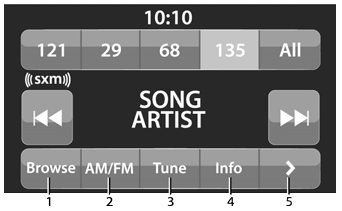
Uconnect 3 with 5-inch Display SiriusXM® Satellite Radio
- Browse
- Radio Bands
- Direct Tune
- Info button
- Next button

Uconnect 4 with 7-inch Display SiriusXM® Satellite Radio
- Browse
- Replay
- Seek Down button

- Direct Tune button
- Seek Up button

- Sound settings button
Replay
The Replay function allows you to store and replay up to 22 minutes of music audio and 48 minutes of talk radio. The playback memory contents are lost as soon as the channel is changed.
Press the Replay button on the touchscreen. The Play/Pause, Rewind/Fast Forward and Live buttons will be displayed at the top of the screen, together with the playback time.
You can exit Replay mode at any time by pressing the Replay button on the touchscreen.

Favorites
Press the Favorites button on the touchscreen to activate the Favorites menu, which will time out after 20 seconds of no user interaction.
You can exit the Favorites menu by pressing the X button.
The Favorites feature allows you to set a favorite artist or song that is currently playing. The radio then uses this information to alert you when the favorite artist or song is played at any time on any of the SiriusXM® channels.
The maximum number of favorites that can be stored in the radio is 50.
Favorite Artist: While a song by the artist is playing, to set a favorite artist, press the Favorites button on the touchscreen, then press the Favorite Artist button on the touchscreen.
Favorite Song: While a song is playing, to set a favorite song, press the Favorites button on the touchscreen, then press the Favorite Song button on the touchscreen.
Browse on SXM

Uconnect 4 with 7-inch Display Browse Button
- All buttons
- Presets button
- Favorites button
- Game Zone button
Press the Browse button on the touchscreen to edit presets, favorites, the Game Zone and Jump Tune, and to access the SiriusXM® channel list.
This screen contains many submenus. You can exit a submenu to return to the parent menu by pressing the Back arrow.
All
Press the All button on the Browse screen. When the All button is pressed, the following categories become available:
Channel List Press Channel List to display all SiriusXM® channel numbers. You can scroll the channel list by pressing the Up and Down arrows located on the right side of the screen. Scrolling can also be performed using the Tune/Scroll knob.
Genre List Press the Genre button on the touchscreen to display the genre list. You can select any desired genre by pressing it in the Genre List. The radio tunes to a channel with content in the selected genre.
Presets — if equipped
Press the Presets button (if equipped), located on the left side of the Browse screen.
You can scroll the presets list by pressing the Up and Down arrows located on the right side of the screen. Scrolling can also be performed using the Tune/Scroll knob.
Selecting a Preset
A preset can be selected by pressing any of the listed presets, or by pressing the Enter/Browse button on the Tune/Scroll knob to select the currently highlighted preset. When selected, the radio tunes to the station stored in the preset.
Deleting a Preset
A preset can be deleted in the presets list screen by pressing the trash can icon for the corresponding preset.
Favorites
Press the Favorites button in the Browse screen.
The Favorites menu provides the means to edit the Favorites list and configure Alert Settings, as well as provides a list of channels currently broadcasting any of the items in the Favorites list.
You can scroll the Favorites list by pressing the Up and Down arrows located on the right side of the screen. Scrolling can also be performed using the Tune/Scroll knob.
Delete Favorites
Press the Delete Favorites tab at the top of the screen. Press the Delete All button on the touchscreen to delete all favorites, or press the trash can icon next to a favorite to delete it.
Alert Settings
Go to the Alert Settings tab at the top of the Favorites screen. The Alert Settings menu allows you to select a visual alert or an audible and visual alert when one of your favorites is broadcast on any of the SiriusXM® channels.
Game Zone
Touch the Game Zone button located on the left side of the Overview screen. This feature allows you to select teams, edit selections, and set alerts.
On Air
Touch the On Air tab at the top of the screen. The On Air list shows the channels currently broadcasting any of the items in the selection list. Touching any item in the list tunes the radio to that channel.
Select Team or Add/Remove, if equipped
Touch the Select Team or Add/Remove button on the touchscreen to activate the league scroll list. Touch the desired league and scroll through the list. All teams within the league will appear. Select a team by touching its corresponding field. A check mark appears next to all selected teams.
Clear Selection / Trash Icon
Touch the Remove Selection tab at the top of the screen. Touch the Remove All button on the touchscreen to delete all selections, or touch the trash can icon next to a selection to delete it.
Alert Settings
Touch the Alert Setting tab at the top of the screen. The Alert Settings menu allows you to select one of the following options: Alert Me to Game Broadcasts After Start, Alert on Score Update, or both, when one or more of your selected items is broadcast on any SiriusXM® channel.
Tune Start
Tune Start begins playing the current song from the beginning when you tune to a channel using one of the 12 presets. This feature is triggered the first time a preset is used during the current song.
Presets

Uconnect 3 with 5-inch Display

Uconnect 4 with 7-inch Display
Presets are available for all radio modes and are activated by pressing any of the preset buttons located at the top of the screen.
When tuned to the station you want to store as a preset, press and hold the numbered button on the touchscreen for more than two seconds.
The radio stores up to 12 presets in each radio mode.
Six presets are displayed on the screen at one time. You can scroll through the preset list by pressing the arrow button located at the upper right of the radio touchscreen.
For Uconnect 3 with 5-inch display
Four presets are displayed on the screen at one time. Press the All button to view all stored presets. To delete a stored preset, a new preset must be stored over the old one.
Preset Features (if equipped)
AM / FM Browse
In AM or FM mode, the browse screen provides the means to edit the preset list and is entered by pressing the Enter/Browse button.
Scrolling the Preset List
Once on the preset browse screen, you can scroll through the preset list by turning the Tune/Scroll knob or by pressing the Up and Down arrow keys located on the right side of the screen.
Selecting a Preset from the List
A preset can be selected by touching any of the listed presets, or by pressing the Enter/Browse button on the Tune/Scroll knob to select the currently highlighted preset.
When selected, the radio tunes to the station stored in the preset.
Deleting Presets
A preset can be deleted in the presets list screen by pressing the trash can icon for the corresponding preset.
Returning to the Main Radio Screen
You can return to the main radio screen by pressing the X button or the back arrow button on the preset browse screen.
Sound Settings
Press the Audio button in the main settings menu to display the sound settings screen.
Sound settings can also be accessed from the Radio mode screen by pressing the Audio button. You can return to the Radio screen by pressing the X button.
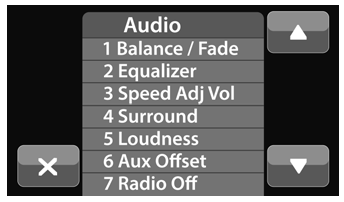
Uconnect 3 with 5-inch Display
- Balance/Fade
- Equalizer
- Speed-Adjusted Volume
- Surround Sound
- Volume
- AUX Volume Offset
- Radio Off with Door, if equipped

Uconnect 4 with 7-inch Display
- Balance/Fade
- Equalizer
- Speed-Adjusted Volume
- Surround Sound
- Volume
- AUX Volume Offset
- Radio Off with Door

Test yourself
A quick Jeep Wrangler quiz: every answer comes with an explanation and a link to the manual page.