Accepting/rejecting phone calls
Receiving phone calls with Bluetooth® connected.
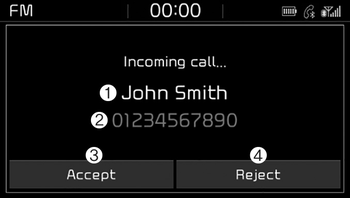
(1) Caller name: If the caller number is in your contacts, the corresponding name is displayed.
(2) Incoming phone number: Incoming phone number is displayed.
(3) Accept: Accept call.
(4) Reject: Reject call.
✽ NOTICE
- When the incoming call screen is displayed, audio mode and the settings screen cannot be shown. Only call volume control is supported.
- Some Bluetooth® devices may not support the call reject function.
- Some Bluetooth® devices may not support the phone number display function.
Operation during calls
Incoming call with Bluetooth® connected ➟ Select [Accept].
 '
(1) Call duration: Call duration display.
(2) Caller name: If the caller number is in your contacts, the corresponding name is displayed.
(3) Incoming phone number: Incoming phone number is displayed.
(4) Keypad: Number keypad for Automatic Response Service input is displayed.
(5) Private: Call is transferred to a cell phone.
(6) Microphone Volume(Outgoing Volume): Adjust outgoing voice volume.
(7) End: End call.
✽ NOTICE
- Some Bluetooth® devices may not support the Private function.
- The outgoing voice volume may vary depending on the type of Bluetooth® device. If the outgoing voice volume is too high or low, adjust the Microphone Volume (Outgoing Volume).
Favourites(Favorites)
Select the [PHONE] button on the audio system ➟ Select [Favourites (Favorites)] ➟ Favourites(Favorites) list displayed.
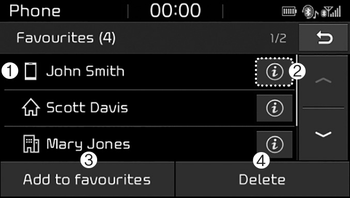
(1) Favourites(Favorites) list: A list of paired favourites(favorites) is displayed. Connect a call when selected.
(2) Detailed info: Detailed info saved to favourites(favorites) is displayed.
(3) Add to favourites(Favorites): Add a downloaded phone number to favourites(favorites).
(4) Delete: Delete a saved favourites (favorites).
✽ NOTICE
- Up to 20 favourites(favorites) can be paired for each paired Bluetooth® device.
- Favourites(Favorites) can be accessed when the Bluetooth® device they were paired from is connected.
- The audio system does not download favourites(favorites) from Bluetooth® devices. Favourites (Favorites) must be newly saved before use.
- To add to favourites(favorites), contacts must be downloaded first.
- Saved favourites(favorites) are not updated even if the contacts of the connected Bluetooth® device are changed. In this case, favourites (favorites) need to be deleted and added again.
Call history
Select the [PHONE] button on the audio system ➟ Select [Call history] ➟ Call history is displayed.
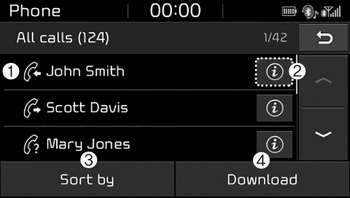
(1) Call history: Display the downloaded call history list. Connect a call when selected.
(2) Detailed info: Detailed call history info is displayed.
(3) Sort by: Sort by all calls, dialed calls, received calls or missed calls.
(4) Download: Download call history from connected Bluetooth® devices.
✽ NOTICE
- Up to 50 dialed, received and missed calls are saved.
- When the latest call history is received, the existing call history is deleted.
Contacts
Select the [PHONE] button on the audio system ➟ Select [Contacts] ➟ Select letter (ABC) ➟ Contacts displayed.
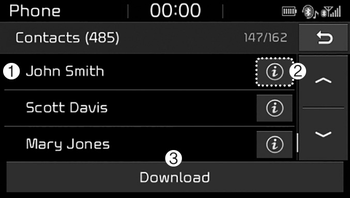
(1) Contacts: Display downloaded contacts.
Connect a call when selected.
(2) Detailed info: Detailed contact info is displayed. Phone numbers can be saved in favourites(favorites) or removed from the detailed info screen.
(3) Download: Download contacts from connected Bluetooth® devices.
✽ NOTICE
- Up to 2,000 contacts can be saved.
- In some cases, additional confirmation from your Bluetooth® device is necessary when downloading contacts. If downloading of contacts unsuccessful, consult your Bluetooth® device’s settings or the audio screen to approve the download.
- Contacts without phone numbers are not displayed.
Dial
Select the [PHONE] button on the audio ➟ Select [Dial].

(1) Phone number entry window: The phone number entered using the keypad is displayed.
(2) Clear
- Press to delete individual digits.
- Press and hold to delete the entire phone number.
(3) Keypad: Enter phone number.
(4) Bluetooth® phone name
- The name of the connected Bluetooth® device is displayed.
- Contacts matching the keypad number/letter input are displayed.
(5) Call
- Enter and select a phone number to call.
- Select without entering a phone number to see the most recent dialed call.