Operating the Radio
Select the  icon on the home
screen to display the Entertainment screen. When selecting the desired radio, the following icons are indicated in the lower part of the center display.
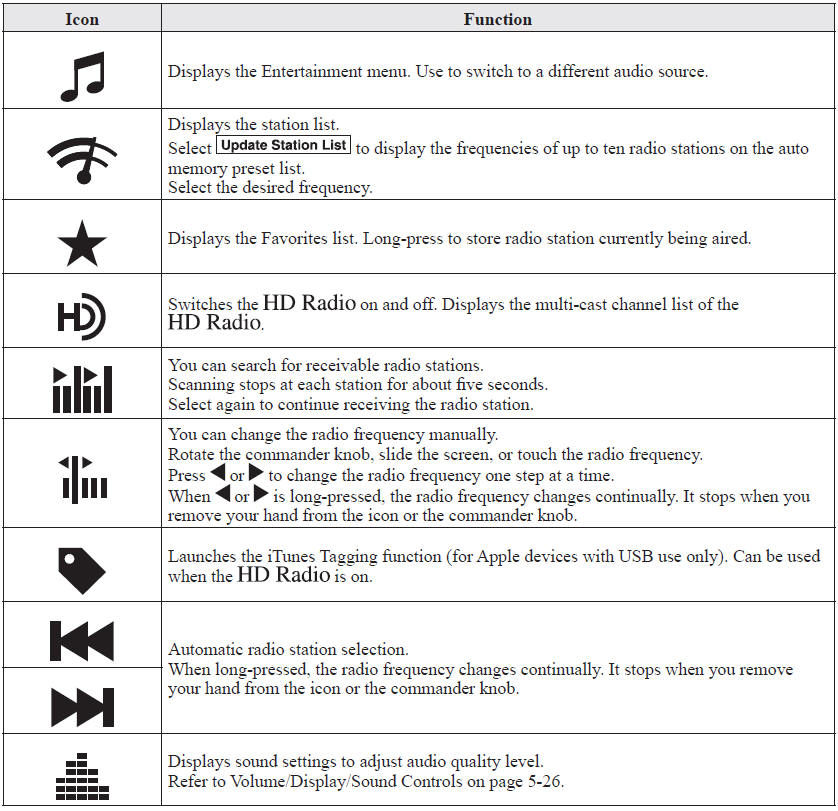
Favorites Radio
Selected stations can be registered for convenient operation. Up to 50 stations can be registered. The Favorites list is common to AM, FM, and satellite radio.
Registering to FavoritesLong-press the  icon to register
the current radio station. The registration can also be performed using the following procedure.
1. Select the icon  to display
the Favorites list.
2. Select  .
3. Select  .
4. The station is added to the bottom of the Favorites list.
NOTE
If the battery is disconnected, your Favorites list will not be deleted.
Selecting radio station from Favorites1. Select the icon to display
the Favorites list.
2. Select the radio frequency to tune in the radio station.
Deleting from Favorites1. Select the icon to display
the Favorites list.
2. Select .
3. Select  .
4. Select the radio frequency you want to delete.
5. Select  .
Changing Favorites list order
1. Select the icon to display
the Favorites list.
2. Select .
3. Select  .
4. Select a radio frequency. The selected radio station can be moved.
5. Slide the radio station or move it using the commander switch, then select  .
Radio Broadcast Data System (RBDS) (Some models) Radio text information display
Radio text information sent from a broadcasting station is displayed in the center display.
NOTE
Radio text information is a function of FM radio only. There is no text function on AM radio. Text information is not displayed in the following:
- During
 reception
- Not an RBDS broadcast
- RBDS broadcast, but radio text is not transmitted from the radio station
Some FM stations transmit Genre codes (Program type like a Rock, News, and so on). This code enables alternative stations transmitting the same Genre code to be found quickly.
(To scan for Genre Seek:)1. Select the  icon while in
the FM mode. 2. Select  to open
the genre list. 3. Select the genre type you want to select. 4. Select the  ,
 icon.
NOTE
To change the desired genre, select the icon.
Ex.)
89.3 is currently being received. With Rock selected as the Genre, the radio stations broadcasting Rock are at the following frequencies.
98.3*1, 98.7, 104.3*1, 107.1
*1 Radio stations with good reception
The frequency changes as follows each time  is pressed.
89.3→98.3→104.3→98.3
NOTE
- Only one Genre can be selected.
- It may not be possible to receive any station even if the Genre Seek function is used.
- If a program in the selected genre is not broadcast to a region, reception is not possible even if the Genre Seek function is used.
- The Genre Seek function searches for genre code (program type) which FM analog broadcasts transmit.
 specialty programs (HD2-HD8)
cannot be searched because they are not FM analog broadcasts. - If radio stations which are selected by scanning using the Genre Seek function are
 broadcasting stations,
they are changed from analog broadcasts to broadcasts after a few seconds
if the reception conditions are good. The genre is displayed after the switch, however, the genre for FM analog broadcasts may differ.
HD Radio™ Technology is the digital evolution of analog AM/FM radio. Your radio product has a special receiver which allows it to receive digital broadcasts (where available) in addition to the analog broadcasts it already receives. Digital broadcasts have better sound quality than analog broadcasts as digital broadcasts provide free, crystal clear audio. For more information, and a guide to available radio stations and programming, please visit www.hdradio.com.
Benefits of HD Radio™ Technology (Information)The song title, artist name, album name and genre will appear on the screen when available by the radio station.
(Multicast)On the FM radio frequency most digital stations have “multiple” or supplemental programs on each FM station.
Listening to HD Radio™ TechnologyIf  icon turns on by selecting
a radio station which is an
broadcasting station, the analog broadcast is switched to an broadcast automatically after
a few seconds and then received. If the broadcast is stopped and changed
to an analog broadcast, press down  to turn off
 .
Multicast channel selection (FM)
If multi-cast channels are available for an broadcast currently being received,
the multi-cast channel list is displayed. Select the desired radio station.
NOTE
- If an analog broadcast is received once and is received while HD1 is selected,
the audio unit switches to the station automatically. - When the icon
is illuminated, there could be a noticeable difference in sound quality and volume when a change from digital to analog signals occurs. If the sound quality and volume become noticeably diminished or cut off, select the icon to turn off
(
icon is not illuminated). - Once an analog broadcast is received when HD1 is selected from the Favorite channels, it is switched to
automatically. If the radio reception conditions are poor, or HD is off, switching to broadcasts is not possible. - When an HD specialty channel (HD2 to HD8) is selected from the Favorite channels, “Signal Lost” is displayed and no audio is output until is received. If the radio reception
conditions are poor, “Signal Lost” continues to be displayed. - If the icon is
not illuminated, information such as song titles of the station are received, however,
the audio output is analog.
iTunes Tagging (for Apple devices with USB use only)
By tagging a song currently being aired, the song can later be purchased from the iTunes Store. One hundred tags can be stored. A maximum of 100 tags (for 100 songs) can be stored for later downloading.
1. Select the  icon. The tag
is stored in the audio unit.
2. Connect the device via the vehicle's USB. Any stored tag(s) will be sent automatically to the connected device.
3. Once at home or after parking the vehicle safely, log onto the iTunes Store with your device. Your previously tagged song(s) can now be easily purchased.
NOTE
- Both AM and FM can be
used. - Because iTunes tagging only supports purchases from the iTunes Store, direct downloading of music from the vehicle's audio unit is not possible.
- If the available memory for the connected device is insufficient, the tag is not sent.
- If an error occurs while the tag is being sent, reconnect the device.
Test yourself
A quick Mazda 6 quiz: every answer comes with an explanation and a link to the manual page.