Graphic information display, colour information display
Depending on the vehicle specification, the vehicle is fitted with either a graphic information display or a colour information display. The information display is located in the instrument panel, above the Infotainment System.
Graphic information display
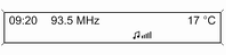 Depending on the
Infotainment System, the graphic information display is available in two versions.
 The graphic information display shows:
- the time 85
- the outside temperature 84
- the date 85
- Infotainment System, see Infotainment System manual
- vehicle personalisation settings 116
Colour information display
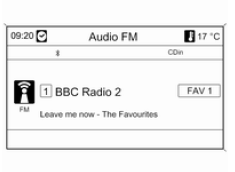
The colour information display shows the following in colour:
- the time 85;
- the outside temperature 84;
- the date 85;
- Infotainment System, see Infotainment System manual;
- navigation, see Infotainment System manual;
- system settings;
- vehicle messages 109;
- vehicle personalisation settings 116.
The information shown and how it is displayed depend on the vehicle equipment and settings.
Selecting menus and settings
Menus and settings are accessed via the display.
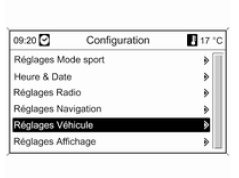
Selections are made using:
- the menus;
- the function buttons and the multifunction rotary knob on the Infotainment System;
- the function buttons and the multifunction knob on the multifunction unit in the centre console.
Selecting with the Infotainment System
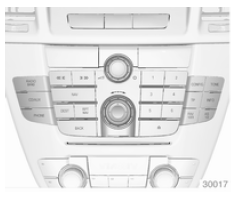
Select a function using the Infotainment System buttons. The menu of the selected function is displayed.
The multifunction rotary knob is used to select an item and to confirm.
Selecting with the multifunction unit
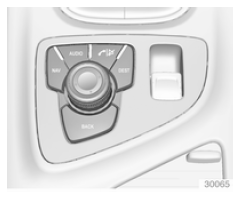
Select a function using the multifunction unit buttons. The menu of the selected function is displayed.
The multifunction rotary knob is used to select an item and to confirm.
Multifunction button
The multifunction knob is the central control for menus:
Turn
- To highlight a menu option;
- To adjust a numerical value or to display a menu option.
Press (outer ring)
- To select or activate the highlighted option;
- To confirm an adjusted value;
- To switch a system on or off.
BACK button
Press the button to:
- exit a menu without changing the settings;
- return to a higher menu level from a submenu;
- delete the last character of a character string.
Press and hold the button for a few seconds to delete the entire entry.
Vehicle personalisation 116, stored settings 23.
Smartphone controller
The smartphone controller allows a smartphone to access vehicle data via a Bluetooth or WLAN connection. This data can be displayed and analysed on the smartphone.
Test yourself
A quick Opel Insignia quiz: every answer comes with an explanation and a link to the manual page.