Interior features
Message Settings
In this manual: Interior features
~1min read
1 Display the “Phone/Message Settings” screen. 2 Select “Messaging Settings”.
3 Select the desired item to be set.
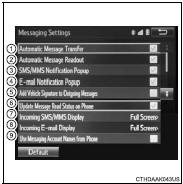
1 Set automatic message transfer on/off. 2 Set automatic message readout on/off. 3 Set the SMS/MMS notification popup on/off. 4 Set the e-mail notification popup on/off. 5 Set adding the vehicle signature to outgoing messages on/off. 6 Set updating message read status on phone on/off. 7 Change the incoming SMS/MMS display. “Full Screen”: When an SMS/MMS message is received, the incoming SMS/MMS display screen is displayed and can be operated on the screen. “Drop-Down”: When an SMS/MMS message is received, a message is displayed on the upper side of the screen. 8 Change the incoming e-mail display. “Full Screen”: When an e-mail is received, the incoming e-mail display screen is the displayed and can be operated on the screen. “Drop-Down”: When an e-mail is received, a message is displayed on the upper side of the screen.9 Set display of messaging account names on the inbox tab on/off.
When set to on, messaging account names used on the cellular phone will be displayed.
Select “Default”, and then “Yes”.
■ Displaying the “Messaging Settings” screen in a different way 1 Display the phone screen. 2 Select .
3 Select “Settings”.
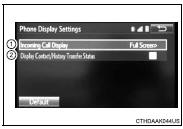
1 Change the incoming call display.
“Full Screen”: When a call is received, the hands-free screen is displayed and can be operated on the screen.
“Drop-Down”: A message is displayed on the upper side of the screen.
2 Set display of the contact/ history transfer completion message on/off.
Test yourself
A quick Toyota Corolla quiz: every answer comes with an explanation and a link to the manual page.
Was this page helpful?