Contact/Call History Settings
The contact can be transferred from a Bluetooth® phone to the system.
The contact also can be added, edited and deleted.
The call history can be deleted and contact and favorites can be changed.
1 Display the “Phone/Message Settings” screen. 2 Select “Contact/Call History Settings”.
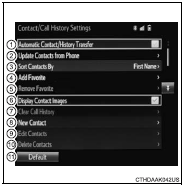
3 Select the desired item to be set.
1 For PBAP compatible Bluetooth® phones, select to set automatic contact/history transfer on/off. When set to on, the phone’s contact data and history are automatically transferred.2 Select to update contacts from the conne cted phone.
3 Select to sort contacts by the first name or last name field. 4 Select to add contacts to the favorites list. 5 Select to delete contacts from the favorites list. 6 Select to display contact images. 7 Select to clear contacts from the call history.8 Select to add new contacts to the contact list.* 9 Select to edit contacts in the contact list.* 10 Select to delete contacts from the contact list.* 11 Select to reset all setup items.*
*: For PBAP compatible Bluetooth® phones only, this function is available when “Automatic Contact/History Transfer” is set to off.
Test yourself
A quick Toyota Corolla quiz: every answer comes with an explanation and a link to the manual page.