Audio system
Message Settings
In this manual: Audio system
13steps
~78min
3/5difficulty
Done 0 of 13
- Display the “Phone/Message Settings” screen.
- Select “Messaging Settings”.
- Select the desired item to be set.
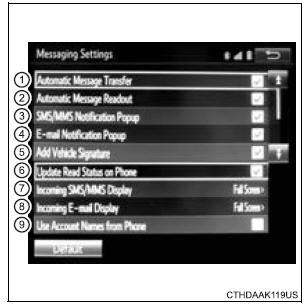
- Set automatic message transfer on/off.
- Set automatic message readout on/off.
- Set the SMS/MMS notification popup on/off.
- Set the e-mail notification popup on/off.
- Set adding the vehicle signature to outgoing messages on/off.
- Set updating message read status on phone on/off.
- Change the incoming SMS/MMS display.
“Full Screen”: When an SMS/MMS message is received, the incoming SMS/MMS display screen is displayed and can be operated on the screen.
“Drop-Down”: When an SMS/MMS message is received, a message is displayed on the upper side of the screen.
“Full Screen”: When an e-mail is received, the incoming e-mail display screen is the displayed and can be operated on the screen.
“Drop-Down”: When an e-mail is received, a message is displayed on the upper side of the screen.When set to on, messaging account names used on the cellular phone will be displayed.
To return to the default settings
Select “Default”, and then “Yes”.
Displaying the “Messaging Settings” screen in a different way
- Display the phone screen.
- Select
 .
- Select “Settings”.
Test yourself
A quick Toyota Sienna quiz: every answer comes with an explanation and a link to the manual page.
Was this page helpful?