Selecting the destination via additional information
You can display information on hotels, sights, hospitals and other similar points of interest in order to select them as a destination.
1. Select "Navigation" and press the controller.
2. Select "Information" and press the controller.
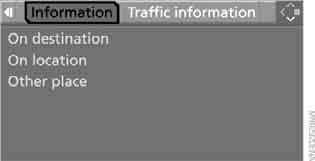
3. Select:
► "On destination"
► "On location"
► "Other place"

4. Press the controller.
5. Select the required category, for example "Hotels / restaurants", and press the controller.
6. If required, enter search criteria, for example the maximum distance from the current location.
7. Select "◄Start search►" and press the controller.
A list of destinations appears on the display.

8. Select a destination and press the controller.
 The scope of information and the symbols depend on the navigation DVD.◄
9. Select a menu item:
► To save the address to the destination list and start guidance, select and press the controller.
► To call this address, select and press the controller.
► To display other destinations, select and press the controller.
► To restart the search, select and press the controller.
To exit the menu, select and press the controller.
Icons on the map
If you selected a category, for example Hotels, and started the search, the found hotels are displayed on the map as icons.
Hiding icons on the map:
1. Select and press the controller.
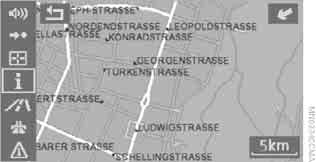
2. Select "Hide icons" and press the controller.
The icons disappear.
To show the icons again, select "Show icons" and press the controller.
To exit the menu, select and press the controller.
Test yourself
A quick BMW X3 quiz: every answer comes with an explanation and a link to the manual page.