Address book
Viewing the address book
For principles of iDrive operation, refer to.
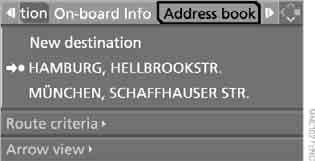
Select "Address book" and press the controller.
Saving destinations in the address book
The address book holds up to 100 addresses.
1. Select "Address book" and press the controller.
2. Select "New address" and press the controller.
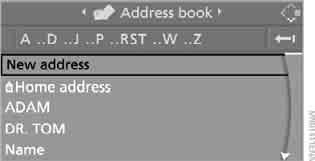
3. Select "Enter address yourself" and press the controller.
4. Enter the name and address, see also the section Entering a destination manually.
5. Select "Save address" and press the controller.
The entry is saved in the address book.
A destination from the destination list can also be saved in the address book.
Saving the current location coordinates
The current location can be saved in the address book.
1. Select "Address book" and press the controller.
2. Move to the third field from the top.
Turn the controller to select "New address" and press the controller.
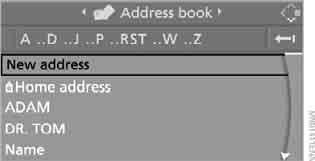
3. Select "Use current location as address" and press the controller.
The name assigned earlier can be changed. For editing, see the section Entering a destination manually.
4. Select "Save address" and press the controller.
If you have left the area covered by the DVD, the current location can be saved in the address book. In this case, you must give this place a name.
Selecting a destination from the address book
1. Select "Address book" and press the controller.
A list of stored addresses appears on the display.

2. Select an entry and press the controller.
To start guidance, select "Start guidance" and press the controller.

Editing entries in the address book
1. Select "Address book" and press the controller.
2. Select an entry and press the controller.
3. Select "Edit" and press the controller.
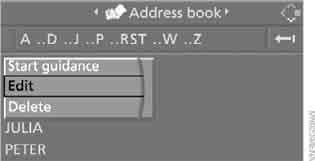
4. Edit the entry.
For editing, see the section Entering a destination manually.
5. Select "Save address" and press the controller.
Deleting a destination from the address book
1. Select "Address book" and press the controller.
2. Select an entry and press the controller.
3. Select "Delete" and press the controller.
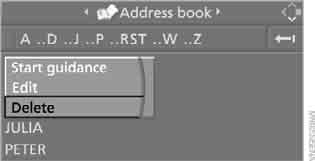
Deleting all destinations from the address book
1. Open the home screen.
2. Press the controller to go to the menu .
3. Select "Settings" and press the controller.
4. Select "Vehicle / Tyres" and press the controller.
5. Move to the upper field. Turn the controller to select "Delete data" and press the controller.
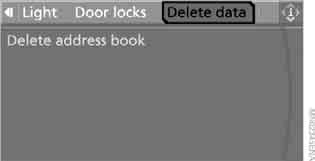
6. Select "Delete address book" and press the controller.
7. Select "Yes" and press the controller.
Home address
The current location or the selected destination can be saved in the address book as the home address. In the address book, this entry will be in second place.
Saving the home address
1. Select "Address book" and press the controller.
2. Move to the third field from the top.
Turn the controller to select "Home address" and press the controller.
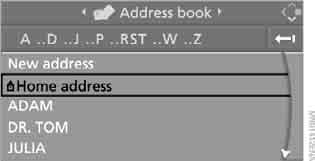
3. Select "Use current location as address" or, during guidance, "Save current destination" and press the controller.
4. Select "Save address" and press the controller.
Selecting the home address as the destination
1. Select "Home address" and press the controller.
2. Select "Start guidance" and press the controller.
Editing the home address
1. Select "Home address" and press the controller.
2. Select "Edit" and press the controller. For editing, see the section Entering a destination manually.
Test yourself
A quick BMW X3 quiz: every answer comes with an explanation and a link to the manual page.