Options
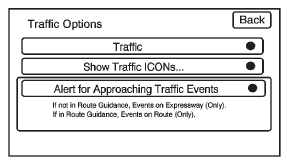
Press the Options screen button. A Traffic Options menu displays. Select the desired traffic related option.
Traffic: Press to enable or disable the traffic function.
Show Traffic ICONS: Press to display traffic icons on the map screen. This function allows which traffic information displays.
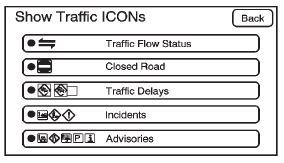
Traffic Flow Status — This screen button is used to enable or disable the green, yellow, red and orange arrows shown beside the roads and used to show the traffic flow or extent of a traffic event.
- Black indicates a closed road segment.
- Red indicates significantly impaired traffic flow with average speed of fewer than 40 km/h.
- Yellow indicates slightly impaired traffic flow with average speed between 40 km/h and 72 km/h.
- Green indicates normal traffic flow with average speed above 72 km/h. . Orange indicates construction.
Traffic flow data arrows display on the map when scaled up to eight miles.
Closed Road, Traffic Delays, Incidents, and Advisories — These four screen buttons are used to select the traffic event ICONS that appear on the map screens.
Alert for Approaching Traffic Events: When On, if an approaching traffic event is within the alert range, one of two traffic alert pop-up screens display:
- With no route planned, while on expressways, Approaching Traffic Event without Avoid screen displays.
- With route planned, Traffic Event on Route screen displays. If the Alert for Approaching Traffic Events is Off, the alert pop-up screen does not display.
Test yourself
A quick Cadillac Escalade quiz: every answer comes with an explanation and a link to the manual page.