CD Player
The audio player of the infotainment system can play audio CDs and MP3/WMA CDs.
Important Information about Audio CDs and MP3/WMA Discs
Never insert DVDs, 8 cm CDs, or shaped CDs into the audio player.
Do not attach labels to CDs. These discs may get stuck in the CD drive or seriously damage it.
Such damage will require costly replacement of the audio unit.
Copy-protected audio CDs that do not conform to the standard audio CD format may play incorrectly or not play at all.
User-recorded CD-R and CD-RW discs are less durable than commercially produced audio CDs when mishandled.
CD-R and CD-RW discs, especially user-recorded ones, must be handled properly; see below.
User-recorded CD-R and CD-RW discs may play incorrectly or not play at all.
On mixed-mode CDs (containing audio tracks and data, such as MP3), only the audio tracks can be detected and played.
Do not leave fingerprints on the discs when replacing them.
Immediately after removing a CD from the audio player, store it in its protective sleeve to prevent damage and contamination.
Dirt and liquid on CDs can contaminate the lens inside the audio player and cause malfunctions.
Protect CDs from high temperatures and direct sunlight.
Maximum folder depth on an MP3/WMA CD:
11 levels.
Maximum number of tracks that can be recorded on an MP3/WMA CD: 1000.
WMA files with Digital Rights Management (DRM) from online music stores cannot be played.
WMA files can be played reliably only if they were created with Windows Media Player version 8 or later.
This section describes only the principles of MP3 file playback, since WMA files are played in the same way. When a CD with WMA files is loaded, the corresponding MP3 menus are displayed.
Control Buttons
The most important CD player controls are as follows:
CD/AUX: select audio source
 track selection; fast forward/rewind within a track
 pause/resume playback
 eject CD
Playing a CD and MP3 File
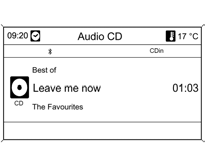
Insert the CD label side up into the CD slot and make sure it is fully inserted.
CD playback starts automatically, and the Audio CD or Audio MP3 menu is displayed.
If a CD is already loaded but the Audio CD or Audio MP3 menu is not active:
Press the CD/AUX button.
The Audio CD or Audio MP3 menu opens and CD playback starts.
Depending on the data recorded on the audio CD or MP3 disc, different information about the disc and the current track may be shown on the display.
If the Audio CD or Audio MP3 menu does not appear after pressing the CD/AUX button, a navigation CD is in the CD slot. To eject the navigation CD, press the button.
Pausing Playback
Press the button
To resume playback, press the buttonagain.
Direct Track Selection
During CD playback

Turn the MENU knob or
Press the MENU knob, then select Tracks list,
to display the list of all tracks on the CD.
Select the desired track.
During MP3 disc playback
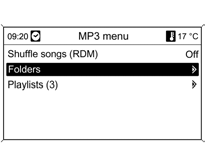
Turn the MENU knob to display the list of all tracks on the CD, or
Press the MENU knob, then select Folders or Playlists and select the desired folder or playlist.
Select the desired track.
Skip a track forward or backward
Briefly press theor one or more times.
Search for a track forward or backward
Briefly press the then press the buttonagain and hold it until the desired track appears.
Playing Tracks in Random Order
Press the MENU knob, then set Shuffle songs (RDM) to On.
Random order is canceled if Folders or Tracks list is selected.
Fast Forward and Rewind
Press the buttonand hold it to fast forward or rewind within the current track, respectively.
Important Information
Only .pls and .m3u playlist formats are supported.
Playlist entries must use relative paths.
Ejecting a CD
Press the button .
The drive ejects the CD from the slot.
If the CD is not removed after ejection, it is reloaded into the player after a few seconds.
Test yourself
A quick Chevrolet Cruze quiz: every answer comes with an explanation and a link to the manual page.