Infotainment System
Smartphone Link (Stitcher)
In this manual: Infotainment System
10steps
~60min
3/5difficulty
Done 0 of 10
Some images and explanations may vary by phone operating systems, versions, and/or application (App) versions.
Using Stitcher
- Install the Stitcher application on the smartphone.
- Connect the smartphone to the infotainment system through the USB port or Bluetooth wireless technology.
- iPhone: USB connection
- Android phone/BlackBerry phone: Bluetooth wireless technology.
- Activate the Stitcher application.
- Press
 .
- Press
 smartphone link.
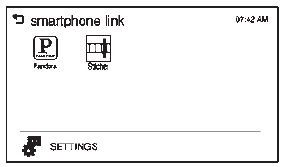
- Press Stitcher.
If the smartphone is not connected to the infotainment system or the application is not installed on the smartphone, the Stitcher menu is not activated.
Thumbs Up and Thumbs Down
Rate tracks by using  (thumbs up)
or  (thumbs down).
Pause
- Press
 to pause.
- Press
 to resume.
Changing Stations
Press  to change to the next station.
Saving Favorites
To save a station as a favorite, press  on the stitcher screen.
Stitcher Menus
The Stitcher Station menu displays available station data from the Stitcher server.
- Press MENU. The Stitcher Station menu is displayed.
- Press
 or
 to scroll through the list.
Select the desired station.
Tone Settings
- Press MENU. The Stitcher menu is displayed.
- Press tone settings. The tone settings menu is displayed. See “Tone Settings” under “Radio Controls with Touchscreen” in Operation on page 7-6.
Test yourself
A quick Chevrolet Spark quiz: every answer comes with an explanation and a link to the manual page.
Was this page helpful?