Failure to pay attention to the road may result in loss of vehicle control, collision and injury. We strongly recommend that you exercise extreme caution when using any device that may take your attention away from the road. Driving your vehicle safely is your first responsibility. We advise against using portable devices while driving and encourage you to use voice-operated systems whenever possible. Make sure you are aware of all applicable laws that may affect the use of electronic devices while driving.
Note:depending on your vehicle's options package, your system may differ from the one illustrated below.Note:some features, such as Sirius satellite radio, may not be available in your area.
Consult an authorised dealer.
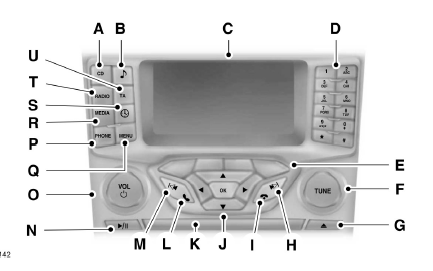
CD: press this button to listen to a CD. Press the function buttons below the radio screen to select the repeat or shuffle options shown on the screen.
SOUND: press this button to access the treble, midrange, bass, fade and balance settings. Use the up and down arrows to select the different settings. After making your selection, press the left and right arrows to adjust the settings. Press OK to confirm the setting or MENU to exit.
Sound settings can be adjusted independently for each audio source.
Display screen: shows audio and SYNC information.
Number pad: in radio mode, lets you store and save your favorite stations for later access. When tuned to a station, press and hold a preset button until the sound returns. In CD mode, press a button to select a track. In phone mode, press these buttons to dial a phone number.
Function buttons: used to select different audio system functions depending on the active mode (for example, radio mode or CD mode).
TUNE: turn this knob to search for the frequency in single steps.
Eject: press this button to eject a CD.
Seek: in radio mode, select a frequency band and press this button. The system stops at the first radio station found on the band in ascending order. Press and hold this button to quickly move to the next station with good reception. In CD mode, press this button to select the next track. Press and hold this button to fast-forward through the track currently playing.
End call: press this button to end a phone call.
Arrow keys and OK: use the up and down arrows to select the different settings. After making your selection, press the left and right arrows to change the settings. Press OK to set the setting, or press MENU to exit.
CD slot: insert a CD here.
Make a call or answer: press this button to answer an incoming call or to place a phone call.
Seek: in radio mode, select a frequency band and press this button. The system stops at the first radio station found on the band in descending order. Press and hold this button to quickly move to the previous station with good reception. In CD mode, press this button to select the previous track. Press and hold this button to quickly rewind through the track currently playing.
Play/Pause: press this button to start playback of a track or pause it when listening to a CD.
VOL and Power: press this button to turn the system on or off.
Turn to adjust the volume.
PHONE: press this button to access the phone functions of the SYNC system. See SYNC.
MENU: press this button to access the various audio system functions. Refer to Menu Structure later in this chapter.
MEDIA: press this button to access your auxiliary input jack or to browse between devices connected to the auxiliary input jack or USB port.
Clock: press this button to access the clock settings.
Use the centre arrows to change the hours and minutes. You can also set the clock by pressing the MENU button, then scrolling through the options to the clock settings.
RADIO: press this button to listen to the radio or change the radio frequency band. Press the function buttons located below the radio display to select the different radio options.
TA: the active audio source is interrupted by traffic announcements.
WARNING
Failure to pay attention to the road may result in loss of vehicle control, collision and injury. We strongly recommend that you exercise extreme caution when using any device that may take your attention away from the road. Driving your vehicle safely is your first responsibility. We advise against using portable devices while driving and encourage you to use voice-operated systems whenever possible. Make sure you are aware of all applicable laws that may affect the use of electronic devices while driving.
Note: depending on your vehicle's option package, your system may differ from the one illustrated below.
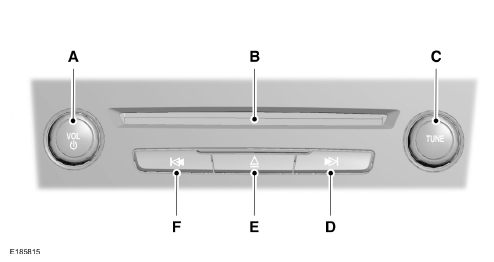
VOL and Power: press this button to turn the system on and off.
Turn to adjust the volume.
CD slot: insert a CD here.
TUNE: turn this knob to search for the frequency in single steps.
Seek: in radio mode, select a frequency and press this button. The system stops at the first radio station found on the band in ascending order. Press and hold this button to quickly move to the next station with good reception.
In CD mode, press this button to select the next track.
Press and hold this button to fast-forward through the track currently playing.
Eject: press this button to eject a CD.
Seek: in radio mode, select a frequency and press this button. The system stops at the first radio station found on the band in descending order. Press and hold this button to quickly move to the previous station with good reception.
In CD mode, press this button to select the previous track.
Press and hold this button to quickly rewind through the track currently playing.
?
Test yourself
A quick Ford Mondeo quiz: every answer comes with an explanation and a link to the manual page.