Radio
WARNING
Failure to pay attention to the road may result in loss of vehicle control, collision and injury. We strongly recommend that you exercise extreme caution when using any device that may take your attention away from the road. Driving your vehicle safely is your first responsibility. We advise against using portable devices while driving and encourage you to use voice-operated systems whenever possible. Make sure you are aware of all applicable laws that may affect the use of electronic devices while driving.
Note: the touchscreen can control most audio functions. See SYNC 2 (page 339).
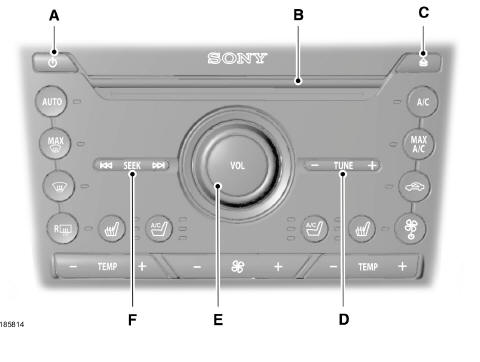
- Power: press this button to turn the system on or off.
- CD slot: insert a CD here.
- Eject: press this button to eject a CD.
- - TUNE +: press these buttons to search for the frequency in single steps.
- VOL: turn the knob to adjust the volume.
- Seek (SEEK), Rewind and Fast-forward: in radio mode, select a frequency band and press one of these buttons. The system stops at the first radio station it finds in the selected direction. Press and hold one of these buttons to quickly move to the next or previous station with good reception. In CD mode, press one of these buttons to select the previous or next track. Press and hold one of these buttons to fast-forward or rewind through the track currently playing.
Menu Structure
Note: depending on your system, some options may be slightly different.
Press MENU.
Press the up or down arrows to scroll through the options.
Press the right arrow to enter a menu. Press the left arrow to exit a menu.
Press OK to confirm a selection.
Radio |
|
| Scan | Select this option to listen to a short sample of all available stations. |
| AST | Select this option to store the six local stations with the best reception on the AM-AST and FM-AST bands. |
| Radio Text | Select this option to display additional information, such as the artist name. |
| Alternative frequency | If the alternative frequency option is enabled, the system searches for a different frequency that offers better reception for the same station. |
| Regional mode | Regional mode determines how the system switches alternative frequencies within regional networks. |
| News | If the News option is enabled, the system interrupts the active audio source to play the latest news, provided that the station being listened to (or the last station listened to if other media is active) supports news. |
| Station continuity | If the continuity option is enabled, the system automatically switches from DAB to FM when DAB is no longer available. |
*Additional information is not always available.
** Only between different DAB ensembles.
Audio |
|
| Adaptive volume | Automatically adjusts the volume to compensate for noise caused by speed and wind. Available settings range from 0 to +7. |
| Sound | Select this option to change the treble, midrange, bass, sound distribution and balance settings. |
| DSP settings | Select this option to optimize sound quality for the selected seat position. |
| DSP | Select STEREO SURROUND mode or STEREO mode. Only with external audio systems. |
CD settings |
|
| Scan all | Select this option to scan all CD tracks. |
| Scan folder | Select this option to scan all music files in the selected MP3 folder. |
Clock settings |
|
| Set time | Select this option to set the time. |
| Set date | Select this option to set the calendar date. |
| 24 hours | Select this option to display the time in 12-hour or 24-hour format. |
Display settings |
|
| Brightness | Select this option to change the screen brightness. |
| Language | Select this option to choose English, French or Spanish as the display language. |
| Temperature setting | Select this option to display the outside temperature in degrees Celsius or Fahrenheit. |
Test yourself
A quick Ford Mondeo quiz: every answer comes with an explanation and a link to the manual page.