Features
Speed Dial
In this manual: Features
36steps
~216min
4/5difficulty
Done 0 of 36
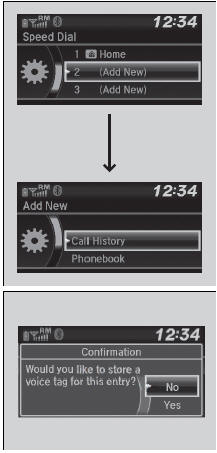
Up to 20 speed dial numbers can be stored per phone.
To store a speed dial number:
- Press the
 button or the
 button.
- Rotate
 to select Speed Dial, then press
 .
- Rotateto select Add New, then press .
- Rotate to select a place to choose a number from, then press .
From Call History:
- Select a number from the call history.
From Phonebook:
- Select a number from the connected cell phone's imported phonebook.
From Phone Number:
- Input the number manually.
- When the speed dial is successfully stored, you are asked to create a voice tag for the number. Rotateto select Yes or No, then press .
- Using the
 button, follow the prompts to say the name for the speed dial entry.
Speed Dial
You can use the audio preset buttons during a call to store a speed dial number:
- Press and hold the desired audio preset button during a call.
- The contact information for the active call will be stored for the corresponding speed dial.
When a voice tag is stored, you can press the  button and call the number using voice commands.
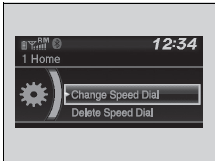
To edit a speed dial
- Press the button or the button.
- Rotateto select Phone Setup, then press .
- Rotateto select Speed Dial, then press .
- Select an existing speed dial entry.
- Rotateto select Change Speed Dial, then press .
- Select a new speed dial number, then press.
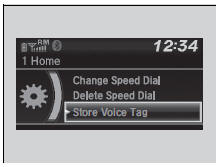
To add a voice tag to a stored speed dial number
- Press thebutton or the button.
- Rotateto select Phone Setup, then press .
- Rotateto select Speed Dial, then press .
- Select an existing speed dial entry.
- Rotateto select Store Voice Tag, then press .
- Using the
 button, follow the prompts to complete the voice tag.
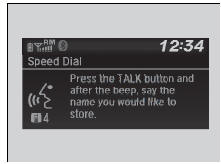
To change a voice tag
- Press thebutton or the button.
- Rotateto select Phone Setup, then press .
- Rotateto select Speed Dial, then press .
- Select an existing speed dial entry.
- Rotate to select Change Voice Tag, then press .
- Using the
 button, follow the prompts to complete the voice tag.
Speed Dial
Avoid using duplicate voice tags. Avoid using "home" as a voice tag.It is easier for HFL to recognize a longer name. For Change Speed Dial example, use "John Smith" instead of "John."
To delete a voice tag
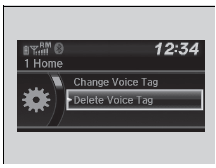
- Press thebutton or the button.
- Rotateto select Phone Setup, then press .
- Rotateto select Speed Dial, then press .
- Select an existing speed dial entry.
- Rotateto select Delete Voice Tag, then press .
- A confirmation message appears on the screen. Rotate to select Yes, then press .
To delete a speed dial number
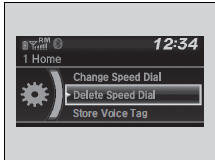
- Press thebutton or the button.
- Rotateto select Phone Setup, then press .
- Rotateto select Speed Dial, then press .
- Select an existing speed dial entry.
- Rotateto select Delete Speed Dial, then press .
- A confirmation message appears on the screen. Rotate to select Yes, then press .
Test yourself
A quick Honda Civic quiz: every answer comes with an explanation and a link to the manual page.
Was this page helpful?