Wi-Fi Connection
You can connect the audio system to the Internet using Wi-Fi and browse websites or use online services on the audio/information screen. If your phone has wireless hotspot capabilities, the system can be tethered to the phone. Use the following steps to setup.
Wi-Fi mode (setting for the first time)
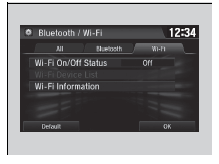
1. Select .
2. Select Settings.
3. Select Bluetooth/Wi-Fi.
4. Select the Wi-Fi tab.
5. Select Wi-Fi On/Off Status, then On.
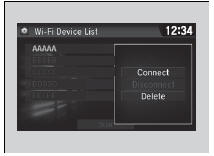
6. Select Wi-Fi Device List.
- Make sure your phone’s Wi-Fi setting is in access point (tethering) mode.
- Select the phone you want to connect to the system.
- If you do not find the phone you want to connect in the list, select Scan.
7. Select Connect.
- If needed, enter a password for your phone and select OK.
- When the connection is successful, the
 icon is displayed on the top of the screen.
8. Select  to go back to the home screen.
Wi-Fi mode (setting for the first time)
You cannot go through the setting procedure while a vehicle is moving. Park in a safe place to setup the Wi-Fi connection.
Some cell phone carriers charge for tethering and smartphone data use. Check your phone’s data subscription package.
Check your phone manual to find out if the phone has Wi-Fi connectivity.
You can confirm whether Wi-Fi connection is on or off with the icon on Wi-Fi Device List. Network speed will not be displayed on this screen.
Wi-Fi mode (after the initial setting has been made)
Make sure your phone's Wi-Fi setting is in access point (tethering) mode.
iPhone users
You may need to go through an initial setup for Wi- Fi connection again after you boot your phone.
Test yourself
A quick Honda Civic quiz: every answer comes with an explanation and a link to the manual page.