Main Mode Screen
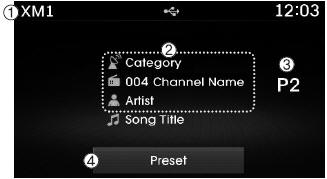
1. Mode Display: Shows the current operating mode.
2. Channel Information. Displays the category, channel number, channel name, artist name, and title information.
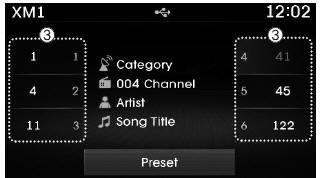
3. Preset. Displays the currently playing preset, numbered [1] ~ [6].
4. Preset Display. Displays the stored presets.
Using Seek
press Button for playing the previous/next channel.
❈ If the "Category" icon is displayed, channels are changed within the current category.
Using the Tune Feature
Turn Turn the TUNE knob to select the desired channel.
SCAN
press Button for scanning all channels with good reception for 5 seconds each.
After the scan is complete, the previously playing channel will be restored.
While scanning, pressing the Press the button again to cancel the scan operation and restore the previously playing channel.
If the "Category" icon is displayed, channels change within the current category.
Searching by Category
Select a category using the button and press the
 TUNE knob to select it.
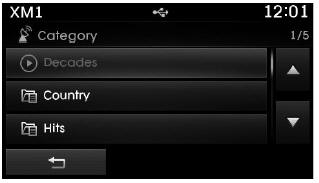
Channels of the selected category are played.
Selecting Presets / Storing Presets
press Button for displaying the channel information stored for each button.
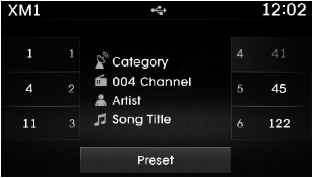
press ~
 buttons to play the desired preset.
✽ NOTICE
While listening to the channel you want to store as a preset, press and hold one of the  ~
 preset buttons (more than 0.8 seconds) to store the current channel to the selected preset.
✽ NOTICE - USING DISCS
- This device was designed to be compatible with software bearing the following logos.
- Do not clean discs with chemical solutions such as record sprays, antistatic sprays, antistatic liquids, gasoline, or solvents.
- After using a disc, return it to its original case to prevent scratches.
- Hold discs by the edges or the center hole to prevent damage to the disc surfaces.
- Do not allow foreign objects to enter the disc insert/eject slot. Foreign substances may cause damage to the internal parts of the unit.
- Do not insert two discs at the same time.
- When using CD-R/CD-RW discs, differences in disc reading and playback time may occur depending on the disc manufacturer, production method, and recording method used.
- Remove fingerprints and dust from the disc surface (coated side) with a soft cloth.
- Using labeled CD-R/CD-RW discs may cause jamming or difficulty ejecting the disc. Such discs may also cause noise during playback.
- Some CD-R/CD-RW discs may not operate properly depending on the disc manufacturer, production method, and recording method used. If problems persist, try using a different CD, as continued use may cause a malfunction.
- The performance of this product may vary depending on the CDRWDrive software.
- Copy-protected CDs, such as Stype CDs, may not play on this unit. DATA discs cannot be played. (However, such discs may still operate, but abnormally.)
- Do not use irregularly shaped discs (8 cm, heart-shaped, octagonal-shaped), as such discs may cause a malfunction.
- If a disc is left in the disc slot without being removed for 10 seconds, the disc will be automatically reloaded into the disc player.
- Only original audio CDs are supported. Other discs may cause recognition failure (e.g., CD-R copies, labeled discs).
Test yourself
A quick Hyundai Tucson LM quiz: every answer comes with an explanation and a link to the manual page.