Using the Rearview Mirror Button
Pressing the rearview mirror button allows you to make necessary service requests, search for POI information, and request emergency rescue operations when connected to the Blue Link® Center.
These functions can only be used after subscribing to the Blue Link® service.
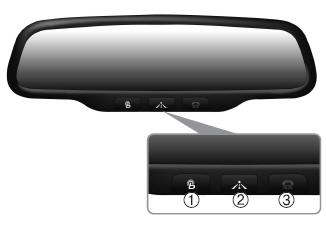
➀  (Blue Link® Center)
Makes service requests and consultations related to Blue Link® services. The call is connected to an operator at the Blue Link® Center.
Pressing the key again will end the call. This function does not work when you are talking on the phone via Bluetooth®.
➁  (Blue Link® for POI)
- Blue Link® Voice Command starts Blue Link® voice command. To receive voice prompts, briefly press the button to enter voice command mode. Press and hold the button to end a voice command.
- TBT VR Commands
1. Go To: The "Go To" voice command is used to request loading of route data for a new destination, saved destinations, daily routes, and previous destinations.
2. Save Destination: The "Save Destination" VR command is used to assign a voice tag to the last loaded destination and save it in the destination directory.
NOTE:
The Turn by Turn (TBT) function supports saving up to ten (10) destinations in the TBT destination directory.
3. Route Preview: The "Route Preview" VR command allows the user to preview route instructions (upcoming maneuver instructions) at any time during route guidance.
4. Destination List: The "Destination List" VR command allows the user to view and delete saved destinations with their associated voice tags in the Turn by Turn destination directory.
5. Voice Prompts: The "Voice Prompts" command allows the user to turn Turn by Turn (TBT) direction announcements on or off.
6. Pause Route The VR command "Pause Route" allows the user to pause the route guidance. Turn-by-Turn (TBT) route guidance in navigation mode.
7. Resume Route The VR command "Resume Route" allows the user to resume Turn-by-Turn (TBT) route guidance.
➂  (Blue Link® for SOS)
In case of an emergency, contact the Blue Link® Emergency Assistance Center for help.
The call is connected to the Blue Link® Emergency Assistance Center. Pressing the button again will end the call.
If you are already on a phone call via Bluetooth®, the call will be ended to connect you to the Blue Link® Emergency Assistance Center.
CAUTION
- You cannot use the Bluetooth® phone and Blue Link® at the same time.
- During a Bluetooth® call, pressing the
 key or
 key will display a message indicating that you are currently on a phone call.
- A message will be displayed if you receive a Bluetooth® Wireless Technology call while using Blue Link®. At this time, press the
 key on the steering wheel remote controller to answer the call. The phone will not ring.
Test yourself
A quick Hyundai Tucson LM quiz: every answer comes with an explanation and a link to the manual page.