iPod
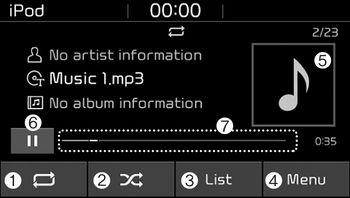
(1) Repeat
Enable/disable repeat.
(2) Shuffle
Enable/disable shuffle play.
(3) List
View a list of all songs.
(4) Menu
Navigate to the menu screen.
(5) Album Image
View song info.
(6) Pause
Pause or play music.
(7) Playback progress
Press to skip to the desired location.
Playback
- Connect your iPod® to the audio USB port, press the [MEDIA] button, and select [iPod®].
Changing songs
- Press the [SEEK/TRACK] button to play the previous or next song.
- Press and hold the [SEEK/ TRACK] button to rewind or fast forward the currently playing song.
- Search songs by turning the TUNE knob, and press the knob to play.
Selecting songs from a list
Press the [List] to see a list of songs available for play.
Select and play the desired song.
Repeat play
Press the [Repeat] to enable or disable ‘Repeat current song’.
 Repeat all: Repeat all songs in the current category.
 Repeat current song: The currently playing song is repeated.
Shuffle play
Press the [Shuffle] to enable/disable ‘Shuffle’ play.
 Shuffle: Songs are played in random order.
Menu
Press the [Menu], and select the desired function.
- Information: Detailed info on the currently playing song is displayed.
- Sound Settings: Audio sound settings can be changed.

When other music programs are running
When songs saved on your iPod® are playing through a separate music app, the following screen is displayed.
(1) Play/Pause: Pause or play music.
(2) Play iPod® files(Play iPod® Files): Play music saved on your iPod®.
(3) Album Image: View playback info.
✽ NOTICE
Operation cannot be carried out correctly due to iPod® application malfunction.
Playing iPod® files
• Select [Play iPod® files] to play songs saved on your iPod®.
If there are no songs saved on your iPod®, the [Play iPod® files(Play iPod® Files)] is disabled.