Audio system
USB
In this manual: Audio system
~5min read
✽ NOTICE - Using the USB Devices
- Starting the vehicle while a USB device is connected can damage the device. Please disconnect USB devices before starting the vehicle.
- Starting the vehicle or stopping the engine while an external USB device is connected can result in failure of the external USB device to operate.
- Be cautious of static electricity when connecting/disconnecting external USB devices.
- An encrypted MP3 player is not recognized when connected as an external device.
- External USB devices may not be recognized, depending on the state of the external USB device.
- Only products with byte/sectors formatted at 4 KB or lower are recognized.
- Only USB devices in FAT12/16/32 format are recognized; NTFS and ExFAT file systems are not recognized.
- Some USB devices are not recognized due to compatibility issues.
- Do not touch the USB connections.
- Connecting and disconnecting USB devices rapidly over a short period of time can cause equipment failure.
- Abnormal sounds may be audible when the USB device is disconnected.
- Turn the audio off before connecting or disconnecting external USB devices.
- Recognition may take longer depending on the type, capacity or file format of the external USB device. This is not a product malfunction.
- Use of USB devices for purposes other than playing music files is prohibited.
- Image display and video playback are not supported.
- Use of USB accessories, including charge and heat though the USB I/F, can lead to reduced product performance or malfunctions. Do not use USB devices or accessories for these purposes.
- Use of aftermarket USB hubs and extension cables can result in the vehicle’s audio system failing to recognize your USB device. Connect the USB device directly to the multimedia port of your vehicle.
- When using high-capacity USB devices with logical drive divisions, only files saved on the highest level logical drive can be played. If applications are loaded on a USB drive, file playback may fail.
- Some MP3 players, cell phones, digital cameras, etc. (USB devices that are not recognized as mobile storage) may not operate normally when connected.
- USB charging may not be supported by some mobile devices.
- Operation is guaranteed only for standard (Metal Cover Type) USB Memory drives.
- Operation of HDD, CF, SD and memory stick devices is not guaranteed.
- DRM (Digital Rights Management) files cannot be played.
- SD-type USB memory, CF-type USB memory, and other USB memory devices that require adapters for connection are not supported.
- Proper operation of USB HDDs or USB drives with connectors that loosen due to vehicle vibrations is not guaranteed. (iStick, etc.)
- USB products that are used as key chains or cell phone accessories may damage the USB jack and affect proper file playback. Please refrain from use. Use only products with plug connectors, as shown in the following illustration.
- When MP3 devices or cell phones are connected simultaneously through AUX, BT Audio and USB modes, a popping noise or malfunction may occur.
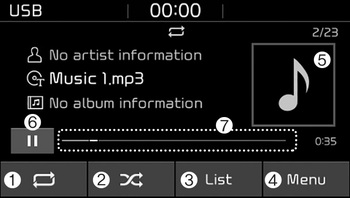
(1) Repeat
Enable/disable repeat.
(2) Shuffle
Enable/disable shuffle play.
(3) List
View a list of all songs.
(4) Menu
Navigate to the menu screen.
(5) Album Image
View song info.
(6) Pause
Pause or play music.
(7) Playback progress
Press to skip to the desired location.
Playback
- Press the [MEDIA] button, and select [USB].
- Connect a USB drive to the USB port to automatically play files on the USB drive.
Changing songs
- Press the [SEEK/TRACK] button to play the previous or next song.
- Press and hold the [SEEK/ TRACK] button to rewind or fast forward the currently playing song.
- Search songs by turning TUNE knob, and press the knob to play.

Selecting songs from a list
Press the [List] to see a list of songs available for play.
Select and play the desired song.
Repeat play
Press the [Repeat] to enable or disable ‘Repeat all’, ‘Repeat current song’, or ‘Repeat folder’.
 Repeat all: All songs in the playlist are repeated.
 Repeat current song: The currently playing song is repeated.
 Repeat folder: All songs in the current folder are repeated.
✽ NOTICE
The repeat folder function is available only when songs are playing from the [File] category under [List].
Shuffle play
Press the [Shuffle] to enable/disable ‘Shuffle’ play.
 Shuffle: Songs are played in random order.
Menu
Press the [Menu], and select the desired function.
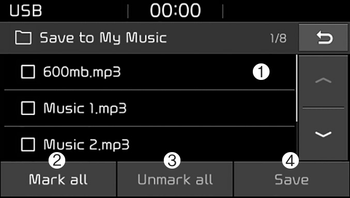
- Save to My Music: Songs on your USB device can be saved to My Music.
(1) File: Select a file to save.
(2) Mark all(Mark All): Select all files.
(3) Unmark all(Unmark All): Deselect all files.
(4) Save: Save the selected file(s).
- Select the files you want to save, and press the [Save]. This saves the selected files to My Music.
- Saving is canceled if voice recognition is activated or phone calls are received or made while saving.
- Up to 6,000 files can be saved.
- The currently playing file on the USB device cannot be changed while saving.
- My Music cannot be used while saving.
- Up to 700 MB can be saved. - Information: Detailed information on the currently playing song is displayed.
- Scan: All songs are played for 10 seconds each.
- Sound Settings: Audio sound settings can be changed.
Was this page helpful?