Body Electrical System
Description and Operation
In this manual: Body Electrical System
29steps
~174min
4/5difficulty
Done 0 of 29
Function
Bluetooth Audio System
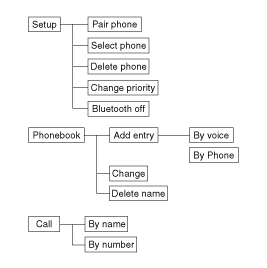
General Information- This audio system supports Bluetooth® hands-free and stereo headset functions. - HANDS-FREE function: Making or receiving calls wirelessly using voice recognition.
- The phone must be paired with the system before using the hands-free function. - STEREO-HEADSET function: Playing music from cellular phones (supporting A2DP) wirelessly.
- The Bluetooth® voice recognition system supports 3 languages: - English - American Spanish - Canadian French
If the vehicle is moving, do not use a cellular phone or connect a Bluetooth phone.

- Before using Bluetooth® functions, the phone must be paired with the system.
- Only one selected (connected) cellular phone can be used with the system at a time.
- Some phones are not fully compatible with this system.
- The voice recognition feature built into the Bluetooth system can be activated under the following conditions: - Button activation: The voice recognition system will be active when the
 button is pressed and after the beep. - Active Listening. The voice recognition system will be active during the time the voice recognition system has requested a response from the user.
- The system can recognize single-digit numbers from zero to nine; numbers greater than ten are not recognized.
- If a command is not recognized, the system will say "Sorry" or "No voice input from microphone." (no response)
- The system will cancel voice recognition mode in the following cases: When the button is pressedbutton and "cancel" is spoken after the beep. If you do not make a call and press the button
 button. When voice recognition has failed 3 times in a row.
- At any time, if you say "help", the system will tell you which commands are available.
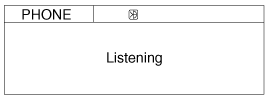
- By voice command: Pressbutton on the steering wheel to activate voice recognition.
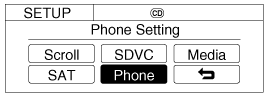
- For manual operation:
- Press the [SETUP] button to enter SETUP mode.
- Select "PHONE" by turning the TUNE knob, then press the knob.
- Select the desired item by turning the TUNE knob, then press the knob.
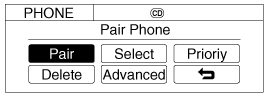
- Select "Advanced" to enter the ADVANCED mode.
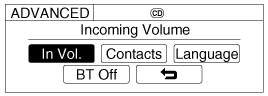
Pairing a Phone
Before using Bluetooth® functions, the phone must be paired (registered) with the audio system. Up to 5 phones can be paired with the system.- Pressbutton.
- Say "Setup". - The system responds with available commands. - To skip the information message, pressagain, then a beep sounds.
- Say "Connect phone."
- Say "Yes" to continue.
- When prompted, say the name of your phone. - Use any name that uniquely describes your phone.
- The Bluetooth® system will repeat the name you entered.
- Say "Yes" to confirm.
The system may not operate in the following cases: If 5 phones are already registered. If the system cannot communicate with the phone.
Phone Connection
When the Bluetooth® system is turned on, the previously used phone is automatically selected and reconnected. If you want to select a different previously paired phone, it can be selected through the "Select Phone" menu. Only the selected phone can be used with the hands-free system.- Pressbutton.
- Say "Setup."
- Say "Select phone" after the prompt. - The system lists all registered phone names.
- Say the name or number of the desired phone from the list.
- Say "Yes" to confirm.
- For manual operation: - Select "SELECT" in the PHONE menu, then select the desired phone from the list.
|
Phone Deletion
A paired phone can be deleted.- When a phone is deleted, all information associated with that phone is also deleted (including the phone book).
- If you want to use a deleted phone with the audio system again, the pairing procedure must be performed again.
- Pressbutton.
- Say "Setup."
- Say "Delete phone" after the prompt. - The system lists all registered phone names.
- Say the name or number of the desired phone from the list.
- Say "Yes" to confirm.
- For manual operation: - Select "DELETE" in the PHONE menu, then select the desired phone from the list.
- Pressbutton.
- Say "Setup."
- Say "Change priority" after the prompt. - The system lists all registered phone names.
- Say the name or number of the desired phone from the list.
- Say "Yes" to confirm.
- For manual operation: - Select "PRIORITY" in the PHONE menu, then select the desired phone from the list.
- Bluetooth enables wireless transmission of information between PCs, mobile phones, headsets, PDAs, printers and other devices at short range, using short-range wireless communication technology at a frequency of 2.45 GHz.
- In this vehicle, users can make hands-free calls, transfer mobile phone data and play streaming audio files by connecting a mobile phone to the system. Supported functions: "
- Pairing mobile phones (up to 5 phones).
- Connecting/disconnecting mobile phones.
- Making/answering phone calls.
- Downloading the phone book.
- Downloading the call history list.
- Playing music stored on the phone via Bluetooth in the vehicle. Some functions may not be supported by some mobile phones.
Test yourself
A quick Kia Optima Hybrid Owner's Manual quiz: every answer comes with an explanation and a link to the manual page.
Was this page helpful?