Bluetooth Audio System
Applicable Bluetooth specification Ver. 2.0 or later
Response profile
- A2DP (Advanced Audio Distribution Profile) Ver. 1.0/1.2
- AVRCP (Audio/Video Remote Control Profile) Ver. 1.0/1.3/1.4
The A2DP profile only transmits audio to the Bluetooth unit. If the Bluetooth audio device supports A2DP but not AVRCP, it cannot be controlled from the vehicle audio system control panel. The Bluetooth audio device can then be operated directly on the device, in the same way as a portable audio system without Bluetooth communication connected to the AUX terminal.

X: Available
―: Not available
NOTE
- To confirm that the Bluetooth audio device in use is Ver. 1.0, 1.3 or 1.4, refer to the Bluetooth audio device owner's manual.
- Battery consumption of Bluetooth audio devices is higher when a Bluetooth connection is active.
- If a general mobile phone is connected by USB cable while music is playing over a Bluetooth connection, the Bluetooth connection is disconnected. For this reason, do not play music over a Bluetooth connection and music over a USB connection at the same time.
- Depending on the Bluetooth audio device used, the system may not operate normally.
Bluetooth Audio System Operating Procedure
Activating Bluetooth Audio Mode
To listen to music or voice sounds stored on a Bluetooth audio device, switch to Bluetooth audio mode so that the audio device can be operated using the audio system control panel. Bluetooth audio devices must be registered with the vehicle's Bluetooth unit before use.
Refer to Bluetooth Preparation on page 5-86.
- Turn the ignition switch to ACC or ON.
- Turn on the Bluetooth audio device.
Make sure the " " symbol appears on the audio display.
NOTE
Some Bluetooth audio devices require a certain amount of time before the " " symbol appears on the
audio display.
- Press the audio key (

) and then on the tab on the
screen to switch to Bluetooth audio mode and start playback.
NOTE
- If playback does not start on the Bluetooth audio device, press the
 key on the screen.
- If Bluetooth audio mode is switched off in favor of another mode (such as radio mode), playback of sound from the Bluetooth audio device is interrupted.
Playback
- To listen to a Bluetooth audio device through the vehicle speakers, activate Bluetooth audio mode. (Refer to "Activating Bluetooth Audio Mode")
- To stop playback, press the
 on the screen.
- Press the key again to resume playback.
Selecting a File (Track)
Selects the next file (track).
Briefly press the next track key ( ) or briefly press
the key on the screen.
Selects the beginning of the current file (track).
Briefly press the previous track key ( ) or briefly press
the key on the screen.
Fast Forward/Reverse (AVRCP Ver.
1.3 or later)
Fast forward
Press and hold the fast forward button ( ) or briefly press
the key on the screen.
Reverse
Press and hold the reverse key ( ) or briefly press
the key on the screen.
Folder Search (AVRCP Ver. 1.4 only)
To return to the previous folder, briefly press the on the screen, or briefly press the
 on the screen to advance to the next folder.
Scan (AVRCP Ver. 1.4 only)
This function scans the tracks in a folder during playback and plays 10 seconds of each track so you can find one you want to listen to.
- Briefly press the button
 on the screen during playback
to play 10 seconds of each subsequent track, starting from the next track. - Briefly press the
 on the screen during playback of the
track you want to listen to, to continue playback from that point.
Repeat Play (AVRCP Ver. 1.4 only)
Track Repeat
Briefly press the button on the screen to repeat the track
during playback. "
" is displayed during playback.
Briefly press the button on the display twice while
" " is displayed to cancel.
Folder Repeat
Briefly press the button on the screen twice to repeat the
tracks in the folder. " " is displayed during
playback.
Briefly press the button on the display while "
 "
appears to cancel.
Shuffle Play (AVRCP Ver. 1.4 only)
Folder Shuffle
Briefly press the button on the screen during playback to
play the tracks in random order. "
" is displayed during playback.
Briefly press the button on the display twice while
" " is displayed to cancel.
Device Shuffle
Briefly press the twice on the screen during
playback to play the tracks from the device in random order. "
" is displayed during playback.
Briefly press the button on the screen while "

" appears to cancel.
Scrolling the Display
If a full title cannot be displayed at once, briefly press the on the right side of the title. When the last character is displayed, briefly press the
 on the screen to display the first
character of the title.
Displaying Bluetooth Audio Device Information
If a Bluetooth audio device is connected, the following information is displayed on the screen.
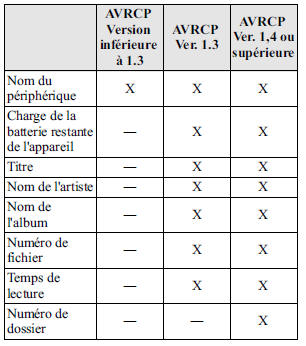
NOTE
Some information may not be displayed depending on the device. If information cannot be displayed, "- - - -" is shown.
How to Use Pandora
What is Pandora?
Pandora is a free, personalized internet radio service. Simply enter a favorite artist, song or genre, and Pandora will create a personalized station that plays their music and other music similar to it. Rate tracks with Thumbs Up and Thumbs Down to further refine your station, discover new music and help Pandora play only music you like.
* Pandora, the Pandora logo, and the Pandora trade dress are trademarks or registered trademarks of Pandora Media, Inc., used under license.
NOTE
To use Pandora from your Bluetooth device, first do the following:
- Create a Pandora account on the web.
- Create a Pandora station using the Pandora app.
- Install the Pandora app on your device.
Playback
- To listen to Pandora, briefly touch the tab
 on
the screen. - To stop playback, press the
 on the screen.
- Press the again
 to
resume playback.
NOTE
- The Skip function may not be available, as it depends on the device.
- The number of skips is limited by Pandora.
Selecting from the Station List
You can select from a list of preset radio stations.
- Press the

on the screen. - Select the desired radio station.
NOTE
When  is selected,
the tracks are played in random order from the radio station list.
Thumbs up function
Press the button on the screen
will tell Pandora that you like this track and will help bring more tracks like it to your station.
Press the on the screen.
Thumbs down function
Press the button on the screen
will tell Pandora not to play this track.
Press the on the screen.
NOTE
When  is touched on the screen
while the Track function is playing, the next track will be skipped.
Adding to Your Favorites
You can add tracks or artists to your favorites on the web to listen to them later.
Adding the Track Name to Your Favorites
Press the button Touch
on the screen on the right side of the track name.
Adding the Artist Name to Your Favorites
Press the button Touch
on the screen on the right side of the artist name.
Scrolling the Display
If a full title cannot be displayed at once, briefly press the Touch on the screen on the right side of the title.
When the last character is displayed, briefly press the on the screen
to display the first character of the title.
Test yourself
A quick Mazda 6 quiz: every answer comes with an explanation and a link to the manual page.