Bluetooth
Overview of the Bluetooth hands-free phone
When a Bluetooth device (mobile phone) is connected to the vehicle's hands-free unit via radio wave transmission, a call can be made or received by pressing the call, answer, end call or voice command buttons on the steering wheel, or by using the panel. For example, even if a device (mobile phone) is in your coat pocket, a call can be made without taking the device out of your pocket and using it directly.
Description of the Bluetooth audio system
When a portable audio device with Bluetooth communication capability is paired with the Bluetooth unit, you can listen to music stored on the paired portable audio device through the vehicle's speakers. It is not necessary to connect the portable audio device to the vehicle's external input jack.
After pairing, use the vehicle's audio control panel to play/stop the audio
Applicable Bluetooth specification
Ver. 2.0 or higher
Response profile
- HFP (Hands-Free Profile) Ver. 1.5
- DUN (Dial-up Networking Profile) Ver. 1.1
- PBAP (Phone Book Access Profile) Ver. 1.0
- OPP (Object Push Profile) Ver. 1.1
- MAP (Message Access Profile) Ver. 1.0
Components
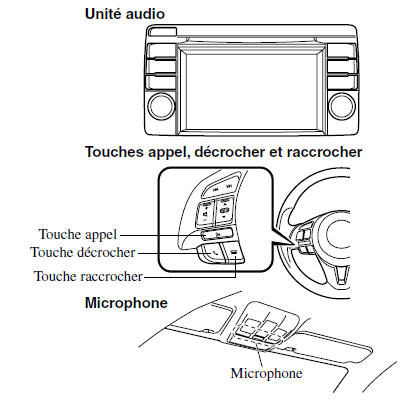
Audio unit (Type B)
The audio unit (Type B) is used to adjust the volume and operate the touch panel. Bluetooth information is shown on the display. The display turns on by briefly pressing the tab for each function to be used.
Do not press hard on the panel or press it with a sharp object.
Microphone (hands-free)
The microphone is used to input voice commands or for conversation.
Call, answer and end call switches (hands-free)
The basic functions of the Bluetooth hands-free system can be used, for example to make calls or end calls, by operating the call, answer and end call switches on the steering wheel.
Volume Adjustment
To adjust the volume, use the power/volume knob on the audio unit. Turn the knob clockwise to increase the volume and counterclockwise to decrease it.
The volume can also be adjusted using the volume switch on the steering wheel.
The conversation volume, voice guidance volume and ringtone volume can each be set in advance.
- Briefly press the
 on the screen to display the
Bluetooth setup screen. - Briefly press the
 on the screen to display the
volume adjustment screen. - (Volume up) Briefly press the button
 on the screen.
(Volume down) Briefly press the
 on the screen.
NOTE
The audio unit volume cannot be adjusted while the Bluetooth hands-free system is in use.
Bluetooth Preparation
Device Registration (Pairing)
To use the Bluetooth hands-free and audio system, the Bluetooth device must be registered to the hands-free unit by following the steps below. Up to seven devices, including hands-free mobile phones and Bluetooth audio devices, can be registered.
NOTE
- For your safety, a device can only be registered when the vehicle is stopped and parked. If the vehicle starts to move, the pairing procedure will be cancelled. Park the vehicle in a safe location before registering a device.
- The communication range of a Bluetooth device is approximately 10 meters (32 feet) or less.
WARNING
Some Bluetooth mobile devices are not compatible with the vehicle.
Contact an authorized Mazda dealer, online support center, or call center for more information about Bluetooth mobile device compatibility.
- United States
Phone: 800-430-0153
Web: www.MazdaUSA.com/ bluetooth
- Canada
Phone: 800-430-0153
Web: www.mazdahandsfree.ca
- Mexico
Customer Affairs Service (CAC)
Phone: 01-800-01-MAZDA
Web: www.mazdamexico.com.mx
Pairing Procedure
- Press the phone button (
 ) on the audio unit or
the control switch. - Briefly press the
 on the screen.
- Briefly press the button
 on the screen. The list of
paired devices is displayed. - Briefly press the button
 on the screen to display the
message and proceed to device operation. - On the device, search for the Bluetooth device (peripheral device).
- Select "Mazda" from the list of devices found by the device.
- (Device with Bluetooth version 2.0) Enter the 4-digit pairing code on the device.
- Just Works detected
Pairing is performed automatically.
- Numeric Comparison detected
Make sure the 6-digit code shown on the audio unit is also shown on the device, and briefly press the button on the screen. A connection license
agreement may be required depending on the device.
- (Device with PBAP profile) The call history (incoming/outgoing history) of the device is downloaded automatically.
Once the device is registered, it is automatically identified by the system.
When the Bluetooth hands-free system is re-enabled or activated after the ignition switch is turned from OFF to ACC, the device connection status is shown on the screen.
Device Selection
If multiple devices have been registered, the Bluetooth unit connects to the device registered last. To connect to another registered device, the connection must be changed. The device priority order is retained after changing the connection, even if the ignition is turned off.
NOTE
If the device name cannot be displayed in full, "..." is added to the end of the displayed title.
Connecting Other Devices
- Briefly press the
 on the screen.
- Briefly press the button
 on the screen.
- Briefly press the name of the device you want to connect to in order to display the device information screen.
- Briefly press the button

on the screen to connect as a hands-free device. Briefly press the button
on the screen to connect as a Bluetooth audio device. - Briefly press the button
 on the screen.
- (Device with PBAP profile) The call history (incoming/outgoing history) of the device is downloaded automatically.
When the connection is complete, the device name is displayed. Briefly press the button on the screen to
display the device list screen and display the icon or
 in the name of the
newly connected device.
Disconnecting a Device
- Briefly press the
 on the screen.
- Briefly press the button
 on the screen.
- Briefly press the name of the device that is currently connected to display the device information screen.
- Briefly press the button

on the screen to disconnect the hands-free device. Briefly press the button on the screen to
disconnect the audio device. - Briefly press the button
 on the screen.
Deleting a Registered Device
- Briefly press the
 on the screen.
- Briefly press the button
 on the screen.
- Briefly press the name of the device you want to delete.
- Briefly press the button
 on the screen.
- Briefly press the button

on the screen.
NOTE
If you want to delete all pairing devices, perform a defaults restore.
Changing the PIN Code
The PIN code (4 digits) can be changed.
- Briefly press the
 on the screen.
- Briefly press the button
 on the screen.
- Briefly press the button
 on the screen.
- Delete the PIN code that is currently set.
- Enter the new PIN code to set.
- Briefly press the button
 on the screen.
Restore defaults
All data for paired devices and the phonebook can be deleted.
- Briefly press the
 on the screen.
- Briefly press the button
 on the screen.
- Briefly press the button
 on the screen.
- Briefly press the button

on the screen.
Available Languages
The Bluetooth hands-free phone system can be used in the following languages:
- English
- Spanish
- French
Refer to Setup on page 5-60.
Voice Recognition
The Mazda Bluetooth hands-free system can be used to make calls or operate the audio unit using voice recognition, which includes many convenient commands.
This section explains the basic operation of voice recognition.
Activating Voice Recognition
To activate the main menu: Press the Call key.
To activate the phone menu: Press and release the Call key. After the main menu is activated, say "Phone".
To activate the navigation menu: After the main menu is activated, say "Navigation".
NOTE
- When the Phone menu is activated from the Main menu, the user is informed of the available options (Call, Dial, Redial, Callback, Setup or Emergency) through voice guidance.
- For details on navigation system voice recognition, refer to the separate "Driving and Maintenance NAVIGATION SYSTEM" manual.
Ending Voice Recognition
Use one of the following:
- Press and hold the Call key.
- Press the End key.
Skip the voice guidance (for faster operation)
Press and release the Call key.
NOTE
- The Bluetooth hands-free system is operational a few seconds after the ignition switch is turned to ACC or ON (it takes less than 15 seconds).
- When operating the audio unit or air conditioning while the Bluetooth hands-free is in use, the beep or voice guidance (audio unit) cannot be heard.
Tutorial
The tutorial explains how to use the Bluetooth hands-free phone.
The available tutorial topics are General, Phone, and Audio.
Follow these steps to start the tutorial:
- Press the Call key.
- Prompt: "Ready"
- Say: [Beep] "Tutorial"
- Prompt: "Tutorial"
- Say: [Beep] "XXXXX... (tutorial topic)"
- Follow the prompts to receive the appropriate voice guidance instructions.
Commands Usable at Any Time During Voice Recognition
"Help", "Back", "Cancel", and "Display Off/Display On" are commands that can be used at any time during voice recognition.
Using the Help Function
The help function explains to the user all voice commands that can be used under the current conditions.
- Say: [Beep] "Help"
- Follow the prompts to receive the appropriate voice guidance instructions.
Returning to the Previous Operation
This command returns to the previous operation when in voice recognition mode.
Say: [Beep] "Back"
Cancel
The Bluetooth hands-free system enters standby if the following operation is performed while the system is active.
Say: [Beep] "Cancel"
Display Off/Display On
The audio unit display can be turned off/on using voice recognition.
Say: [Beep] "Display Off" (or "Display On")
To avoid degrading voice recognition accuracy and voice quality, observe the following:
- The hands-free system cannot perform voice recognition while the beep or voice guidance is operating. Wait until the beep or voice guidance has finished before speaking your commands.
- Voice recognition cannot recognize dialects or words that differ from the hands-free phone prompts. Make calls using the words specified by the voice commands.
- There is no need to face the microphone or move close to it.
NOTE
If voice recognition does not operate satisfactorily.
Refer to Troubleshooting on page 5-118.
Test yourself
A quick Mazda 6 quiz: every answer comes with an explanation and a link to the manual page.