Using the Phone Menu
Phone Menu → Phonebook → Search
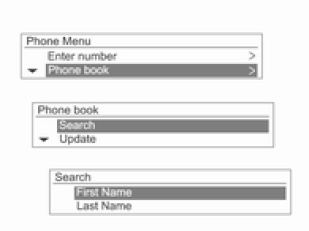
Press the MENU-TUNE knob, then turn it to select Phonebook, then press the MENU-TUNE knob.
The display will show that no contacts are available and return to the previous menu.
Turn the MENU-TUNE knob to select Search, then press the MENU-TUNE knob.
Turn the MENU-TUNE knob to select First Name or Last Name, then press the MENU-TUNE knob.
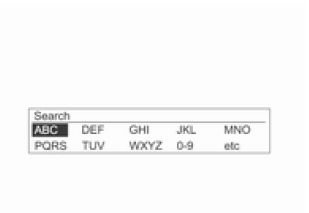
Turn the MENU-TUNE knob to select Search Criteria, then press the MENU-TUNE knob.
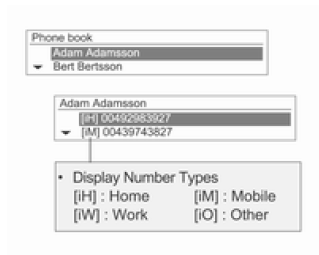
When the search results screen is displayed, turn the MENU-TUNE knob to select the desired item, then press the MENU-TUNE knob to display its details.
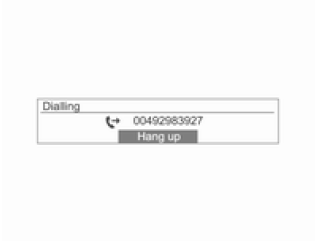
To select a number, press the MENU-TUNE knob.
For more information, see the section on making calls.
Phone Menu → Phonebook → Update
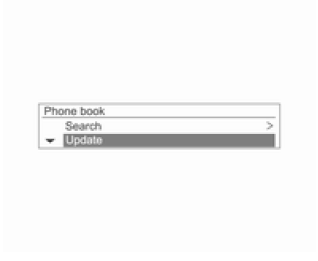
This function updates the contacts stored in the system by adding contacts from the connected mobile phone.
Using the MENU-TUNE knob, select Phone Menu → Phone Book → Update, then press the MENU-TUNE knob.
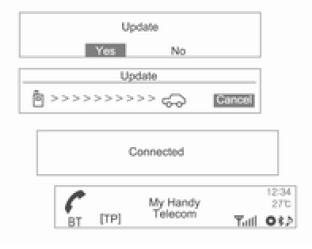
Turn the MENU-TUNE knob to select Yes or No, then press the MENU-TUNE knob to start or cancel the update.
Note on Updating Contacts
- This function works with mobile phones that support contact updating and call history transfer. (If the system is connected to a mobile phone that does not support these functions, the call history can be viewed via the audio navigation system.)
- The update does not work if the number of contacts exceeds 1000.
- Note that the hands-free phone system and Bluetooth audio playback will be suspended while contacts are being updated (other functions can still be used).
- When updating contacts, you may be asked to authorize the data transfer for the contacts. If the standby screen does not change for a long time, check whether the mobile phone is sending an authorization request. While the mobile phone is requesting authorization, all Bluetooth connections will be disconnected if the request is not accepted, and the device will then be reconnected.
- When receiving call history, you may be asked to authorize the transfer of call history from the mobile phone. If the standby screen does not change for a long time, check whether the mobile phone is sending an authorization request.
While the mobile phone is requesting authorization, all Bluetooth connections will be disconnected if the request is not accepted, and the device will then be reconnected.
- If there is a problem with the information stored in the mobile phone, the contact update may not be completed.
- The audio navigation system uses only information stored in UTF-8 encoding.
- If other operations (games, map searching, navigation, etc.) are started while contacts are being updated or call history is being transferred, the update/transfer process may not complete. This is because other operations performed by the mobile phone may affect data transmission.
- After the contact update or call history transfer is complete, all hands-free phone and Bluetooth audio functions will be automatically turned off and then turned back on.
- If the audio navigation system is turned off during a phone call, the call will be transferred to the mobile phone. Some phones require the call transfer function to be enabled in advance.
- If the user disconnects directly (using the audio navigation system or the mobile phone), the automatic connection function will not work.
Automatic connection: This function automatically finds and connects to the most recently connected device.
- After selecting contacts, it may happen that not all lists are displayed on the phone. The audio navigation system displays only the information transferred from the mobile phone.
- The contact update function can receive only four numbers for each contact (Mobile, Work, Home and Other).
- Changing the language settings during a contact update will delete all previous updates.
- If the mobile phone does not display the standby screen, calls cannot be made with this audio navigation system.
- Updating the operating system of the mobile phone may change how the phone's Bluetooth functions work.
- Special characters and unsupported languages are displayed as ____.
- Calls registered to contacts without a name will be displayed as No Number in Contact.
- The audio navigation system displays contacts, call history and callback information transferred from the mobile phone.
Phone Menu → Phone Book → Delete All
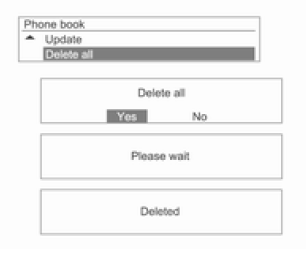
All phone numbers saved in the system's contacts will be deleted.
Using the MENU-TUNE knob, select Phone Menu → Phone Book → Delete All, then press the MENU-TUNE knob.
Turn the MENU-TUNE knob to select Yes or No, then press the MENU-TUNE knob to confirm or cancel deleting all contacts.
Phone Menu → Call Lists
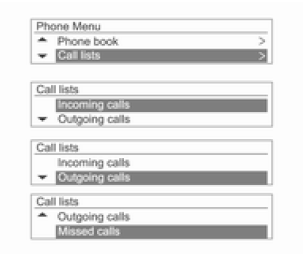
This function allows you to view, use and delete contacts.
Using the MENU-TUNE knob, select Phone Menu → Call Lists, then press the MENU-TUNE knob.
Using the MENU-TUNE knob, select the detailed call history, then press the MENU-TUNE knob.
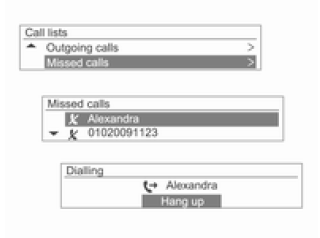
Turn the MENU-TUNE knob to review the call history and place a call.
Press the MENU-TUNE knob to call the number selected from the call history.
- If the Please Wait screen is displayed for too long after selecting a call list, check whether the mobile phone is requesting verification for the transferred call numbers. Once the mobile phone verification procedure is complete, the contacts and call list will be transferred to the audio navigation system.
- The call list on the mobile phone and the call list shown by the audio navigation system may differ. This audio navigation system displays the information transferred from the mobile phone unchanged.
Phone Menu → Bluetooth Settings
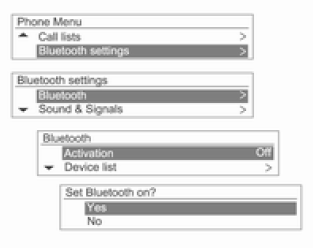
This option is used to change the Bluetooth settings.
Using the MENU-TUNE knob, select Phone Menu → Bluetooth Settings, then press the MENU-TUNE knob.
To turn on Bluetooth, register/connect/delete a Bluetooth device or change the Bluetooth code, select the Bluetooth option using the MENU-TUNE knob, then select the desired item using the MENU-TUNE knob.
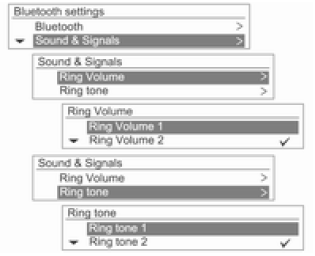
To adjust the ring tone and ring volume used by Bluetooth, select the Sound & Alert option using the MENU-TUNE knob, then adjust the desired items using the MENU-TUNE knob.
- Depending on the mobile phone, existing ring tones may be transferred to the audio-navigation system.
With such mobile phones, the selected ring tone cannot be used.
- With a mobile phone that transfers ring tones, the ring volume depends on the volume transferred from the mobile phone. If the volume is too low, adjust the ring volume on the mobile phone.
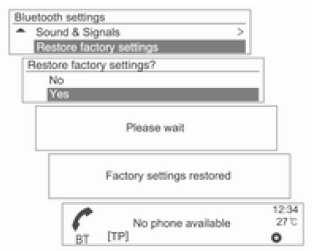
To restore the Bluetooth settings to their default values, select the Restore Default Settings option using the MENU-TUNE knob, then select the Yes option using the MENU-TUNE knob.
Test yourself
A quick Chevrolet Aveo quiz: every answer comes with an explanation and a link to the manual page.