Audio/Information Screen
Models without navigation system
Displays audio status, trip computer and wallpaper, and allows you to go to various setup options.
■Switching the Display
Press the DISPLAY button. Rotate  and select the mode from the four display modes. Press
 .
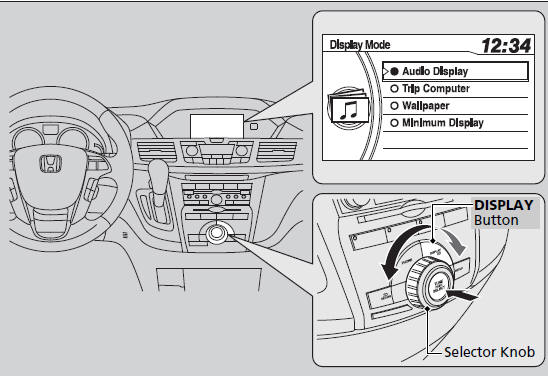
These indications are used to show how to operate the selector knob.
Rotate to select.
Press to enter.
■Audio Display
Shows the current audio information.
■Trip Computer
Shows the instant fuel economy, average fuel economy, distance (trip meter), average speed, elapsed time, and range.
■ Average speed Shows the average speed in mph (U.S.) or km/h (Canada).
■ Elapsed time Shows the time during one drive cycle.
You can reset the trip computer.
■Wallpaper
Shows a clock screen or an image you import.
■Minimum Display
Minimizes the display by only showing the compass, audio status, and clock on the upper part of the display.
■Setting Options

1. Press the SETUP button.
2. Rotate  and select the setup option you want to change. Press
 .
■DVD Setup*
■Phone Setup*
■Wallpaper Setup
You can change, store, delete the wallpaper on the audio/information screen.
Models with navigation system
See the navigation system manual for how to change the wallpaper.
■ Importing pictures from USB You can import up to five images, one at a time, for wallpaper from USB flash drive.
Select Import picture from USB from setup menu and properly connect a USB flash drive to store an image.
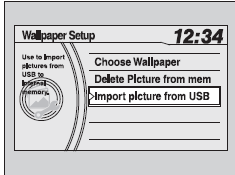
1. Connect the USB flash drive to the adapter cable.
2. Press the SETUP button.
3. Rotate to select Wallpaper Setup, then press .
4. Rotate to select Import picture from USB, then press .
5. Rotate to select a desired picture, then press .
► Loading Picture will appear on the display.
• When importing wallpaper files, the image must be in the USB flash drive’s root directory.
Images in a folder cannot be imported.
• The file format of the image that can be imported is BMP (bmp) or JPEG (jpg).
• The maximum image size is 1,024 x 768 pixels.
Smaller images are displayed in the middle of the screen with the extra area appearing in black.
If the USB flash drive does not have any pictures, No Files will appear.
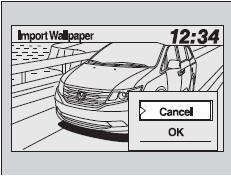
6. The preview of the imported data is displayed.
7. Rotate to select OK, then press .
► The imported list number and the confirmation message will appear. Then the display will return to the import wallpaper list.
■ Choose wallpaper 1. Rotate to select Choose Wallpaper on the wallpaper setup menu, then press . ► The screen will change to the wallpaper list. 2. Rotate to select desired wallpaper and press . 3. Your selection will be indicated by the filled in circle. ► You can also select Default Wallpaper (Honda logo) or Clock on the list.
■ Delete wallpaper 1. Rotate to select Delete Picture from mem on the wallpaper setup menu, then press . ► The screen will change to the delete wallpaper list. 2. Rotate to select wallpaper that you want to delete and press . ► The confirmation message will appear. 3. Rotate to select Yes, then press to delete completely.
■Trip Computer Reset
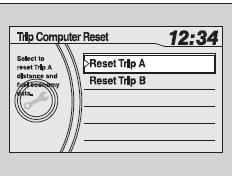
You can reset all data on the trip computer.
1. Press the SETUP button.
2. Rotate to select Trip Computer Reset, then press .
3. Rotate to Trip A or Trip B, then press .
► The confirmation message will appear.
4. Rotate to select Yes, then press to reset completely.
■Display Setup
■ Brightness/Contrast
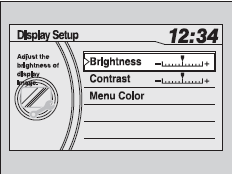
If you select Brightness or Contrast, adjust the setting by rotating and pressing .
■ Menu Color
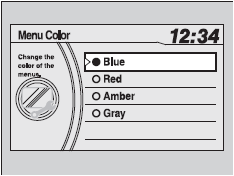
If you select Menu Color, rotate to setting you want, then press .