Body Electrical System
Troubleshooting
In this manual: Body Electrical System
5steps
~30min
2/5difficulty
Done 0 of 5
Troubleshooting Guide
Before Assuming the Product Is Defective- Errors that occur during operation or installation of the unit may be mistaken for a malfunction of the unit itself.
- If you experience problems with the unit, try the suggestions listed below.
- If the problem persists, contact your dealer or the nearest service center.
| Symptom | Function |
| Small red, blue, or green dots appear on the screen. | Because the LCD is manufactured using high-density pixel technology, dead pixels or bright spots may appear on up to 0.01% of the total number of pixels. |
| No sound or picture |
|
| Video is displayed, but there is no sound |
|
| When the power is turned on, the corners of the screen are dark |
|
| Sound comes from only one speaker |
|
| No sound or picture in AUX mode | Are the audio and video plugs fully inserted into the AUX jack? |
| External device does not work | Is the external device connected using a standard connection cable? |
| Road is missing | Some map data may be missing or incorrect. |
| Road name is pronounced incorrectly | The TTS (Text-to-Speech) function pronounces street names based on phonetic spelling. This will be continuously updated with the map database. |
Troubleshooting
| Symptom | Possible Cause | Solution |
| Power does not turn on. CD does not play. |
|
|
| No sound. |
|
|
| Poor sound or video quality. |
|
|
| USB does not work. |
|
|
| The iPod is not recognized even though it is connected. |
|
|
LG AVN Basic Troubleshooting Guide. Before replacing the head unit, check the AVN system by following the procedures in this guide.
Flow Inspection
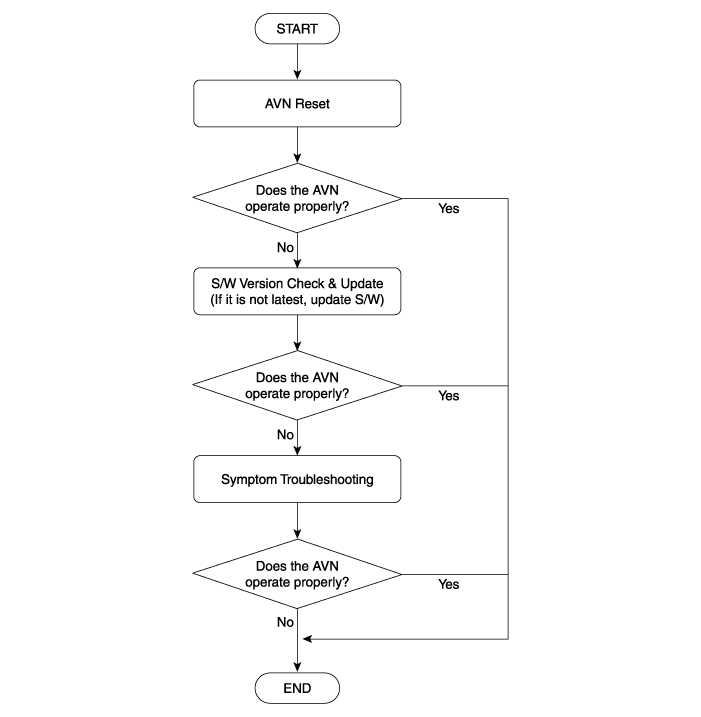
- AVN reset: Press the POWER knob, then turn it counterclockwise while holding the EJECT button.
- Symptom Troubleshooting. Before performing the "Symptom Troubleshooting", check the following items.
A. Wires and Connectors B. External Condition C. Symptom frequency: always, intermittent, or frequent. D. How to Reproduce the Symptom - GPS
A. Current location cannot be determined (GPS does not receive signal) Step Troubleshooting Procedures 1 Is the vehicle in a location with a clear view of the sky, away from tall buildings and trees?
[YES] Inspect the GPS antenna and wiring (refer to Repair Manual - "AVN Antenna") and go to Step 2.
[NO] Move the vehicle to another location free of obstructions.2 Can the AVN automatically receive a GPS signal within 10 minutes?
[YES] The problem is resolved.
[NO] Replace the AVN head unit if it still does not operate properly.

- GPS cannot be used indoors. It must be connected to an ACC power source in the vehicle, in a location where the satellite signal can be easily received.
- When first connected, GPS normally requires about 10 minutes to operate properly, but the connection time may vary depending on weather conditions and surrounding obstacles.
- No Power or Frozen Logo
A. No Power Step Troubleshooting Procedures 1 Does the "POWER" button operate properly?
[YES] Go to Step 2.
[NO] If the "POWER" button is damaged or does not operate properly, replace the AVN head unit.2 To reset the AVN system, turn it off for 5 minutes or remove the power fuse, then turn it on again. Does it operate properly?
[YES] The problem is resolved.
[NO] Replace the AVN head unit if it still does not operate properly.
A. Frozen Logo Step Troubleshooting Procedures 1 Does the logo freeze every time the AVN starts?
[YES] Go to Step 3.
[NO] Go to Step 2.2 To reset the AVN system, turn it off for 5 minutes or remove the power fuse, then turn it on again. Does it operate properly?
[YES] The problem is resolved.
[NO] Go to Step 3.3 Update the AVN S/W. (Refer to "Software Version Check and Update" in this manual.)
Does the screen operate properly?
[YES] The problem is resolved.
[NO] Replace the AVN head unit if it still does not operate properly. - Display Panel
A. Error message appears, striped line appears, or the touch screen does not work at all Step Troubleshooting Procedures 1 Does an error message appear as shown below? 
[YES] Update the AVN S/W (refer to "S/W Version Check and Update" in this manual).
[NO] Go to Step 2.2 Is there an uneven stripe on the screen or does the screen flicker?
[YES] Replace the AVN head unit if it still does not operate properly.
[NO] If it does not work at all, replace the AVN head unit. - Radio (Tuner)
A. FM/AM/RDS do not operate properly Step Troubleshooting Procedures 1 Is there a symptom where the signal is received intermittently?
[YES] If overall operation is normal, do not replace the AVN head unit.
[NO] The problem occurs all the time. Go to Step 2.2 Inspect the glass radio antenna, antenna cable, and antenna amplifier.
(Refer to Repair Manual - "AVN Antenna").
Does it operate properly?
[YES] The problem is resolved.
[NO] Replace the AVN head unit if it still does not operate properly. - Navigation Map
A. POI/Address function does not operate properly Step Troubleshooting Procedures 1 This symptom is related to map data. Update the map data to the latest version if you want to expand map coverage or POI categories. 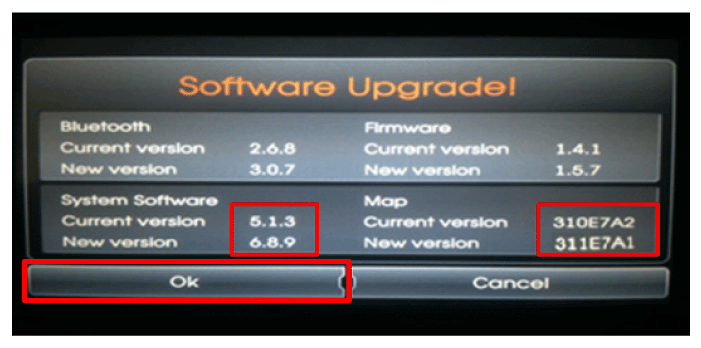
A. Map Screen Error Step Troubleshooting Procedures 1 If only the map screen is constantly not displayed, replace the AVN head unit. - CD Deck and AVN Buttons
A. The CD deck Insert/Eject function is always impossible to use. Step Troubleshooting Procedures 1 Replace the AVN head unit if the Insert or Eject function does not always work.
A. There is an abnormal noise, or it is always impossible to play a CD. Step Troubleshooting Procedures 1 Does this symptom appear with a specific disc?
[YES] Check the condition of the deck, inspect the CD for scratches, or check the file type on the CD.
[NO] Replace the AVN head unit if the symptom appears constantly.
A. Buttons or knobs do not operate. Step Troubleshooting Procedures 1 Replace the AVN head unit if a button or knob does not operate mechanically. - Bluetooth
A. Phonebook or call history (incoming/outgoing) download function is not supported. Step Troubleshooting Procedures 1 This is a Bluetooth compatibility issue.
(Not a problem with the AVN head unit.)
Check Bluetooth phone compatibility.
(http://www.navigation.com/hyundai)
A. Bluetooth pairing is not compatible with a specific mobile phone. Step Troubleshooting Procedures 1 Check Bluetooth phone compatibility.
If the mobile phone is listed, perform a factory reset (refer to "[Appendix] AVN Factory Reset Procedures").
(http://www.navigation.com/hyundai)
A. Bluetooth call quality is sometimes poor. Step Troubleshooting Procedures 1 This depends on the region or model of the mobile phone. - Rearview Camera
A. No guide lines on screen Step Troubleshooting Procedures 1 Guide lines usually do not appear until the AVN has fully booted.
(Guide lines will appear approximately 30 seconds after AVN startup.)
If the rear view camera does not work constantly, replace the AVN head unit. - USB
A. USB port does not operate properly Step Troubleshooting Procedures 1 Check the USB port with other USB devices. Does the USB port operate properly?
[YES] There is no problem with the USB port.
[NO] There is a problem with the USB port. Check the connection between the AVN head unit and the USB port.
(Refer to Repair Manual - "AUX Connector")
- GPS
Test yourself
A quick Hyundai Tucson LM quiz: every answer comes with an explanation and a link to the manual page.
Was this page helpful?