APPS
ACTIVATING “APPS”
Each time “Apps” is activated, the system checks for updates. When there are no updates available, the main menu screen will be displayed right after a screen indicating that updates are being checked for has been displayed.
ACTIVATING “APPS”
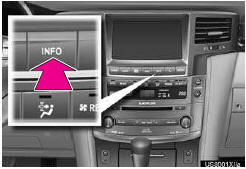
1 Press the “INFO” button.
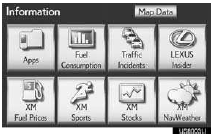
2 Touch “Apps”.
3 A screen indicating that updates are being checked for will be displayed.

4 Touch “OK”.
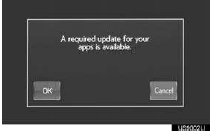
●To cancel updating, touch “Cancel”.
●After touching “Cancel”, the “Information” screen will be displayed.
● The “Information” screen will also be displayed if updating fails.
5 A screen indicating that an update is in progress will be displayed.
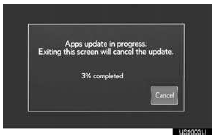
●To stop updating, touch “Cancel”.
●After touching “Cancel”, the “Information” screen will be displayed.
● The “Information” screen will also be displayed if updating fails.
6 Touch “OK”.
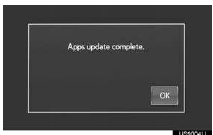
7 When updating is complete, the main menu screen will be displayed.
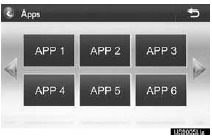
●The screen shown above is only an example.
The actual screen may be different.
●For details about the function and service of each application displayed in the main menu, refer to http://www.lexus.com/ enform/.
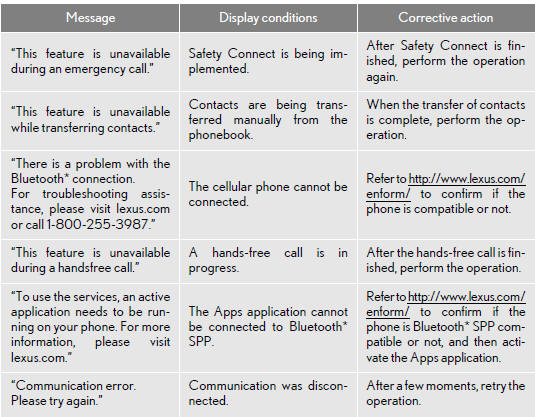
IF A MESSAGE APPEARS ON THE SCREEN
When problems occur starting up the application player, a message will appear on the screen. Referring to the table below to identify the problem, take the suggested corrective action.
*: Bluetooth is a registered trademark of Bluetooth SIG, Inc.
LINKING “APPS” AND NAVIGATION LOCAL FUNCTION
The navigation system’s setting a destination and making a hands-free call can be performed via “Apps” of Apps.
1 Press the “INFO” button.
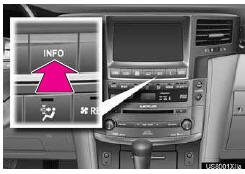
2 Touch “Apps”.
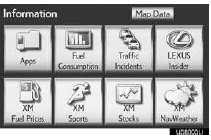
3 A screen indicating that updates are being checked for will be displayed.

4 When updating is complete, the main menu screen will be displayed.
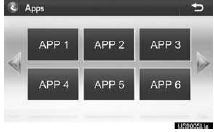
●The screen shown above is only an example.
The actual screen may be different.
●For details about the function and service of each application displayed in the main menu, refer to http://www.lexus.com/ enform/.
INFORMATION
●Some parts of “Apps” can be adjusted using the switches on the steering wheel.
SETTING A DESTINATION USING “APPS”
Locations that were searched using “Apps” can be set as a destination.
1 Touch “Map”.
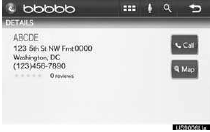
2 Touch “Go to  ”.
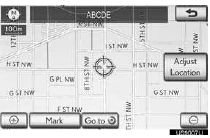
3 To start guidance, touch “OK”.
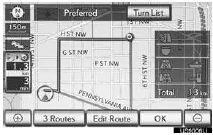
●For the operation of the route guidance screen and the function of each screen button.
MAKING A PHONE CALL USING “APPS”
Phone calls can be made to locations which were searched using “Apps”.
1 Touch “Call”.
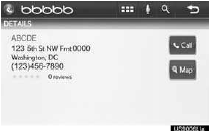
2 Touch “Yes”.

●To cancel making a phone call, touch “Cancel”.
3 A screen indicating that a call is in progress will be displayed.
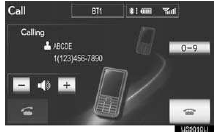
●For phone operation and the function of each screen button, refer to “Owner’s Manual”.
INPUTTING KEYWORD OPERATION
A keyword can be input to “Apps” by the software keyboard or voice recognition function.
●The keyboard layout can be changed.
INPUTTING A KEYWORD USING THE SOFTWARE KEYBOARD
1 Touch the character input space.
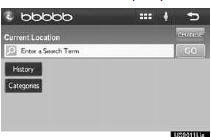
2 Touch the screen buttons to input the desired characters, and then touch “OK”.
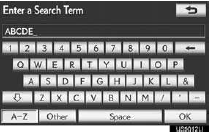
3 Input characters will be reflected on the character input space.
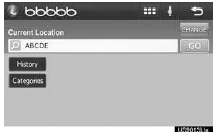
●For details on operating the keyboard.
INPUTTING A KEYWORD USING THE VOICE RECOGNITION FUNCTION
Voice recognition is a function that uses the center’s database to enable the use of the voice recognition function.
1 Touch the microphone screen button.
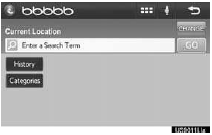
2 When this screen is displayed, say the desired keyword.
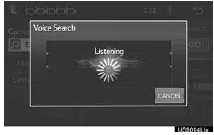
●Completion of saying the keyword will be detected automatically.
3 Search results will be displayed on the screen.
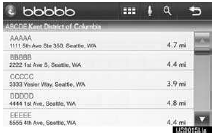
●The screen shown above is only an example.
The actual screen may be different.
Test yourself
A quick Lexus LX quiz: every answer comes with an explanation and a link to the manual page.