How to Use Pandora® (Some models)
Pandora®*1 is free personalized Internet radio. Simply enter a favorite artist, track, genre, and Pandora® will create a personalized station that plays their music and more like it. Rate songs by giving thumbs-up and thumbs-down feedback to further refine your station, discover new music and help Pandora® play only music you like.
*1 Pandora®, the Pandora® logo, and the Pandora® trade dress are trademarks or registered trademarks of Pandora Media, Inc., used with permission.
NOTE
To operate Pandora® from your Bluetooth® device, perform the following in advance:
- Create Pandora® account on the Web.
- Create Pandora® station using Pandora® application.
- Install Pandora® application on your device.
Select the  icon on the home
screen to display the Entertainment screen. When  is selected, the following icons
are indicated in the bottom part of the center display.
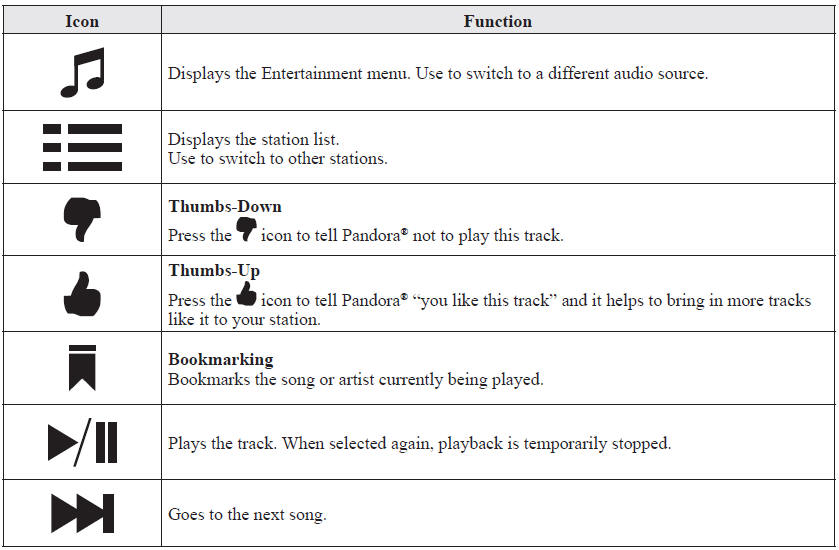

NOTE
- The skip function may not be available depending on the device.
- The number of skips is limited by Pandora®.
- If the
 icon is selected
when the skip song function is running, the next song is skipped.
Selection can be made from a programmed radio station list.
1. Select the  icon.
2. Select the desired radio station.
NOTE
When  is selected, songs randomly
selected from the radio station list are played.
The displayed order of the station list can be changed.
1. Select the  icon.
2. Select  .
3. Select  to display in the order
starting from the newly created station.
4. Select  to display in alphabetical
order.
NOTE
The displayed order of  cannot
be changed.
You can bookmark song or artist to check out later on the Web.
1. Select the  icon.
2. Select  to bookmark the song.
3. Select  to bookmark the artist.
How to Use Aha™ What is Aha™?
Aha*1 is an application which can be used to enjoy various Internet content such as Internet radio and podcasts.
Stay connected to your friends activities by getting updates from Facebook and Twitter. Using the location-based service, nearby services and destinations can be searched or realtime local information can be obtained.
For details on Aha, refer to “http://www.aharadio.com/”.
*1 Aha, the Aha logo, and the Aha trade dress are trademarks or registered trademarks of Harman International Industries, Inc., used with permission.
NOTE
- The service content provided by Aha varies depending on the country in which the user resides. In addition, the service is not available in some countries.
- To operate Aha from your Bluetooth® device, perform the following in advance:
- Install the Aha application to your device.
- Create an Aha account for your device.
- Log onto Aha using your device.
- Select the preset station on your device.
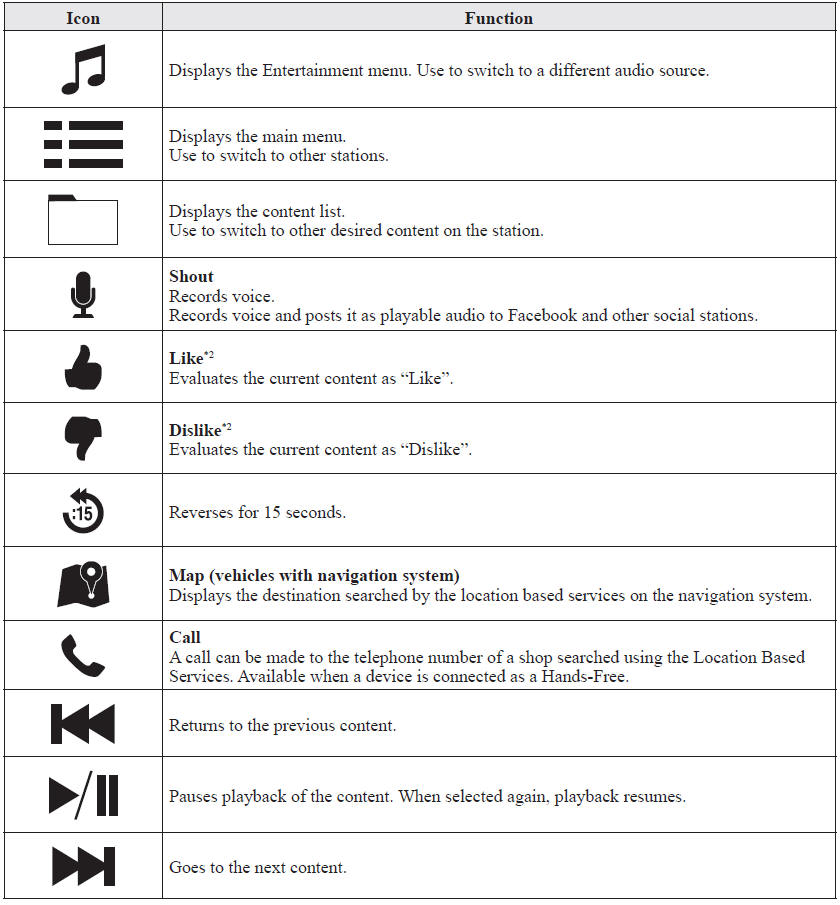
Select the  icon on the home screen
to display the Entertainment screen. When  is selected, the following icons
are displayed at the bottom of the center display. The displayed icon differs depending on the selected station. In addition, icons other than the following icons may be displayed.
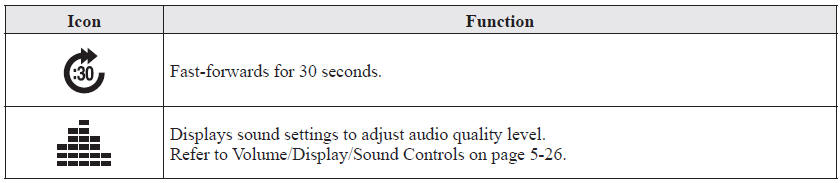
*2 Some stations may use alternate variations of Like and Dislike, based on station type or provider.
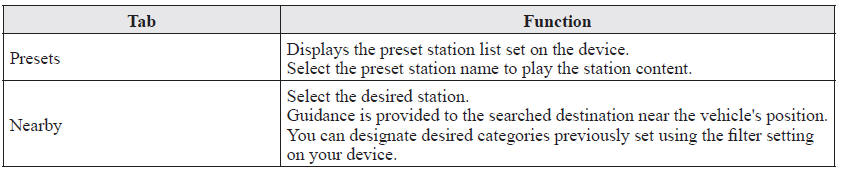
Main menuSelect the  icon.
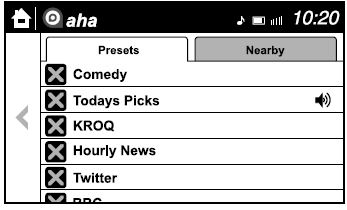
Switch the tab and select the station category.
NOTE
The available Location Based Services may differ because the services depend on the content provided by Aha™.
Example of use (Location Based Services)1. Select the desired station from the “Nearby” tab on the main menu. The destination name or address playback starts in the order of the destination name list.
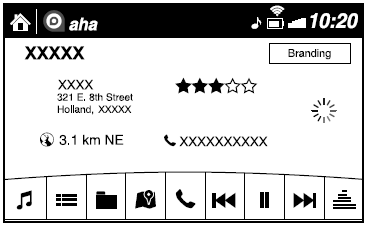
2. When the  icon is selected,
the currently displayed destination is displayed on the navigation system (vehicles with navigation system).
3. When the  icon is selected,
a phone call is placed to the currently displayed destination.
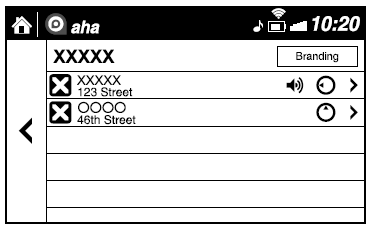
4. Select the  icon to display
the content list. Selection of other destinations from the list can be made.
Shout
Some social stations, such as Facebook or Caraoke, support the ability to record and share voice messages using the “Shout” function.
1. Select the  icon and start
the countdown (3, 2, 1, 0). Recording starts when the countdown reaches zero.
2. Records voice.
3. Select  and store/post the
recording.
NOTE
- Recordable time varies depending on the station (Max. 30 seconds).
- Recording stops automatically when the recordable time has elapsed. You can then post or delete the recording.
Test yourself
A quick Mazda 6 quiz: every answer comes with an explanation and a link to the manual page.