Navigation
Navigation check mode
In this manual: Navigation
14steps
~84min
3/5difficulty
Done 0 of 14
HINT:
- This mode displays GPS satellite information.
- Illustrations may differ from the actual vehicle depending on the device settings and options. Therefore, some detailed areas may not be shown exactly the same as on the actual vehicle.
1. ENTER DIAGNOSTIC MODE ( )
2. NAVIGATION CHECK
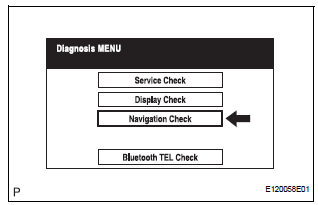
- Select "Navigation Check" from the "Diagnosis MENU" screen.
3. GPS INFORMATION
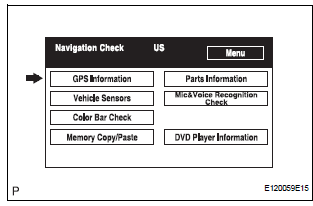
- Select "GPS Information" from the "Navigation Check" screen.
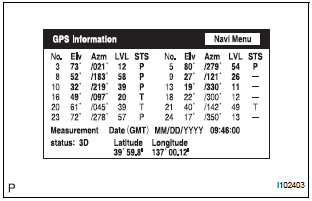
- When GPS information is displayed, check the GPS conditions.
HINT:
- This screen is updated once per second when input signals to the vehicle are changed.
- For details of this function, refer to DIAGNOSIS DISPLAY DETAILED DESCRIPTION.
4. VEHICLE SENSORS

- Select "Vehicle Sensors" from the "Navigation Check" screen.
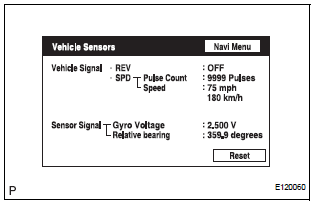
- Check all the signals and sensors when vehicle signal information is displayed.
HINT:
- This screen is updated once per second when input signals to the vehicle are changed.
- This screen displays vehicle signals input to the built-in navigation ECU.
- For details of this function, refer to DIAGNOSIS DISPLAY DETAILED DESCRIPTION.
5. COLOR BAR CHECK
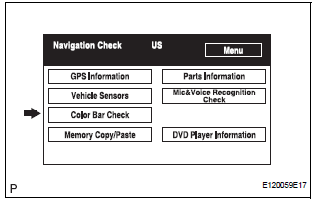
- Select "Color Bar Check" from the "Navigation Check" screen
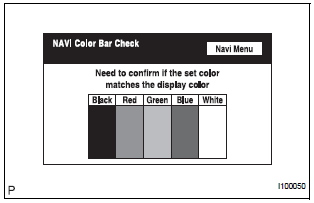
- Check each color of the color bar when the "NAVI Color Bar Check" screen is displayed.
HINT:
- Colors will not be displayed full-screen as in "Display Check Mode".
- This screen displays the built-in navigation ECU display color.
6. MEMORY COPY/PASTE CHECK
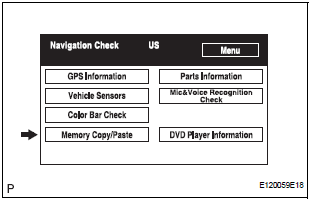
HINT: This function cannot be used.
7. PARTS INFORMATION
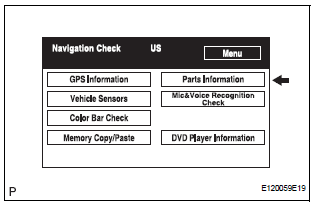
- Select "Parts Information" from the "Navigation Check" screen.

- Check the navigation and disc information when the "Parts Information" screen is displayed.
Screen Description:
Display |
Contents |
| Navigation Manufacturer/*1 | Radio and navigation assembly manufacturer is displayed |
| Navigation Version/*2 | Radio and navigation assembly version is displayed. |
| Disc Manufacturer/*3 | Map disc manufacturer is displayed. |
| Disc Version/*4 | Map disc version is displayed. |
8. MIC & VOICE RECOGNITION CHECK
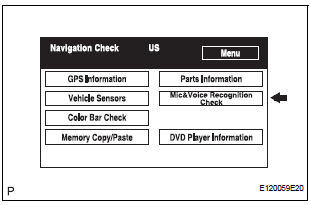
- Select "Mic & Voice Recognition Check" on the "Display Check" screen to display "MICROPHONE & VOICE RECOGNITION CHECK" screen
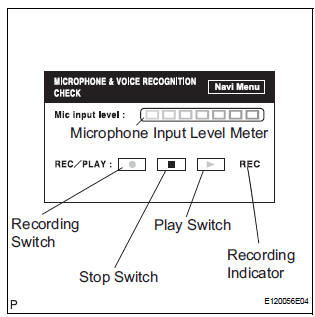
- When voice is input into the microphone, check that the microphone input level meter changes according to the input voice.
- Push the recording switch and perform voice recording.
- Check that the recording indicator remains on while recording and that the recorded voice is played normally.
HINT:
- For details of this function, refer to DIAGNOSIS DISPLAY DETAILED DESCRIPTION.
- This function is controlled by the built-in navigation ECU.
9. DVD PLAYER INFORMATION CHECK
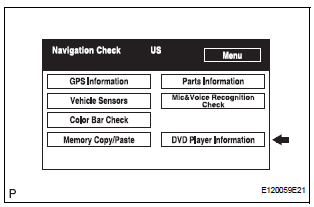
- Select "DVD Player Information" from the "Navigation Check" screen.
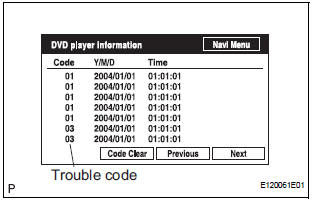
- Check for DTCs.
HINT:
- This is a DVD player check function in the radio and navigation assembly (built-in navigation ECU).
- For details of this function, refer to DIAGNOSIS DISPLAY DETAILED DESCRIPTION.
Test yourself
A quick Toyota Sienna quiz: every answer comes with an explanation and a link to the manual page.
Was this page helpful?